
The Timesheet Template: Your Blueprint for Time Tracking
Before your reporters can begin tracking their hours, you'll need to create a Timesheet Template and assign reporters to it. Think of the Timesheet Template as the blueprint for how your program wants hours to be tracked—it sets the structure reporters will follow and determines which features they'll see when completing their timesheets.
Timesheet Positions
Before you can create a Timesheet Template, you’ll first need to create at least one Timesheet Position. This is where you define the Goal Hours for a group of reporters—the total number of hours each person is expected to complete during their term.
Check out this article for help creating or updating your Timesheet Positions.
Create a New Timesheet Template
Let’s get started:
- On the left, in your Mission Control, click Timesheets.
- On the right, select Create & manage timesheet templates.
- On the next page, enter a name for your template.
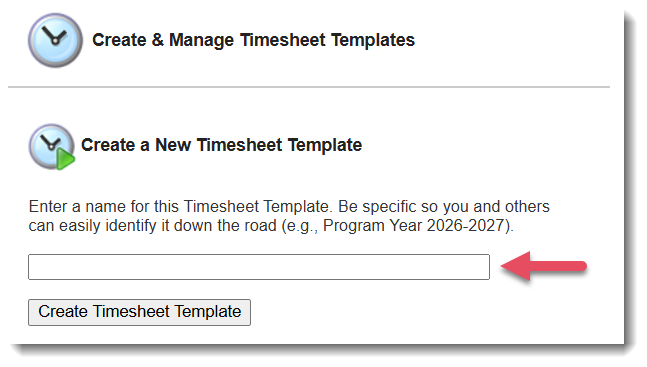
- Click Create Timesheet Template.
TIP: Generally, it's best to name your template according to the program year the template will cover (e.g., Program Year 2025-26 or 2025-26 (Program Name))
If you intend to use two or more templates for a single program year, then also include the name of the program that will be linked to that template (e.g., 2026-27 (Program Name)).
The Basics
Items in this section cover all the essential settings to get your template ready.
Complete each step of the process to move on to the next.
- Timesheet Template Name
- Active Timesheet Positions
- Start & End Dates
- Length of Each Timesheet Period
- Time Allocation Categories (and Subcategories)
- Time In and Time Out Functionality
- Copy & Paste Feature
- Default Daily "Time In"
- Time Off Reasons
- "Unallocated Time" Activity Tracking
- Submission Rules
- Hours Notification Alerts
- Text Above the Signature Area
- Number of Signers
- Audit Trail Customizations
Reminder Alerts
Want automatic email or text reminders to reporters, Timsheet Supervisors, and/or Timesheet Directors? This section of the Timesheet Template will help you set that up.
NOTE: Email alerts will be sent from donotreply@americalearns.net. Individual Reporters, Timesheet Supervisors, and Timesheet Directors must opt-in to text message alerts in order to receive text message reminders. Reporters using the Timesheet App can choose to receive Mobile App Alerts in their app settings.
Finish Line Status & Time Off Calendars
Finish Line Status is a powerful tool to help you and your reporters track progress towards their Goal Hours. It informs you of whether a reporter is Ahead, On Track, Behind, or Really Behind, and gives the reporter actionable data on how many hours they need to average per day and per week in order to finish their term successfully by their Personal End Date. To calculate this accurately, it takes into account each reporter's Personal Start Date, End Date, Blackout Days, and Time Off Calendar.
You can use Time Off Calendars even if you're not using Finish Line Status. Assigning Time Off Calendars to reporters can help them complete their timesheets more quickly and accurately. Any days marked as time off will be pre-filled on their timesheet, but reporters can still override those entries if they end up serving on those days.
For a more comprehensive overview of how to optimize use of Finish Line Status & Time Off Calendars, check out this article.
IMPORTANT: Finish Line Status is only intended to be used for reporters with a set number of Goal Hours in a defined timeframe or term. It should not be used for reporters without these requirements.
Save and Launch Timesheet Template
To save and enable your Timesheet Template’s launch, at the bottom of the page, click Create Timesheet Template. 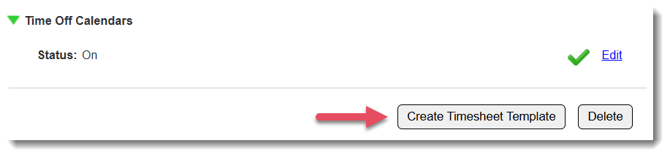
If you set your start date to today or earlier, your Timesheet Template will go live as soon as you connect it to reporters.
You’ll see the option to Delete a template until reporters have been assigned to it and have submitted at least one timesheet.