Time Off Calendars
Time Off Calendars are a built-in way to speed up timesheet completion when reporters have a consistent or semi-consistent schedule.
For example, if reporters typically don’t serve on weekends and federal holidays, you can create a calendar that automatically marks Saturdays and Sundays as “Not Scheduled to Serve” and federal holidays as "Holiday".
NOTE: Assigning accurate Time Off Calendars to every reporter is essential when using Finish Line Status. However, you can still use Time Off Calendars even if you choose not to enable Finish Line Status.
Create a New Time Off Calendar
Follow these steps to create a Time Off Calendar:
- On the left, in your Mission Control, click Timesheets.
- On the right, select Create & manage timesheet templates.
- At the bottom of the page, under Manage & Clone Existing Templates, click the template you'd like to edit.
- Click Finish Line Status & Time Off Calendars.
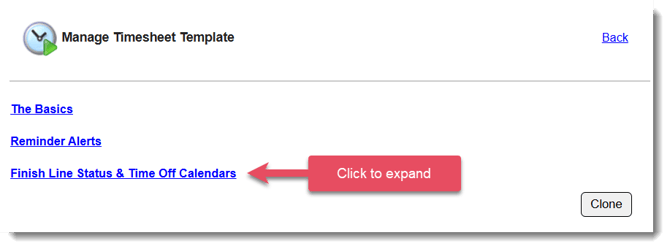
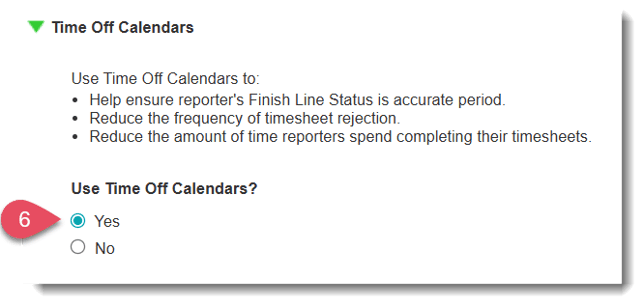
- Open the Time Off Calendars section.
- Select Yes under Use Time Off Calendars?
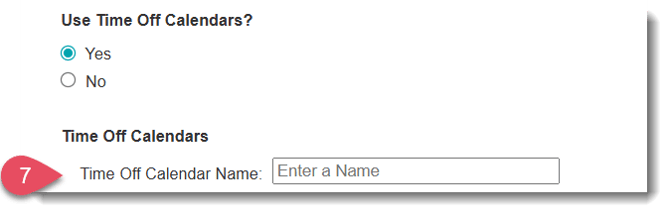
- Enter a unique name for your Time Off Calendar:
- You'll see the Time Off Reasons that you have designated to be used for the Time Off Calendar listed, if you'd like to make changes to this list click update next to Time Off Reasons.
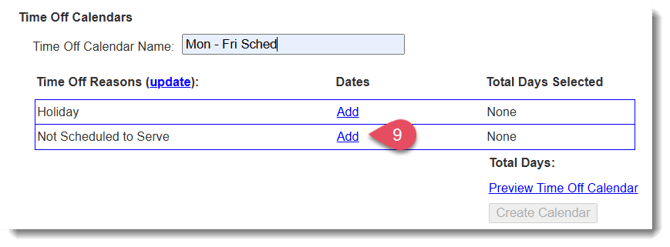
For more guidance on managing Time Off Reasons, check out this article. - Click Add next to the Time Off Reason you'd like to assign dates for in the Time Off Calendar.
- A new window with a calendar will open. There are a few ways you can select dates in this space:
- One-by-one - simply select a date on the calendar
- Click Optional: Use a pre-selected date group - to quickly select all Weekend Days, all Federal Holidays, all Mondays, etc.
- If you use a pre-selected date group - you can still add more dates or deselect a date as needed.
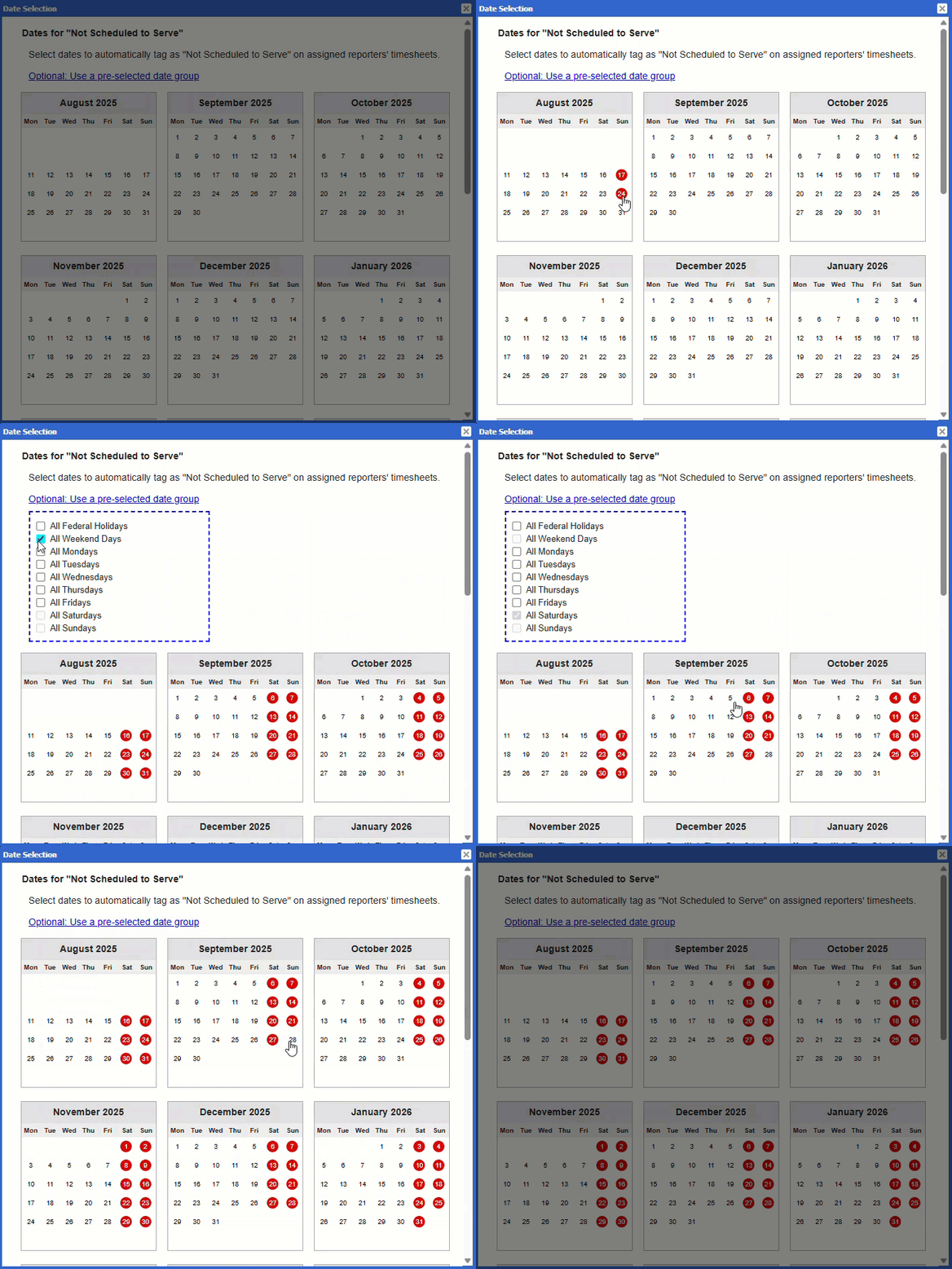
- One-by-one - simply select a date on the calendar
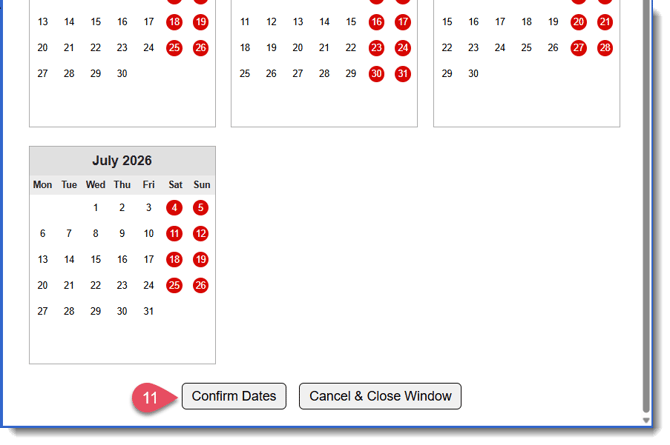
- Once finished selecting dates for this Time Off Reason, scroll to the bottom of the calendar and select Confirm Dates to save.
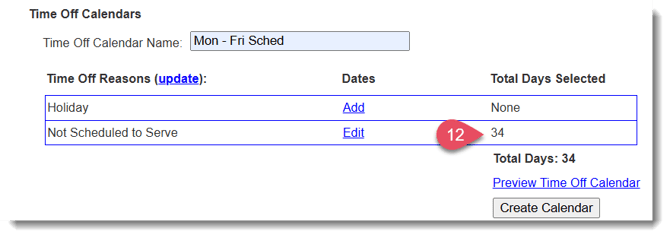
- You'll see the Total Days Selected count get updated based on the date selections you made.
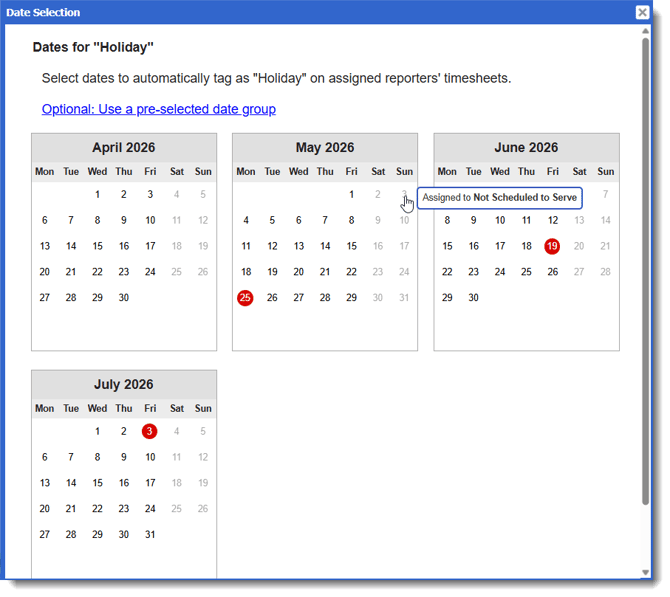
- Follow Steps 9-11 again to add dates to the other Time Off Reasons. You'll notice that if a date has already been given another Time Off Reason, it will no longer be selectable in the calendar:
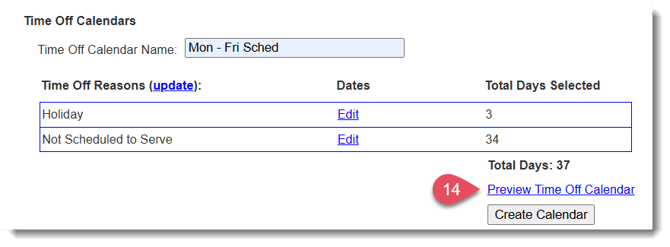
- Once you have finished assigning dates to all your Time Off Reasons, you can preview your completed calendar by selecting Preview Time Off Calendar.
A new window will open. Hovering over a date will let you know it's assigned Time Off Reason: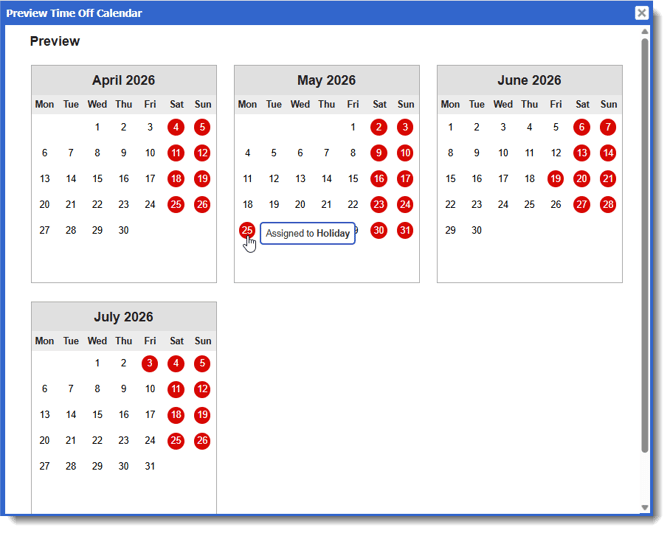
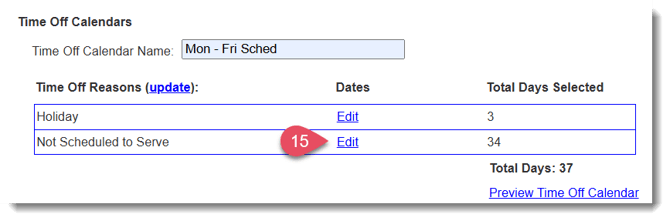
- If you ever need to make changes to the dates, simply select Edit next to the Time Off Reason dates you'd like to update.
- Click Create Calendar to finish.
- Your saved Time Off Calendar will appear on this table, there are a number of actions you can take in this space to manage your existing Time Off Calendars and create new ones:
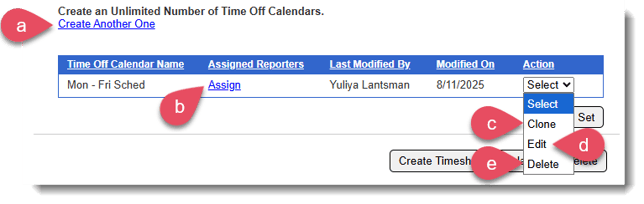
- Select Create Another One to add a new Time Off Calendar
- Select Assign to assign reporters to this Time Off Calendar.
NOTE: You will only see reporters who have been assigned to this Timesheet Template listed here. - Select Clone to create a copy of your calendar.
- Select Edit to make updates to selected dates and their assigned Time Off Reasons.
- Select Delete to delete the calendar.
- Select Create Another One to add a new Time Off Calendar
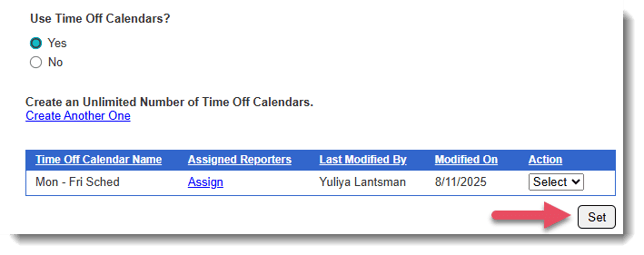
- Finally, select Set when you have finished creating or updating your Time Off Calendars.
Reporter View of Time Off Calendars
Timesheet
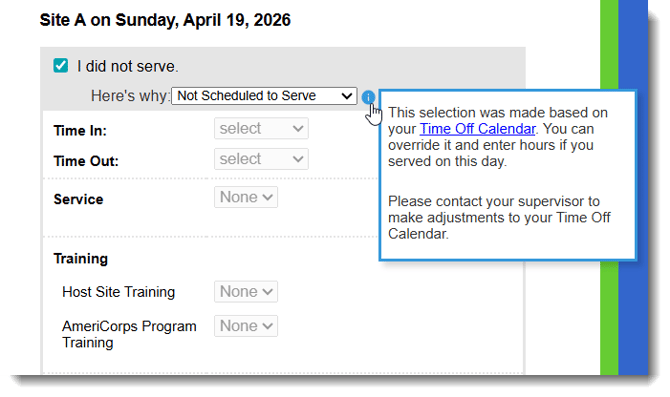
When a reporter completes their timesheet, any days with a Time Off Reason from their Time Off Calendar will appear pre-filled. If they did serve on one of those days, they can override the pre-filled Time Off entry:
Timesheet Dashboard
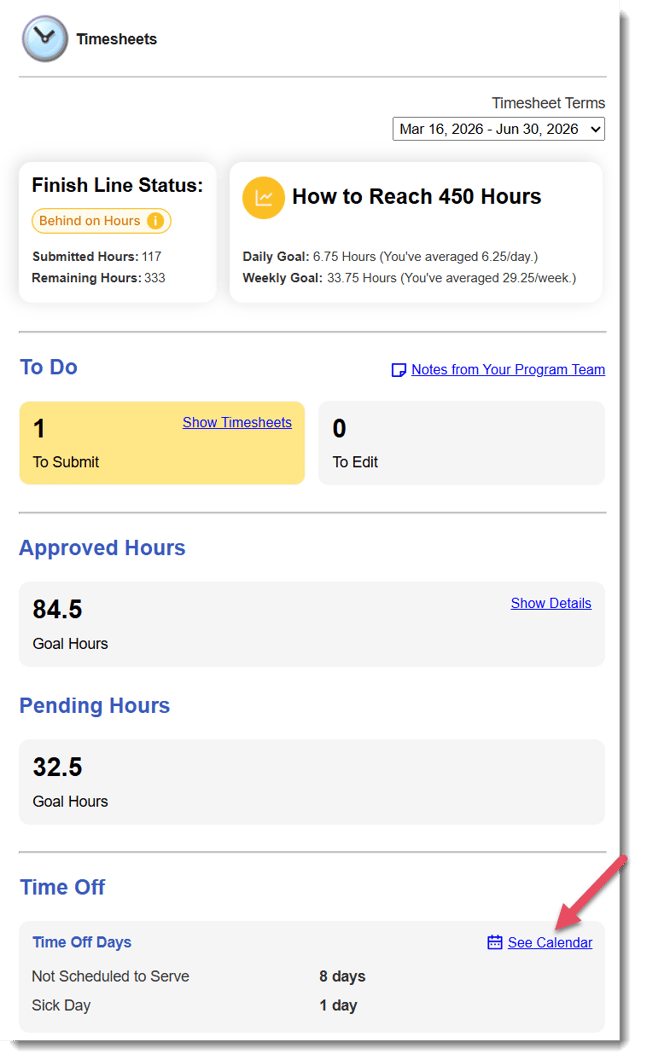
Reporters can view their assigned Time Off Calendars directly from their Timesheet Dashboard.