
Hours Notifications Alerts
You can have the system send instant email alerts to designated admins when a reporter submits a timesheet with an abnormally low or high number of hours.
IMPORTANT: These alerts do not block reporters from submitting timesheets, even if the hours they enter are abnormally low or high based on your settings.
To navigate to this section of your Timesheet Template settings, follow these steps:
- On the left, in your Mission Control, click Timesheets.
- On the right, click Create & manage timesheet templates.
- Select the template that you’d like to edit.
- Expand the section of the template called The Basics.
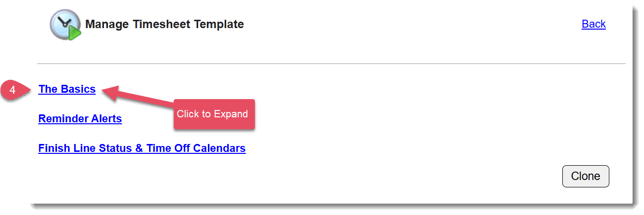
- In the section Hours Notification Alerts, click Edit.
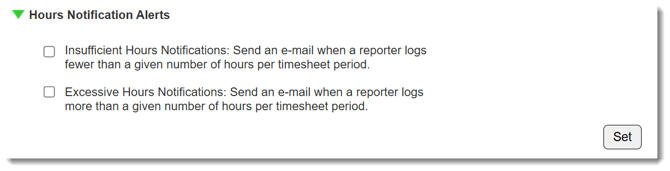
Insufficient Hours Notifications
To activate Insufficient Hours Notifications (in which e-mail alerts are sent when reporters log an abnormally low number of hours):
- Click the Insufficient Hours Notifications checkbox, a pop-up window will open:
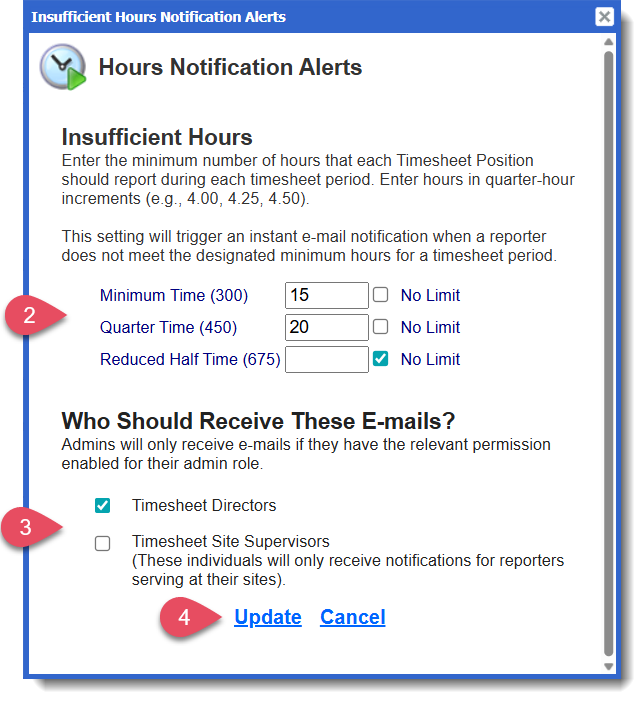
- In this section, note the minimum number of hours that reporters belonging to each Timesheet Position should log per timesheet period.
Email notifications will be sent only when a submitted timesheet falls below the minimum you set. If you choose “No Limit” for a Timesheet Position, email notifications will not be sent for reporters in that position.
- In the section, select whether Timesheet Directors and/or Timesheet Supervisors should receive the notifications.
Timesheet Supervisors and Timesheet Directors will receive these notifications only if their admin role settings include the permission to receive these alerts. To see how to update admin role permissions, check out this article.
- Click Update.
NOTE: You can update these settings at any time by returning to your Timesheet Template management page.
Excessive Hours Notifications
To activate Excessive Hours Notifications (in which e-mail alerts are sent when reporters log an abnormally low number of hours):
- Click the Excessive Hours Notifications checkbox, a pop-up window will open:
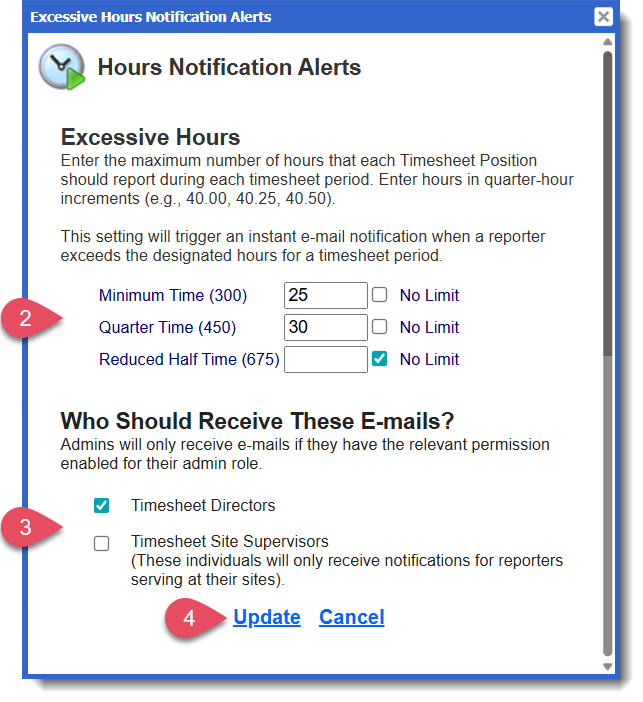
- In this section, note the maximum number of hours that reporters belonging to each Timesheet Position should log per timesheet period.
Email notifications will be sent only when a submitted timesheet falls above the maximum you set. If you choose “No Limit” for a Timesheet Position, email notifications will not be sent for reporters in that position.
- In the section, select whether Timesheet Directors and/or Timesheet Supervisors should receive the notifications.
Timesheet Supervisors and Timesheet Directors will receive these notifications only if their admin role settings include the permission to receive these alerts. To see how to update admin role permissions, check out this article.
- Click Update.
NOTE: You can update these settings at any time by returning to your Timesheet Template management page.