
This section of the Timesheet Template controls how you view timestamps in the Audit Trail for key timesheet actions, including when timesheets are:
- Submitted
- Approved
- Returned for edits
- Re-submitted (after corrections were made)
- Re-Approved (after edits were approved)
To update the settings for Audit Trail Customizations, follow these steps:
- On the left, in your Mission Control, click Timesheets.
- On the right, click Create & manage timesheet templates.
- Select the template that you’d like to edit.
- Expand the section of the template called The Basics.
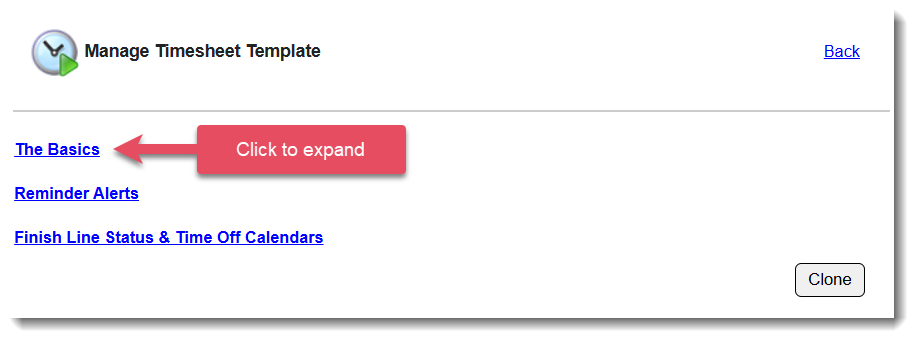
- In the section Audit Trail Customizations, click Edit.
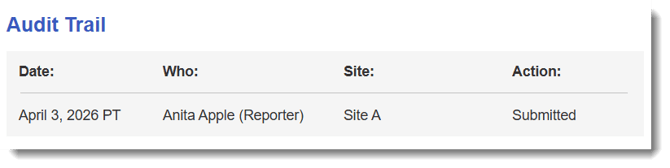
- Choose whether or not you would like the audit trail to:
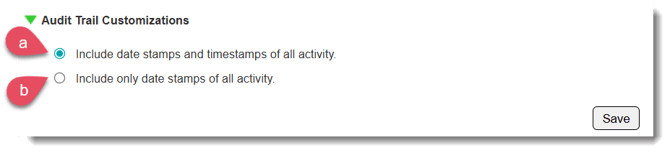
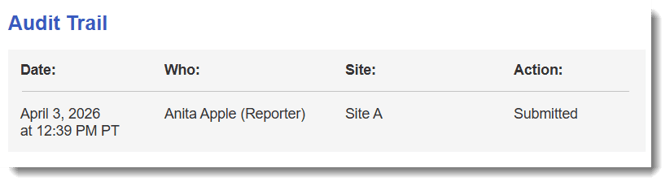
- Include date and time stamps of all activity
OR - Include only date stamps of all activity.
- Include date and time stamps of all activity
NOTE: You can change this setting at any time, and updates will take effect immediately. Your selection will apply everywhere the Audit Trail appears, including:
-
Timesheet screening page
-
Printable Timesheet Exports (both Full and Condensed PDFs)
-
Timesheet Period Export