
Follow these steps to clone an existing timesheet template:
- On the left, in your Mission Control, click Timesheets.
- On the right, click Create & manage timesheet templates.
- Near the bottom, select the template that you’d like to clone.
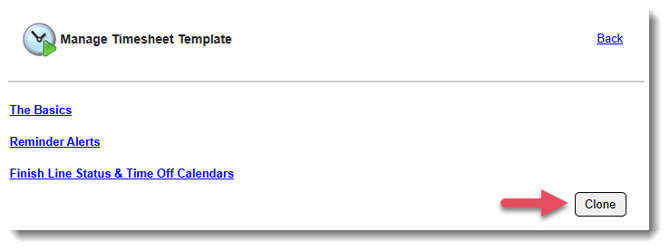
NOTE: Timesheet templates will appear in alphanumeric order on this page (with numbers appearing before letters). - At the bottom of the page, click the Clone button.
- A pop-up window will ask you to name the new template and select the new template's start and end dates:
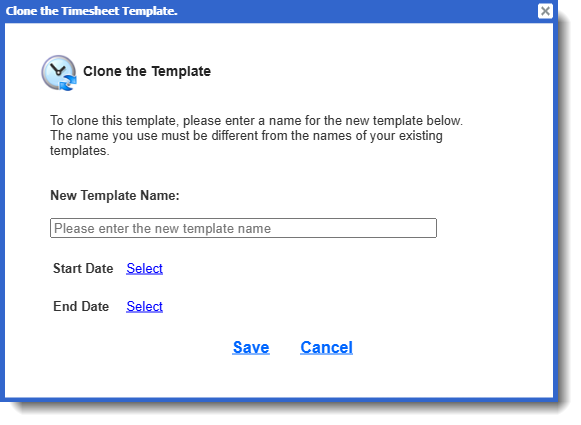
- Click Save. You'll be taken to a page to finish customizing your new template.
IMPORTANT: The following parts of your Timesheet Template do not carry over when you clone. You’ll need to set them up again on the new template:
For a deeper dive into how to configure each section of your Timesheet Template, explore this article.