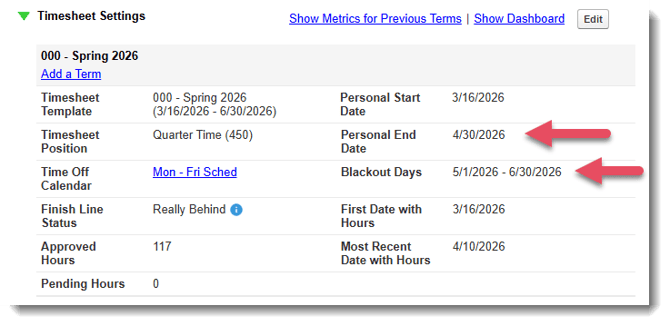
If your reporter’s Personal End Date changes, you can update it directly in their profile.
NOTE: If the reporter submitted timesheet data that falls after the new Personal End Date, you’ll need to delete those timesheets before you can save the updated date. See this article for step-by-step instructions on deleting timesheets.
Here’s how to change a reporter's personal end date:
-
On the left, in your Mission Control, click Reporters, Admins, & Sites.
-
On the right, click Manage reporter accounts.
-
Click on the name of the reporter you would like to update.
-
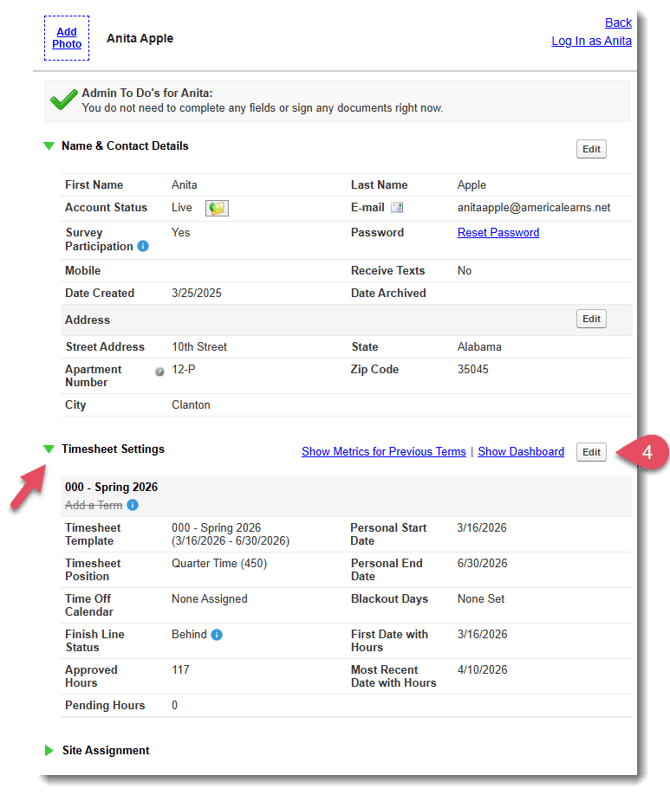
Find the Timesheets Settings panel, and click the Edit button.
-
A pop-up window will open.
NOTE: If you haven’t set Personal Start and Personal End Dates, the system will default these to match the Timesheet Template’s start and end dates.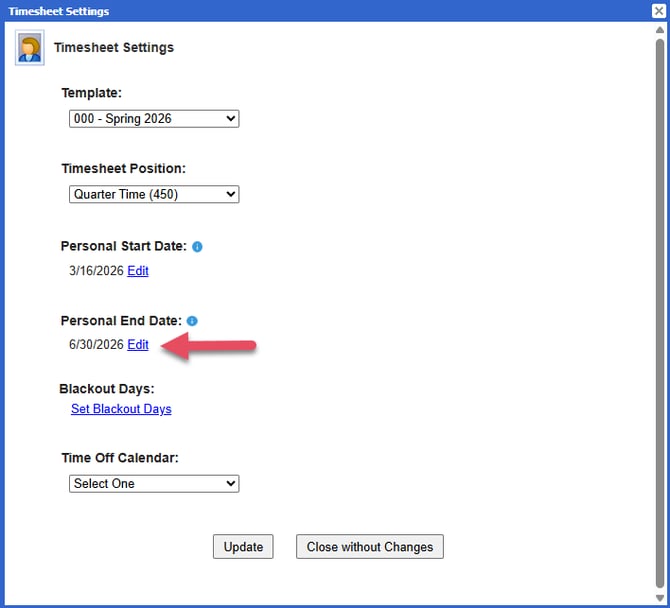
-
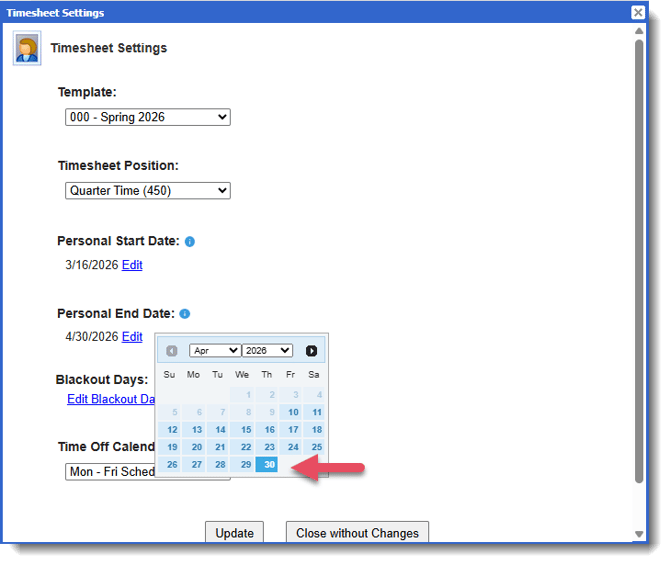
Click Edit next to the Personal End Date, and select the new date from the calendar.
-
Click Update to save your changes.
-
You’ll now see the updated Personal End Date in the profile, along with a new automatic blackout period covering the remainder of the timesheet template.