
CAUTION: Permanently deleting a timesheet is irreversible. The timesheet and all data on it will be removed. The reporter will need to complete that timesheet again unless you have a blackout period that covers the entire timesheet period. For guidance on setting up blackout periods, review this article.
If you want to keep the timesheet on record but prevent any hours from counting toward Goal Hours, you can disallow the timesheet instead. Learn more in this article.
Follow these steps to delete a timesheet:
- On the left, in your Mission Control, click Reporters, Admins, & Sites.
- On the right, select Manage reporter accounts.
- Select the reporter whose timesheet you need to delete.
- Find the Timesheet Settings panel in the reporter's profile, and select
Show Dashboard.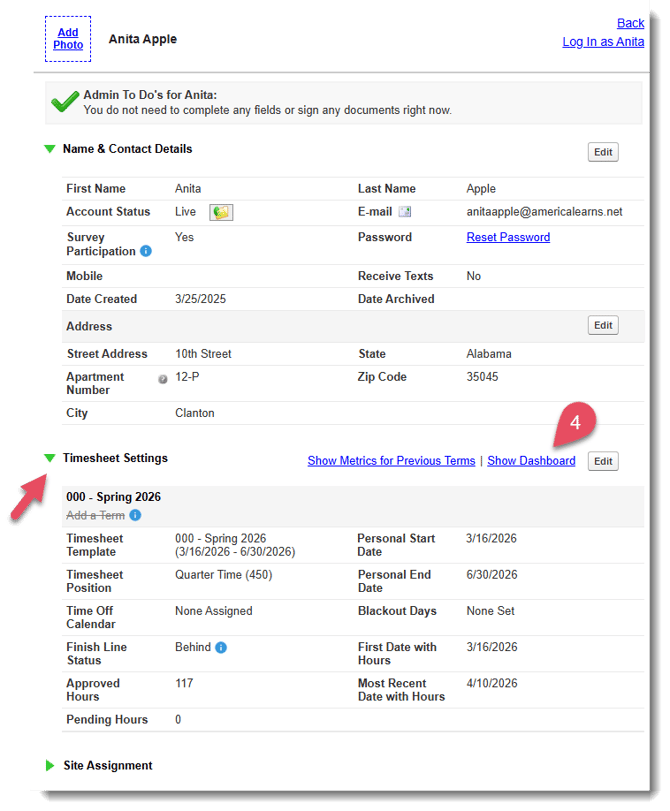
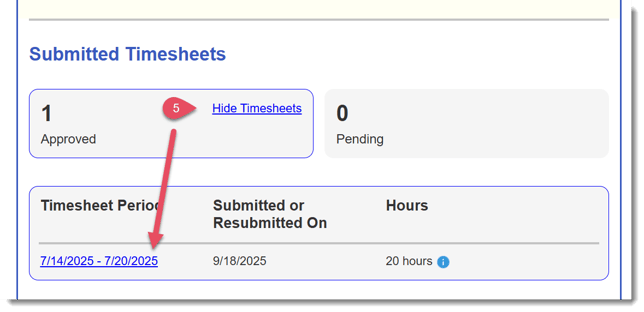
- In the section Submitted Timesheets in the Reporter's Dashboard, click Show Timesheets and select the timesheet you wish to delete. You can delete both Approved or Pending timesheets.
- Scroll to the very bottom of the timesheet and click Permanently Delete.
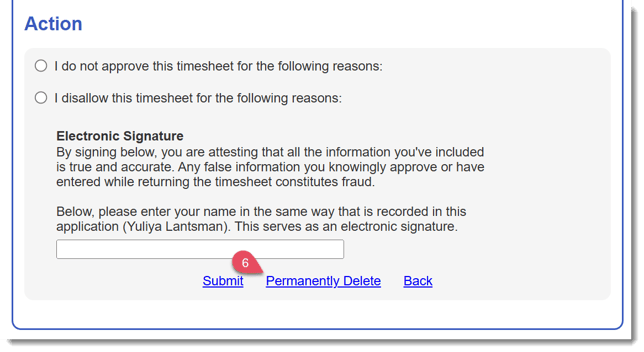
- In the pop-up window, click the button to confirm that you wish to Permanently Delete.