
Additional Timesheet Details
There may be times you'll want to track the following timesheet details for reporting purposes:
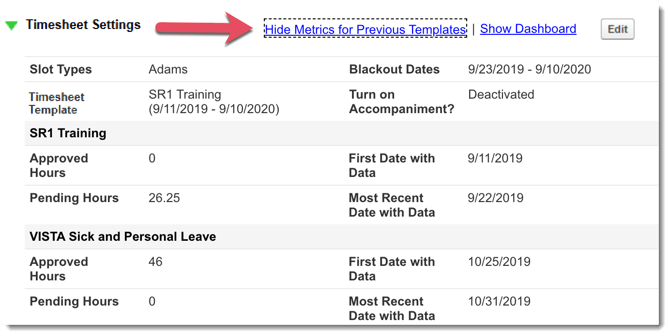
- Approved Hours: Most recent hours total of all approved Timesheets. (Anything Other than a Blackout Date)
- Pending Hours: The count of the most recent hours from all submitted Timesheet that have not been approved.
- First Date with Data: The first date that was submitted on any timesheet.
- Most Recent Date with Data: This is the most recent date that data was submitted on an approved Timesheet
Tracking in the Individual Reporter Profile
To view individual member details:
-
On the left, in your Mission Control, click Reporters, Staff & Sites.
-
On the right, click Create and manager reporters.
-
Click the relevant reporter’s name.
-
Open the Timesheet Settings panel.
IMPORTANT: This data can be viewed for Reporters across templates. If your reporter has been assigned to one or more templates, this link will appear and you can either:
• Show Metrics for Previous Templates, or;
• Hide Metrics for Previous Templates
Tracking Data in the Timesheet Reports
You can view this data for groups of Reporters in a Program-wide data or Site data Timesheet Report.
To get there, follow these steps:
- On the left, in your Mission Control, click Timesheets.
-
On the right, select either View program-wide data or View site data.
- On the next page, select the Timesheet Template at issue.
Note: After selecting the timesheet template from the drop-down, your Impact Suite will automatically pre-select this option on all relevant pages. Additionally, the system will remember your selection even after logging out and back in. - At the bottom of the page, select Build Custom Reports.
- Under Select Data to View or Export, click on The Basics. You'll want to make sure you include one (or more) of the following details in this report:
- Approved Hours
-
- Pending Hours
-
- First Date with Data: The first date that was submitted on any timesheet.
-
- Most Recent Date with Data: This is the most recent date that data was submitted on an approved Timesheet.
For more information, see this article to run this report: custom reports: creating timesheet reports at the program-wide and site levels