
Overview
The Single Row Export by Reporter provides a flexible way to export reporter survey response data from the Impact Suite.
Unlike traditional survey exports, this export is designed around submission-level reporting and operational workflows. Most non-matrix survey data is consolidated into a flat worksheet, making it easier to:
- filter and sort responses in Excel,
- combine data with external systems,
- review submission activity across launches,
- troubleshoot missing responses,
- and export uploaded media files.
This export also includes advanced options not available in other export types, including:
- downloadable Media Upload ZIP files,
- contextual explanations for missing data,
- inclusion of reporters who did not submit surveys,
- and optional reporter profile data exports.
Access the Single Row Export by Reporter
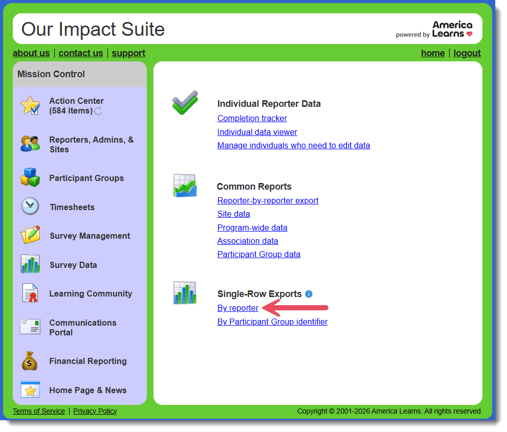
- On the left, in your Mission Control, click Survey Data.
- On the right, under Single-Row Exports, click by reporter.
Step 1: Choose Your Data
You can pull your export data in two ways:
- By Form Name
- By Questions
Option 1: By Form Name
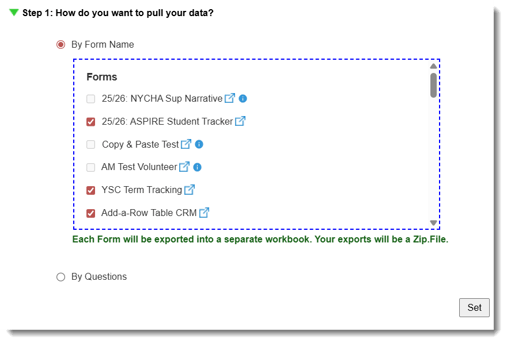
Use this option when you want to export all applicable data from one or more forms.
-
- Select By Form Name.
- Choose one or more forms.
- Click Set.
If you select multiple forms:
-
- each form will export into a separate workbook,
- and data from different forms will not be combined into a single workbook.
Forms are listed in chronological order based on when they were created.
Only forms containing reporter-facing questions will be selectable.
Forms that contain only group-facing questions will appear unavailable because they do not contain applicable reporter data.
If you select multiple forms:
-
- each form will export into a separate workbook,
- and data from different forms will not be combined into a single workbook.
Option 2: By Questions
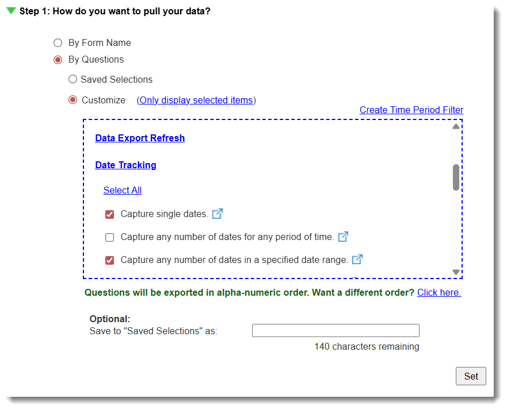
Use this option when you want to export specific survey questions across forms.
-
- Select By Questions.
- Click Customize.
- Select the questions you would like to include.
- Enter a name for your saved selection.
- Choose whether the saved selection should be:
- available only to you,
- or available to all staff with access.
- Click Save.
- Click Set.
Saved question selections can also be reused in other report types.
Step 2: Select a Date Range
You can export data:
- by Launch Period,
- or by Date.
Option 1: By Launch Period
-
- Select By Launch Period.
- Use the From and To drop-down menus to select your launch range.
- Optional: Click Select specific reports from this period to choose individual launches.
- Click Set.
Only launch periods associated with the selected forms or questions will appear.
Option 2: By Date
-
- Select By Date.
- Choose your start and end dates.
- Click Set.
Only launch dates associated with the selected forms or questions will appear.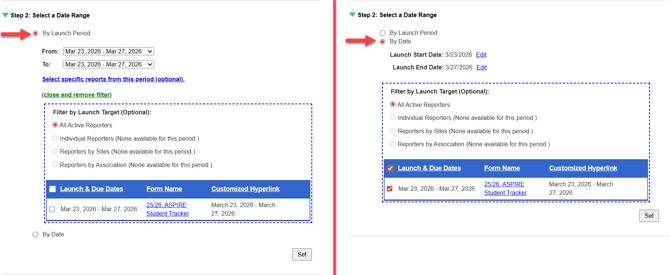
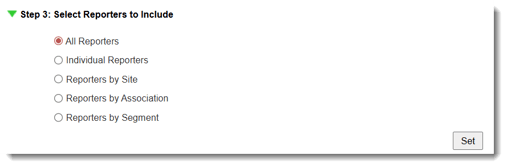
Step 3: Select Reporters to Include
Choose which reporters should appear in the export.
Options include:
- All Reporters
- Individual Reporters
- Reporters by Site
- Reporters by Association
- Reporters by Saved Segment
When filtering by reporters, sites, or associations, only reporters assigned to the selected launches will appear.
- Choose your desired reporter selection method.
- Make your selections.
- Click Set.
Step 4: Choose Export Options
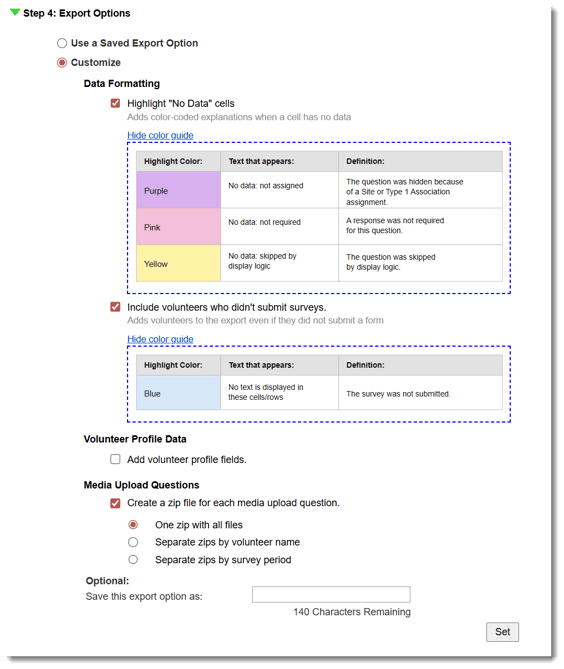
Step 4 allows you to customize how your export behaves.
You can:
- apply missing-data highlights,
- include reporters who did not submit surveys,
- include reporter profile data,
- export Media Upload files as ZIP files,
- or save your export configuration for reuse.
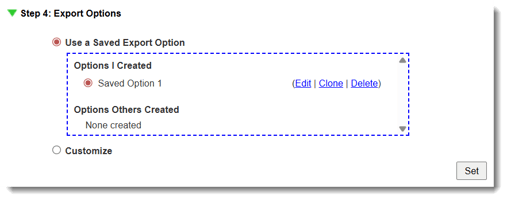
Option 1: Use a Saved Export Option
Use a previously saved export configuration.
-
- Select Use a Saved Export Option.
- Choose your saved option.
- Click Set.
Option 2: Customize
Use this option to create a custom export configuration.
Missing Data Highlights
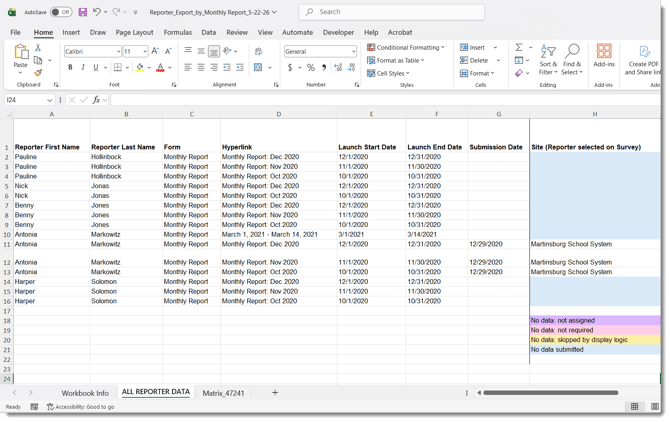
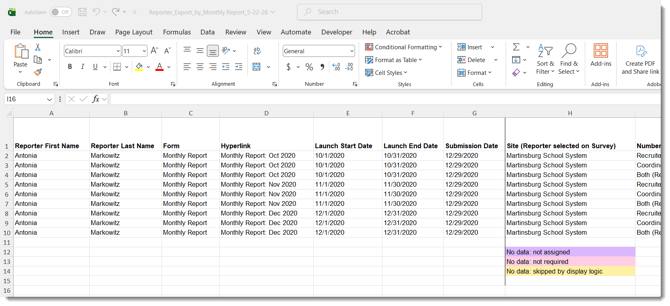
You can apply color-coded highlights that explain why data may be missing from a response.
Enable:
- Add highlights to cells when there is no data
These highlights help reduce confusion when reviewing exported survey data.

Include Non-Reporters
Enable:
- Include reporters who did not submit surveys
This option is useful when you want to review:
- participation,
- completion gaps,
- or overall submission activity.
Rows for non-submitters will appear with blue highlighting.
Include Reporter Profile Data
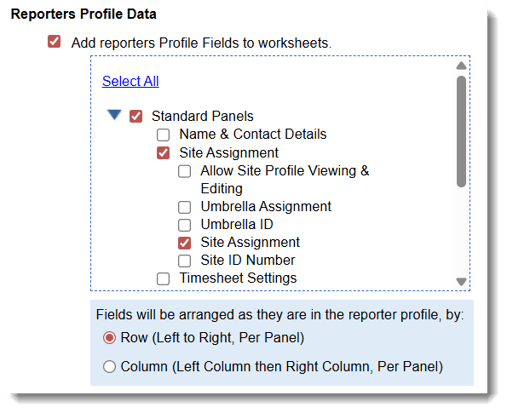
You can include reporter profile fields directly in the export worksheets.
- Enable:
- Add reporters Profile Fields to worksheets
- Choose the standard or custom profile panels and fields to include.
Export Media Upload ZIP Files
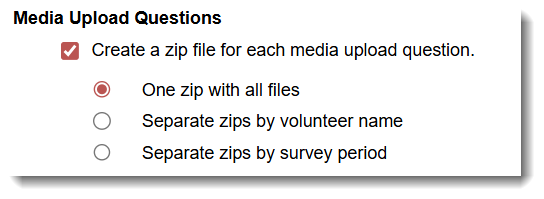
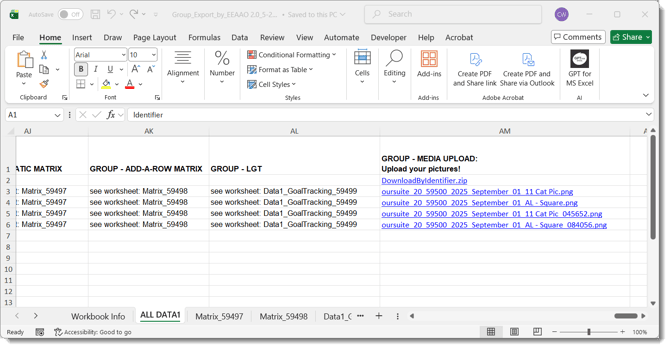
Single-Row Exports are the only exports that allow Media Upload question responses to be exported as downloadable ZIP files.
Enable:
- Create a zip file hyperlink for each Media Upload Question
You can organize ZIP files:
- by file name,
- by reporter name,
- or by launch period.
Organizing by reporter name is especially useful when multiple uploaded files belong to the same reporter.
Save Your Export Configuration
To reuse your export setup later:
- Enter a name in:
- Save this export option as
- Choose who can access the saved option.
- Click Set.
Saved export options can simplify recurring reporting workflows.
Run the Export
Once all steps display green checkmarks:
- Click Export to Excel.
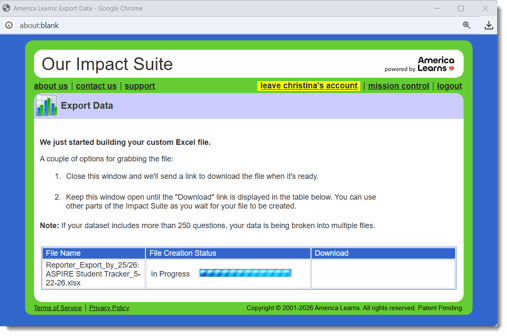
- Wait for the export window to appear.
You can:
- wait for the download link,
- or close the window and receive an email notification when the export is ready.
Understanding the Export Workbook
The export workbook includes several worksheets depending on the data included.
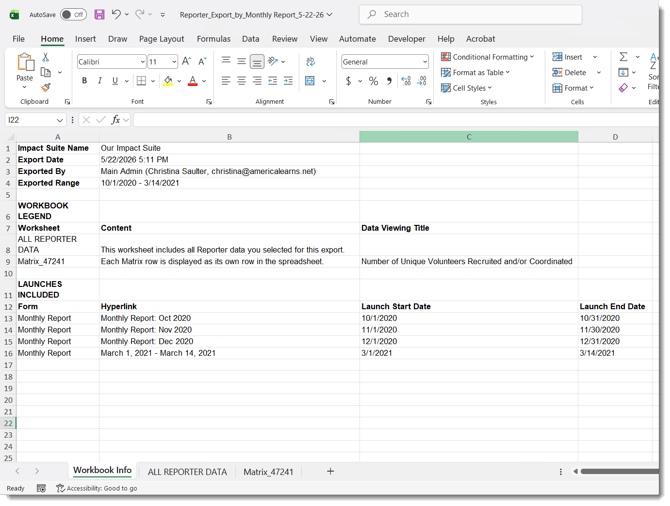
Workbook Info Worksheet
The Workbook Info worksheet provides:
-
- export date and time,
- exporter name,
- export range,
- included forms,
- included launches,
- worksheet definitions,
- and workbook metadata.
This worksheet replaces the traditional export legend.
All Reporter Data Worksheet
The All Reporter Data worksheet contains the primary flat-file export data.
Each reporter receives:
-
- one row per launch period,
- along with associated response data,
- metadata,
- and optional profile information.
Missing-data highlights and media upload hyperlinks also appear here.
Matrix Worksheets
Matrix question responses continue to export into separate worksheets.
Each matrix question receives its own worksheet.
Missing-data highlight logic also applies to matrix worksheets.
Media Upload ZIP Files
If Media Upload ZIP exports were enabled:
-
- hyperlinks will appear in the export workbook,
- and selecting a hyperlink will download the ZIP file.
ZIP files may contain:
-
- uploaded photos,
- documents,
- videos,
- or other uploaded media files.
Tips
- Selecting multiple forms creates multiple workbooks.
- Group-related questions do not appear in reporter exports.
- Use missing-data highlights when troubleshooting skipped or hidden responses.
- Include non-submitters when reviewing participation or completion rates.
- Media upload ZIP exports may take longer to generate for large datasets.