

How do I enroll a Fellow who participated in Cohort 1 into Cohort 2?
There are two ways to update Fellows who participated in Cohort 1 and who are now participating in Cohort 2: manually (one-by-one) or by using Excel (more than one Fellow).
Updating Returning Fellows Manually (One-by-One)
Here are the steps:
- On the left, in your Mission Control, click Fellows, Staff, & Community Host Sites.
- On the right, click Manage fellow accounts.
- You can find the Fellow you'd like to re-enroll and click their name to open their profile.
- If you need to, you can open the Community Host Partner Assignment panel and update their Community Host Partner by clicking Edit.
- Open the Timesheet Settings panel and click Edit.
- IMPORTANT: If your Fellow's Timesheet Association (Fellowship Type) is changing, you will need to follow this procedure or you will corrupt Cohort 1 Data.
When the window opens, DO NOT CHANGE THEIR TIMESHEET ASSOCIATION ASSIGNMENT.
Only change their Timesheet Template assignment from 2022-23 (Cohort 1) to 2023-24 (Cohort 2).
Click Update.
Return to the Timesheet Settings panel and click Edit.
When the window opens, update their Timesheet Association Assignment and add any Blackout Dates. (To find out more about blackout dates, check out this article. Or review the Blackout Date Academy in our Campus Staff Certification Course.)
Click Update. - If your Fellow's Timesheet Association (Fellowship Type) is NOT changing, you will follow this procedure:
When the window opens, you won't need to do anything to the Timesheet Association. (If this is changing, see the section above!)
Change their Timesheet Template assignment from 2022-23 (Cohort 1) to 2023-24 (Cohort 2).
Update their Timesheet Association Assignment and add any Blackout Dates. (To find out more about blackout dates, check out this article. Or review the Blackout Date Academy in our Campus Staff Certification Course.)
Click Update.
- IMPORTANT: If your Fellow's Timesheet Association (Fellowship Type) is changing, you will need to follow this procedure or you will corrupt Cohort 1 Data.
- Next, open the Associations & Campus Profile Groups panel. Find the Type 1 Associations sub-panel and click Edit. When the window opens, update the following:
- Cohort (Year). Ensure that BOTH Cohort 1 (2022-23) & Cohort 2 (2023-24) are selected.
- Next, open the Fellow Details - Cohort 2 (2023-24) panel. Find the Enrollment Details sub-panel and click Edit. When the window opens, update the following:
- Fellowship Type (This will be the same as the Fellow's Timesheet Association.),
- System, and
- Focus Area.
- Click Update to save any changes.
- That's it! Your Fellow set for the new Cohort Year!
Updating Returning Fellows Using Excel (for More than One Returning Fellow)
For this method, you want to first export relevant details from the Fellows' profiles to Excel and then move that data into Cohort 2 New Fellow Enrollment Template from Google Drive before updating their accounts.
-
On the left-hand side of your Mission Control, click Fellows, Staff & Community Host Partners.
-
On the right, click Manage fellows accounts.
-
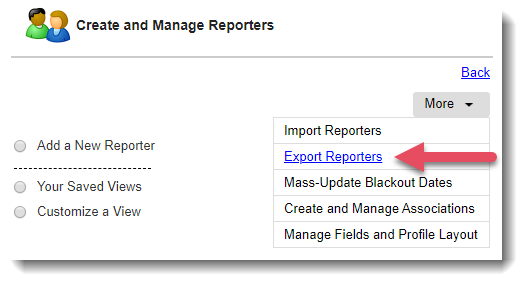
Towards the top-right, use the More drop-down menu to select Export Fellows.
-
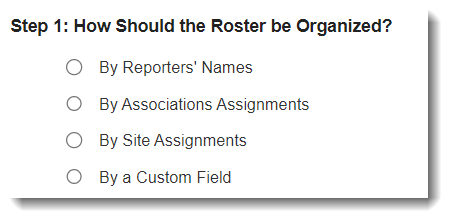
Choose how you’d like to organize your roster:
-
On the right, click the Select Fields to Include button.
-
Next, choose these fields:
-
Name & Contact Details: First Name
-
Name & Contact Details: Last Name
-
Name & Contact Details: E-mail
-
Community Host Partner Assignment: Community Host Partner Assignment
-
Community Host Partner Assignment: Campus Assignment
-
Timesheet Settings: Timesheet Type
-
Associations: Type 1 Associations: County
-
Fellow Details - Cohort 2 (2023-24): Enrollment Details: Fellowship Type
-
Fellow Details - Cohort 2 (2023-24): Enrollment Details: System
-
Fellow Details - Cohort 2 (2023-24): Enrollment Details: Focus Area
-
- As you add fields, you’ll notice that the preview table at the bottom of the page will adjust to display the new information.
- Click the Export to Excel button. Open the Excel export.
- Now, export the Cohort 2 New Fellow Enrollment Template from Google Drive to Excel.
- You will now copy & paste the data from the Excel export to the Cohort 2 template. (You'll see that some of the data is already filled in on the template with the necessary information.)
- Next, follow the steps below to update your Fellows.
IMPORTANT NOTE: If your Fellow's Community Host Partner is changing you will still need to manually REMOVE their old Community Host Partner assignment in their profile. You cannot REMOVE this assignemt using the Excel
Steps for Enrolling New (and Updating Returning) Fellows Using Excel
To enroll (or update) more than one Fellow, use Excel by following these steps:
-
On the left, in your Mission Control, click Fellows, Staff, & Community Host Partners.
-
On the right, click Manage fellow accounts.
-
On the right, in the More menu, select the Import Fellows link.
-
Download or copy the Cohort 2 New Fellow Enrollment Template from Google Drive.
Complete the template and save it as a '.xlsx' document and save it to your computer or device.
Don't forget to delete the worksheet called 'DELETE BEFORE UPLOAD.' -
At the top of the page, under the Step 1, select either: Add New Fellows or Update Existing Fellows.
Keep in mind that you have to import new and existing Fellows using separate Excel sheets and at separate times.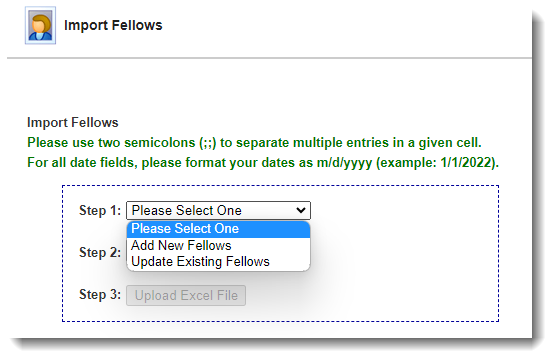
-
In Step 2, select your file by clicking the Choose File button.
-
In Step 3, click Upload Excel File.
-
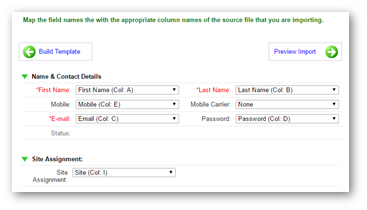
Next, map your fields to the fields available in your Impact Suite.
-
Once you have mapped your fields, click the Preview Import button to move to the next step.
Note: if there are Excel columns or Impact Suite fields that you have not mapped, you will get a message like this from the system: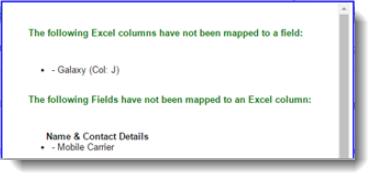
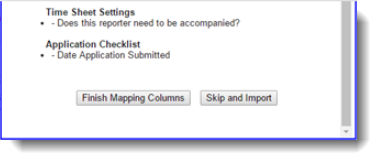
-
(If no errors are found skip to #12.)
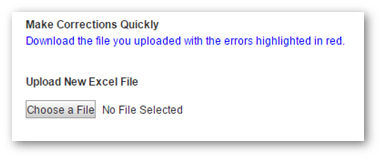
If errors are found on the Excel sheet, you’ll get a detailed list of issues and the option to download the file you uploaded with the errors highlighted in red for quick correction.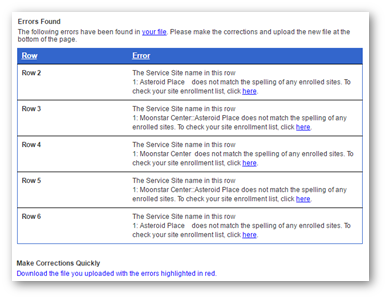 Here’s what the file will look like, with errors highlighted in red: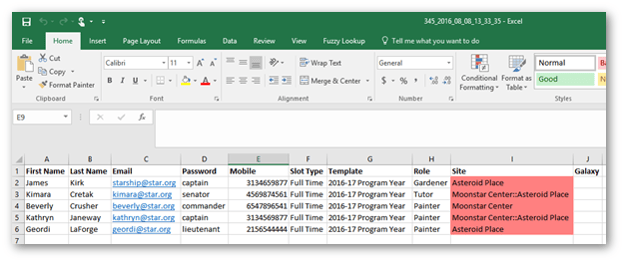
-
Use this section to upload your corrected template:
-
Next, you will need to re-map your fields.
-
Now you will have a chance to Preview Import.
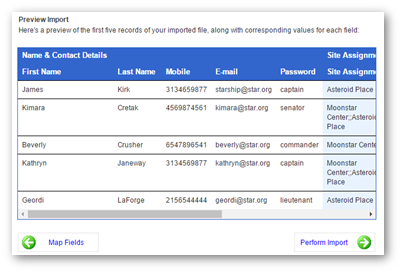 This is a good opportunity to make sure you properly mapped your template. If you find issues you can use the Map Fields back button to correct any mistakes.
 -
Once you’re satisfied with your preview, proceed to Perform Import. Here, you’ll get an Import Confirmation like this:
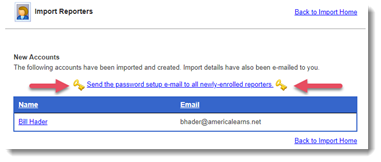
-
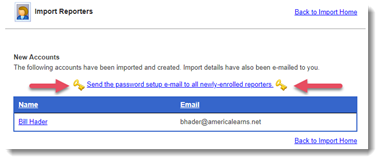
Once you’ve enrolled your Fellows, you can send the password setup e-mail to all newly-enrolled Fellows right away, or you can wait until you’re ready.
Video Resource: Enrolling New Fellows Using Excel
Steps for Enrolling New Fellows One-by-One
To enroll Fellows manually, follow these steps:
- On the left, in your Mission Control, click Fellows, Staff, & Community Host Sites.
- On the right, click Manage fellow accounts.
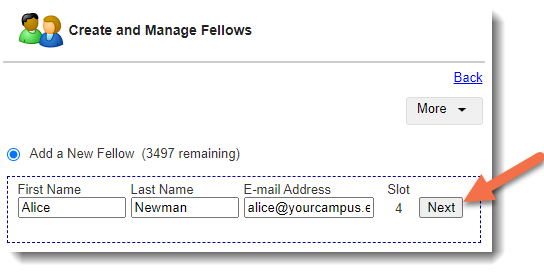
- On the top of the page, select Add a New Fellow, and enter a reporter's name and e-mail address.
- Click the Next button.
- When the window opens, complete all displayed and required fields.
Note: If you'd like to send the Welcome/Password setup email right away keep the checkbox at the bottom selected.
(You can send it later. See the next learning module for more instructions.)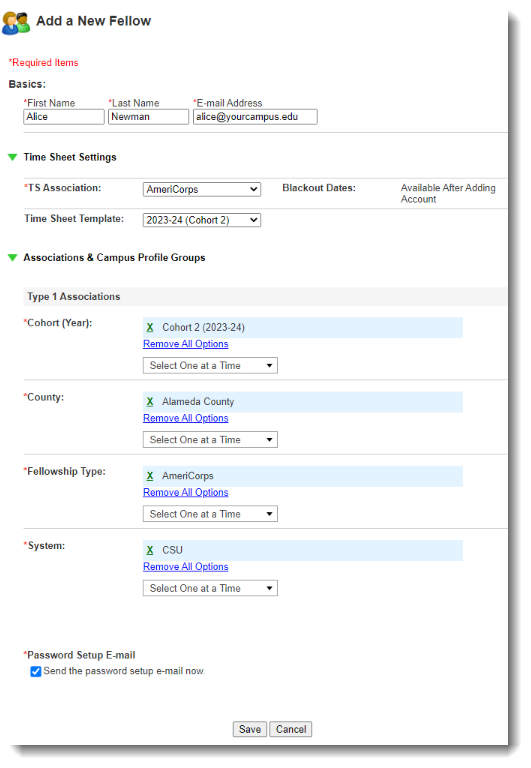
- Click Save to create the Fellow's account.