
Why Disallow a Timesheet?
The Disallow Timesheet feature provides flexibility when handling timesheets that cannot be approved, deleted, or edited due to specific circumstances. Admins can now formally disallow problematic timesheets, ensuring they are documented while maintaining an accurate audit trail.
Scenarios Where a Timesheet Might Be Disallowed
- The Reporter Left Service Early: The reporter exited the program before completing necessary edits, leaving timesheets in an incomplete or un-approvable state.
- A Former Admin or Supervisor Did Not Sign the Timesheet: If an approver left the organization before signing pending timesheets, those sheets may remain unapproved. When no current admin has the authority to approve them, disallowing the sheets helps maintain accurate records.
- Fraudulent Entries: If a timesheet is found to contain falsified information, disallowing it ensures it is not approved while preserving a record of the submission for transparency and auditing purposes.
Admin Permissions Needed to Disallow Timesheets
Only admins with the Timesheet Director role are permitted to disallow timesheets.
(Check out this article for more information about Admin Permissions.)
Here are the steps to enable the permission for Timesheet Directors:
- In your Mission Control, click Reporters, Admins, & Sites.
- On the right, under the Manage admin roles.
- Click Edit next to the name of the Admin Role (that already has the Timesheet Director permission enabled).
- Scroll to the Timesheets panel at the bottom of the window.
- Under Timesheet Director, check the permission: Enable timesheet disallowance feature.
- Click Update to save your changes.
CAUTION: Changing admin role settings will update permissions for every admin assigned to that role.
Disallow a Timesheet
- In your Mission Control, click Reporters, Admins, & Sites.
- On the right, under the Manage reporter accounts.
- Click the name of a reporter.
- Open the Timesheet Settings panel, and click the Show Dashboard link.
- Under Submitted Timesheets select Show Timesheets and select the Approved or Pending timesheet you'd like to disallow.
- When the timesheet opens, scroll to the bottom of the sheet and find the Action section.
- To Disallow a Timesheet:
-
Select I disallow this timesheet for the following reasons.
-
In the text box, enter the reason for disallowing the sheet. This reason will be stored in the audit trail.
-
Enter your name at the bottom of the page.
-
Click Submit.
-
-
The disallowed timesheets will appear in a new section at the bottom of the reporter's Timesheet Dashboard. Hours from the timesheet will not count towards the reporter's Goal Hours.
Cancel the Disallowment of a Timesheet
- In your Mission Control, click Reporters, Admins, & Sites.
- On the right, under the Manage reporter accounts.
- Click the name of a reporter.
- Open the Timesheet Settings panel, and click the Show Dashboard link.
- Under Disallowed Timeheets, find the timesheet you want to restore, and click the Cancel link.
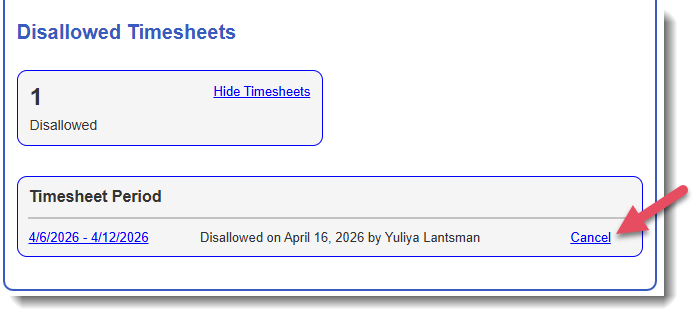
- A window will open. In the text box, enter the reason for canceling the disallowance.
NOTE: This reason will be recorded in the timesheet's audit trail. - Click Confirm.
View Disallowed Time: Reporter Profile
- In your Mission Control, click Reporters, Admins, & Sites.
- On the right, under the Manage reporter accounts.
- Click the name of a reporter.
- Open the Timesheet Settings panel, and click the Show Dashboard link.
- At the bottom of the dashboard look for the Disallowed Sheets section.
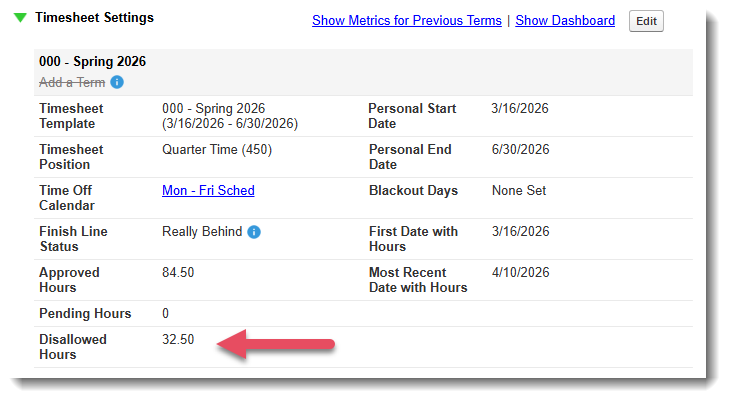
- Click the link next to the date to see the entire disallowed sheet.
View Disallowed Time: Custom Timesheet Reports
- In your Mission Control, click Timesheets.
- On the right, click View site data or View program-wide data.
- Ensure that you've selected the correct Timesheet Template.
- Then click Build Custom Reports.
- You can pull Disallowed Time using the Totals Report or the Timesheet Period Report.
View Disallowed Time: Timesheet PDFs
- In your Mission Control, click Timesheets.
- On the right, click View site data or View program-wide data.
- Ensure that you've selected the correct Timesheet Template.
- Then click Timesheet PDFs
- In the Selected Data section, under Most Recent Timesheet Status, select Disallowed.
- Select the reporters to include and then select the time period.
- Click either Export Full PDF or Export Condensed PDF.
- Once the report is done running, you'll receive an email with PDF export.