
Editing Admin Roles from the Admin Role Management Space
To do this:
- On the left, in your Mission Control, click the Reporters, Admins, and Sites.
- On the right, click Manage admin roles.
- Find the role you would like to change and click the Edit link.
- When the window opens, make the updates you'd like. (To find out more about Admin Permissions: check out this article.)
- To save your changes, scroll to the bottom of the window and click Update.
Editing Admin Roles from an Individual Admin Profile
To do this:
- On the left, in your Mission Control, click Reporters, Admins, & Sites.
- On the right, click Manage admin accounts.
- In the table choose the person you'd like to edit.
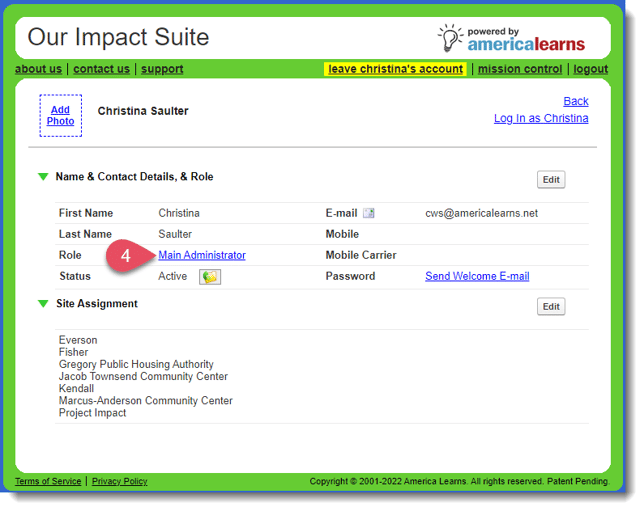
- You can change the permissions associated with an Admin Role by clicking on the role link. (To find out more about Admin Permissions: check out this article.)
IMPORTANT: Changes made to the Admin Role from this link will be made for all people with the associated role.
Video Support: Admin Management