
Edit Launch Due Date
IMPORTANT: We strongly recommend that you create extension periods instead of extending survey end dates. Why? When you extend the deadline of a survey, it impacts the stated time range that the survey covers.
So, let's imagine that a given survey covers 1/1/26 - 1/7/26, and you extend the deadline to 1/15/26. All of a sudden, your survey will appear as if the data covers a longer time range, which is innacurate.
By using the extension period feature, the survey beginning and end date remain accurate for your own reporting.
If you are looking to give your reporters more time to complete a survey but don’t want to change the formal deadline, it’s best to create an extension period.
To update the deadline of a currently or previously active survey:
- On the left, in your Mission Control, click Survey Management.
- Click Manage existing & scheduled launches.
- Find the Active or Closed launch you would like to update by opening the appropriate panel.
- Under the Action column choose Edit Launch.
- When the launch opens, find the Update Schedule panel and click the Edit link.
- In the Due Date or the Optional Extension Period section, choose the new desired date.
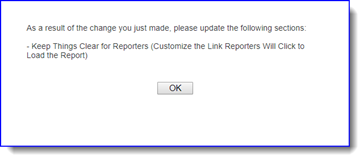
- If, as a result of change you’ve made, there are updates you need to make, you’ll see a pop-up like this one:
- Click all of the required Set links (green checkmarks will appear when you’ve completed all steps).
- To finish the change, click the Return to Survey Management Page button.