
Survey Messages
There are three kinds of automated messages tied to surveys: reminders, thank yous, and follow-ups
- Reminders - Messages that prompt reporters to complete surveys. You can choose an announcement message, first reminder, second reminder, and/or extension reminder.
- Thank Yous - Messages sent after a survey is completed by a reporter to reinforce submission and express gratitude to reporters.
- Follow-Ups - Messages sent after a survey closes to reporters who did not complete it to gather details as to why it wasn't completed and address issues proactively.
Please note: There may be limitations to the changes you can make based on the type of launch you are attempting to modify.
To make changes to any of these automated messages, follow the steps below:
Make Changes to Any Survey Message
- On the left, in your Mission Control, click Survey Management.
- On the right, click Manage existing & scheduled launches.
- Find the Active, Scheduled, or Closed launch you want to update by opening the appropriate panel.
- Under the Action column, choose Edit Launch.
Reminder Messages
Within this section, you can update:
- Announcement messages (sent when the survey launches)
- First and second reminder messages
- Extension reminder messages (if applicable)
- Email and/or text message versions of each message
- Find the section called Reminder Messages and click the Edit link.
- Click Update to save any changes you make to any scheduled message.
- If, as a result of change you’ve made, there are updates you need to make, you’ll see a pop-up like this one:
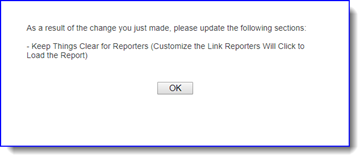
- Click all of the required Set links (green check marks will appear when you’ve completed all steps).
- To finish the change, click the Return to Survey Management Page button.
Thank You Messages
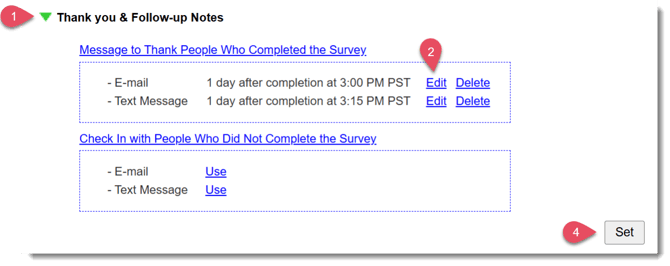
- Find the section called Thank you & Follow-up Notes and click the Edit link.
- In the section Message to Thank People Who Completed the Survey, click Edit next to the Email or Text Message.
- In the pop-up that appears, you have several adjustment options:
- Set the Frequency when the message comes out (after the reporter submits the survey).
- Set who the message replies should go to.
- Customize the Subject.
- Customize the Body.
- Save and apply your message.
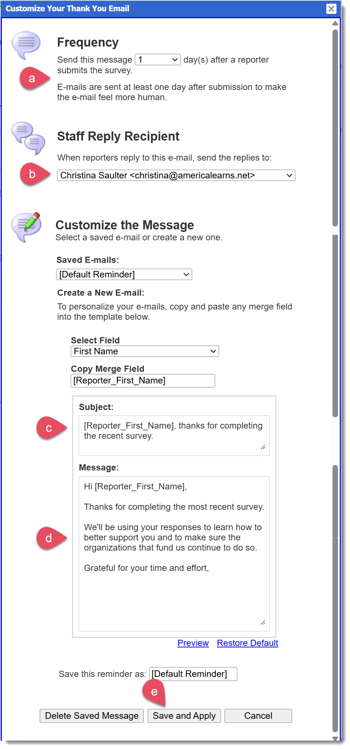
- Once you're done with all edits in the section, click Set.
Follow-up Messages
Follow up messages are controlled in the same section mentioned above, following the same core processes. To create follow-ups:
- Find the section called Thank you & Follow-up Notes and click the Edit link.
- In the section Check In with People Who Did Not Complete the Survey, click Edit next to the Email or Text Message.
- Make desired updates in the pop-up. You can adjust:
- The Frequency when the message comes out (how far out from the missed survey the message will arrive to the reporter).
- Set who the message replies should go to.
- Customize the Subject.
- Customize the Body.
- Save and apply your message.
- Once you're done will all edits in the section, click Set.
For more step-by-step guidance on survey thank yous and follow ups, check out the section Step 8: Thank You & Follow-up Notes in the article Launching Forms.