
Have you created test timesheet templates that you want to permanently delete? We've got you covered.
Conditions for Eligible Timesheet Templates
In order to be eligible for deletion, a timesheet template must meet the following conditions:
- There must be no timesheets with submitted data connected to the template.
- If timesheets have been submitted, then these must be deleted before the delete button will appear.
- For a reminder on how to permanently delete individual timesheets, check out this article.
Deleting a Timesheet Template
Once all sheets have been permanently deleted, you may delete the timesheet template by:
- On the left, in your Mission Control, click Timesheets.
- On the right, click Create & manage timesheet templates.
- At the bottom, select the template that you would like to delete.
- At the bottom right of the page, click the Delete button.
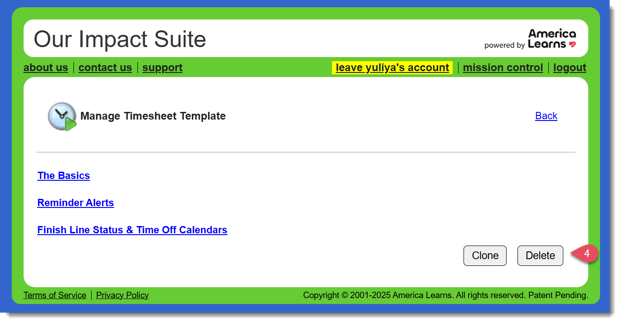
- If there are any reporters assigned to the template, you will get a pop-up message like this:
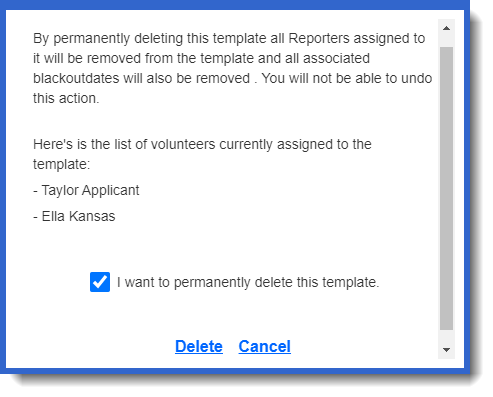
You will need to confirm that you would like to continue with the deletion by checking the box and clicking Delete.
NOTE: Deleting a template is a permanent, irreversible action.