Create & Remove Mass Blackout Dates for Reporters
CAUTION: Auto-blackout dates created by Personal Start and End Dates assigned to reporters CANNOT be added or removed using the method described below. To learn more about Personal Start and End Dates, check out this article: personal start and end dates: automatic blackout periods
In order to update Personal Start and End Dates for reporters en masse, we recommend using the Import Reporters feature. For instructions on importing reporters, check out this article: enrolling reporters en masse using Excel
Here’s how to add and remove blackout periods from two or more reporters simultaneously:
-
On the left, in your Mission Control, click Reporters, Admins, & Sites.
-
On the right, click Manage reporter accounts.
-
On the right, use the More menu to select Mass-Update Blackout Dates.
- The next page will walk you through the four steps to setting up or removing a blackout period.
Step 1: Select a Timesheet Template.
Step 2: Select whether you Are You Adding or Removing a Period?
Step 3: Select the Blackout Period's start and end dates.
Step 4: Click Display all relevant Reporters below to choose which reporters’ accounts should be updated.
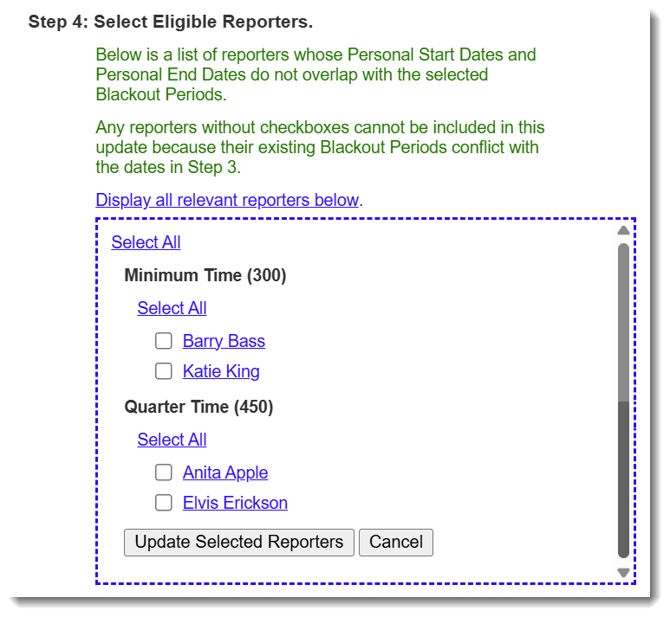
NOTE: Each reporter’s name appears as a hyperlink. To update blackout dates on an individual level, select a reporter’s name to review and adjust that person’s current settings.
- Select the reporters whose accounts you’d like to add to or remove from this mass blackout period.
-
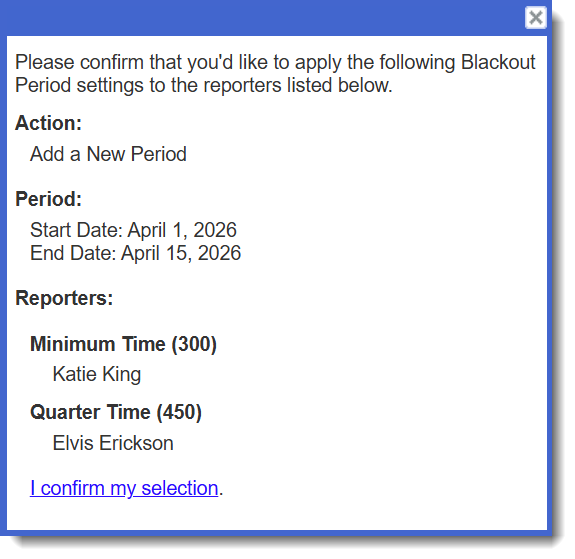
Once you click the Update Selected Reporters button at the bottom of Step 4, you’ll be asked to review and confirm your selection. If everything looks good, follow the prompts to update the selected accounts.
-
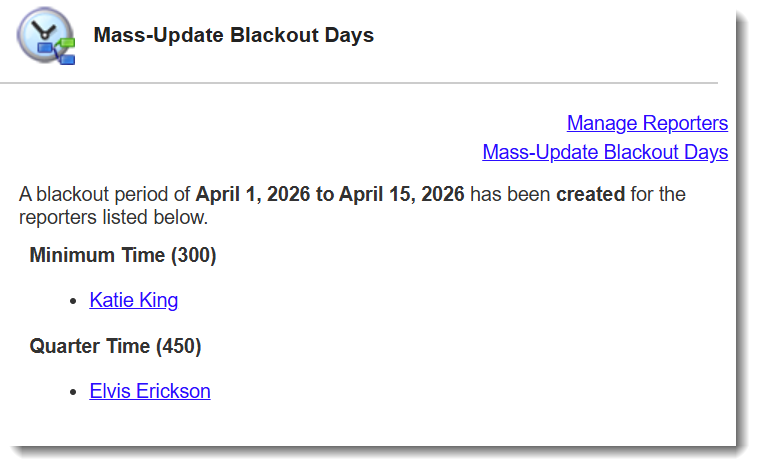
On the following page, you’ll see a confirmation of which reporters’ accounts were updated.