
Create a New Term
A term is the period between a reporter’s Personal Start Date and Personal End Date during which they are expected to complete their Goal Hours.
Some Reporters will serve more than one term in a single program year. When that happens, you can create and assign a new term in their Timesheet Settings while keeping them within the same Timesheet Template.
Here's how:
-
On the left, in your Mission Control, click Reporters, Admins, & Sites.
-
On the right, click Manage reporter accounts.
-
Click on the name of the reporter you would like to create a new term for.
-
Open the Timesheet Settings panel.
-
Underneath the name of the Timesheet Template, select Add A Term.
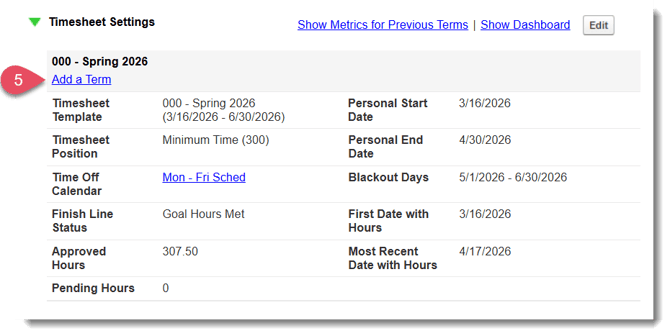
NOTE: For details on when you’re allowed to add a new term, see the “Rules for Creating Terms” section below. -
A pop-up window will appear, prompting updates to the following details:
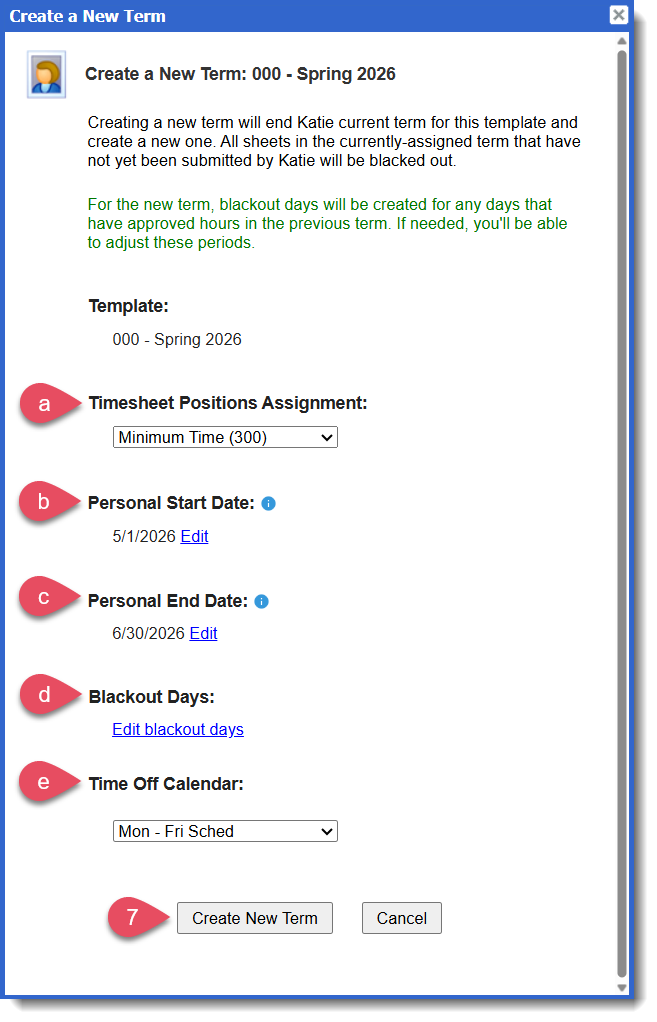
- Timesheet Positions Assignment: If the reporter has a different timesheet position for the new term, it can be adjusted here.
- Personal Start Date: First day the reporter can record and submit hours for the new term.
- Personal End Date: Anticipated final day the reporter can record and submit hours for the new term.
- Blackout Days: Use this field to add any additional dates or date ranges when the reporter is not allowed to record hours.
- Time Off Calendar: If the reporter has a different schedule for the new term, it can be adjusted here.
- Once you’ve finished updating the timesheet settings for the new term, select Create New Term.
- The new term will now automatically appear as the active term in the Timesheet Settings panel:
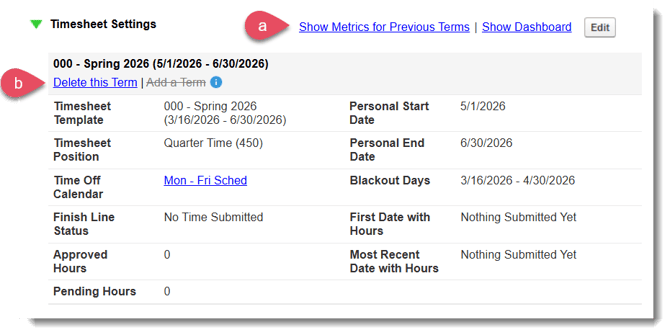
- To see previous term details, select Show Metrics for Previous Terms.
- If the term was created in error, select Delete This Term to remove.
Rules for Creating Terms
You may run into a few constraints when setting up terms. The guidelines below outline the rules that control when and how new terms can be created.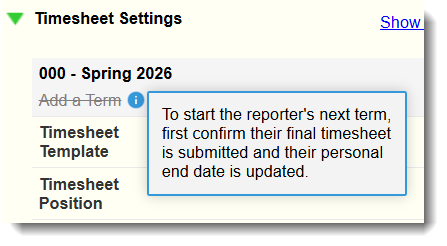
-
No Timesheet Data: At least one timesheet must be submitted in the current term before a new term can be created. If no timesheet data exists for a term, you can either delete that term or adjust its settings to match the new term.
-
Update Personal End Date: The end date of the current term cannot match the final date of the timesheet template, and terms within the same template cannot overlap. Be sure to adjust the current term’s Personal End Date accordingly.
-
Current Term Timesheets Submitted: Before creating a new term, make sure the reporter has submitted all timesheets for the current term.
Delete a Term
If you created a term in error, you can delete it as long as there is no approved time within that term. The Reporter will return to their previous term, but you will need to review and adjust blackout dates after the adjustment. Here are the steps to delete:
-
Follow steps 1-4 in the previous section to access the Timesheet Settings panel.
-
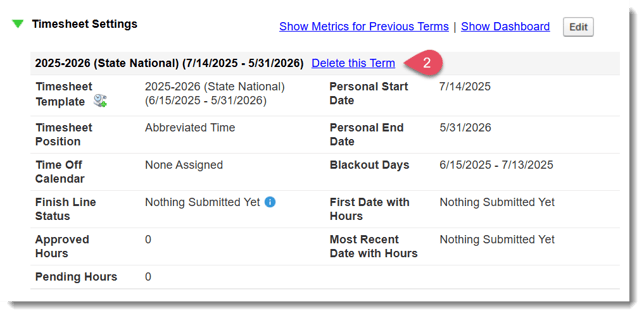
Next to the newly created term, select the hyperlink Delete this Term.
-
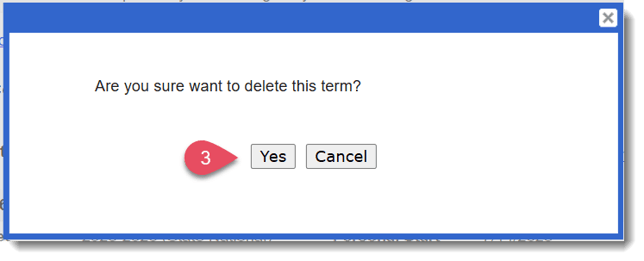
Select Yes in response to the pop-up question, "Are you sure you want to delete this term?"
CAUTION: After deleting a term, you may need to re-adjust the Personal End Date and Blackout Days to reflect the Reporter's true end date and blackout days for their prior term.
Exporting Term Data from the Reporter Profile
When you export timesheet details from a Reporter’s profile, the export will include information for all of the Reporter’s completed and active terms in a selected timesheet template. This allows you to view start and end dates, positions, and details for each term in a single file.
- Follow Steps 1-5 in this article to access Reporter timesheet data in the export space.
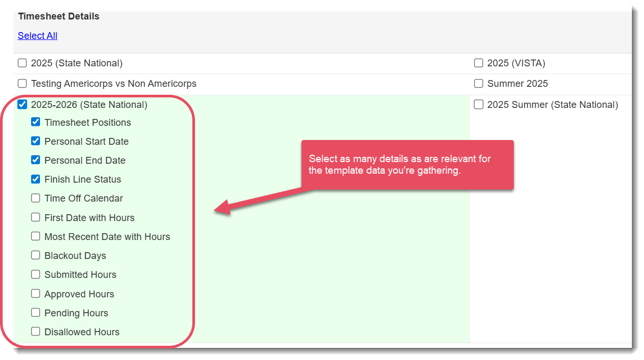
- Select any timesheet data you'd like to view across all terms in a timesheet template.
- Scroll to the bottom of the page. You can view (and if applicable, edit) the timesheet template data in a live table. The export lists timesheet details in date order, so the completed term will appear first.
Multiple Terms
If a Reporter has multiple terms, each additional term item will appear sequentially in the same row. If a reporter does not have multiple terms, those columns will be blank.
Example: In the scenario below, Barry Bass is the only Reporter who has completed a second term. Their Term 2 details are visible, while those columns are blank for the other Reporters assigned to that timesheet template.
