

Walkthrough

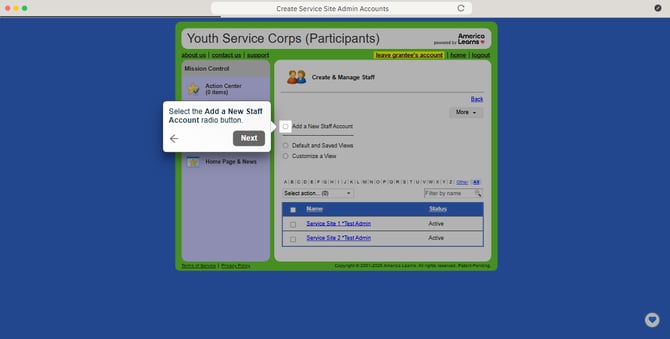
Create Service Site Admin Accounts
Here you'll learn how to create staff-level accounts for folks at your service sites.
Begin by logging into the Youth Service Corps (Participants) Impact Suite.
- On the left, in your Mission Control, click Participants, Staff, & Service Sites.
- On the right, under Manage Staff, select Manage staff accounts.
- Select the Add a New Staff Account radio button.
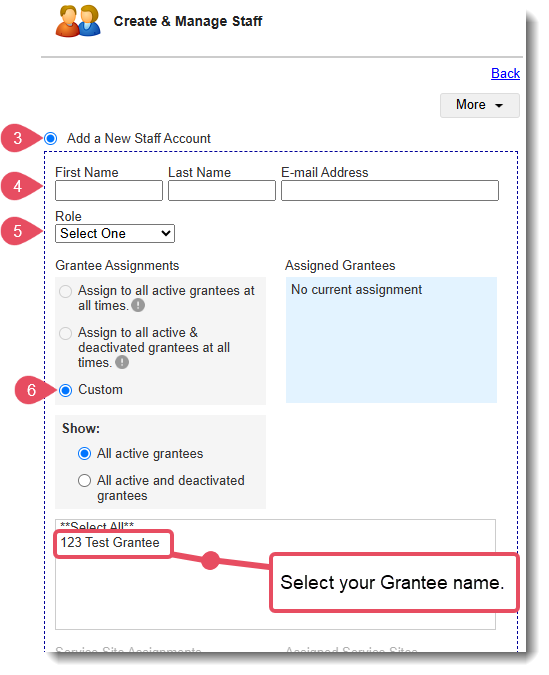
- Enter the first name, last name, and email address.
- For Role, select Service Site Admin.
- Under Grantee Assignments, select Custom, then the name of your Grantee.
- Under Service Site Assignments, select Custom, then the name of the Service Site(s). If you don't see the service site on the list, stop and follow these steps.
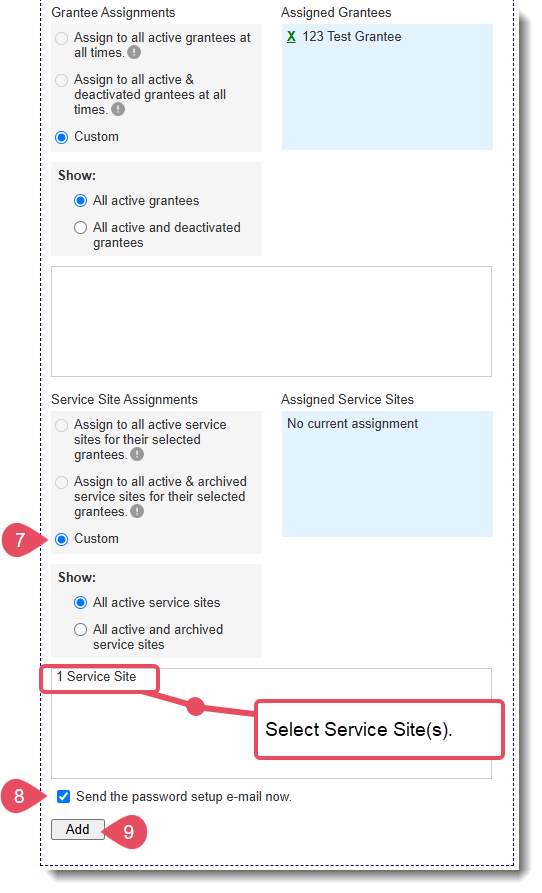
- Check the Send the password setup e-mail now box. The user will receive a link they need to click within 24 hours to activate their account. Otherwise, you will need to resend the invitation.
- Click Add.
- Repeat these steps for each new Service Site Admin.
Create New Grantee Staff Accounts
If there is a new member of your Grantee management team, please contact ysctechsupport@cv.ca.gov for help.