

Walkthrough

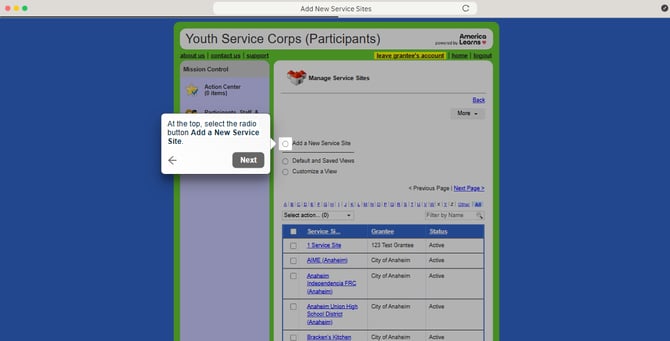
Add New Service Sites
Begin by logging into the Youth Service Corps (Participants) Impact Suite.
- On the left, in your Mission Control, click Participants, Staff, & Service Sites.
- On the right, under Manage Service Sites & Grantees, select Manage service sites & grantees.
- At the top, select the radio button Add a New Service Site and find your Grantee from the drop-down menu.
- CRITICALLY IMPORTANT: Type the name of the service (use the organization's specific full name + the abbreviation for your Grantee - see list below).

- Click Add.
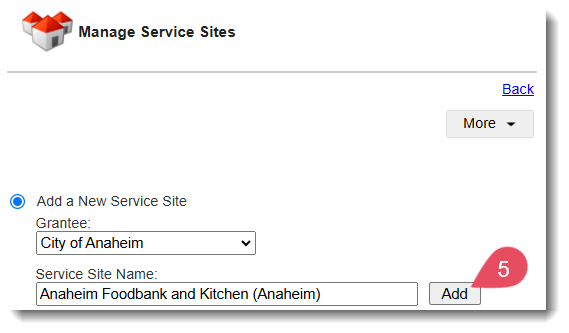
- Repeat for each new Service Site.
Grantee Abbreviations List Link
For a complete and up-to-date list of Grantee Abbreviations to use when creating your Service Sites, check out this document