Assigning reporters to their Timesheet Settings gives them access to their timesheets. Accurate Timesheet Settings are critical for calculating Finish Line Status (if enabled).
To link reporters to their Timesheet Settings:
-
On the left, in your Mission Control, click Reporters, Admin, & Sites.
-
On the right, click Manage reporter accounts.
-
Click on the name of the reporter you would like to update.
-
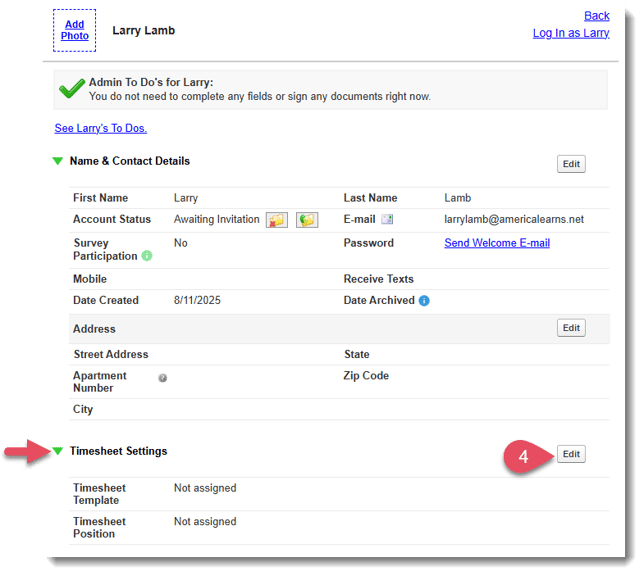
Find the Timesheets Settings panel in the reporter's profile, and select Edit:
-
A new window will open. Personalize the settings for the reporter.
NOTE: You can come back to the reporter's profile and update these settings at any time if anything changes.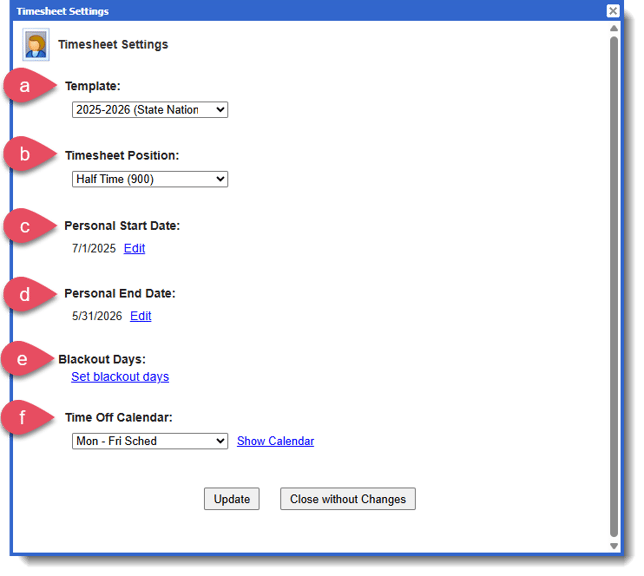
- Template - select the Timesheet Template.
- Timesheet Position - select the Timesheet Position that corresponds with the reporter's Goal Hours.
NOTE: For more on Timesheet Positions, check out this article. - Personal Start Date - select the reporter’s Personal Start Date if it differs from the Template Start Date. This will automatically create auto-Blackout Days from the Template Start Date up to the reporter’s Personal Start Date. Reporters will not be able to enter hours before their Personal Start Date.
- Personal End Date - select the reporter’s Personal End Date if it differs from the Template End Date. This will automatically create auto-Blackout Days from the reporter’s Personal End Date to the Template End Date. Reporters will not be able to enter hours after their Personal End Date.
- Blackout Days - select Set blackout days to add any other dates when a reporter should not be allowed to enter hours in the middle of their term. Reporters will not be able to enter hours on any additional Blackout Days you've set.
NOTE: For more on Personal Start Date, End Dates, and Blackout Days, check out this article. - Time Off Calendar - select the Time Off Calendar. Any days marked as time off will be pre-filled on the reporter's timesheet, but they can still override those entries if they end up serving on those days.
NOTE: For more on Time Off Calendars, check out this article.
-
-
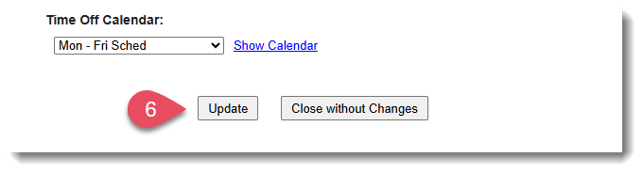
Select Update to save the Timesheet Settings for your reporter.