
Navigation
The Action Center is designed to connect you to the items in your Impact Suite that need your immediate attention.
Navigate between actions you've been given permission to access by using this drop-down menu: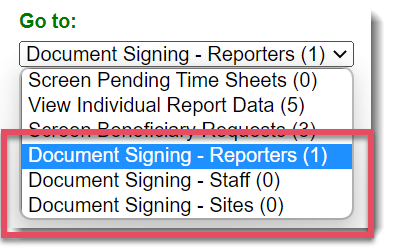
Signing Documents
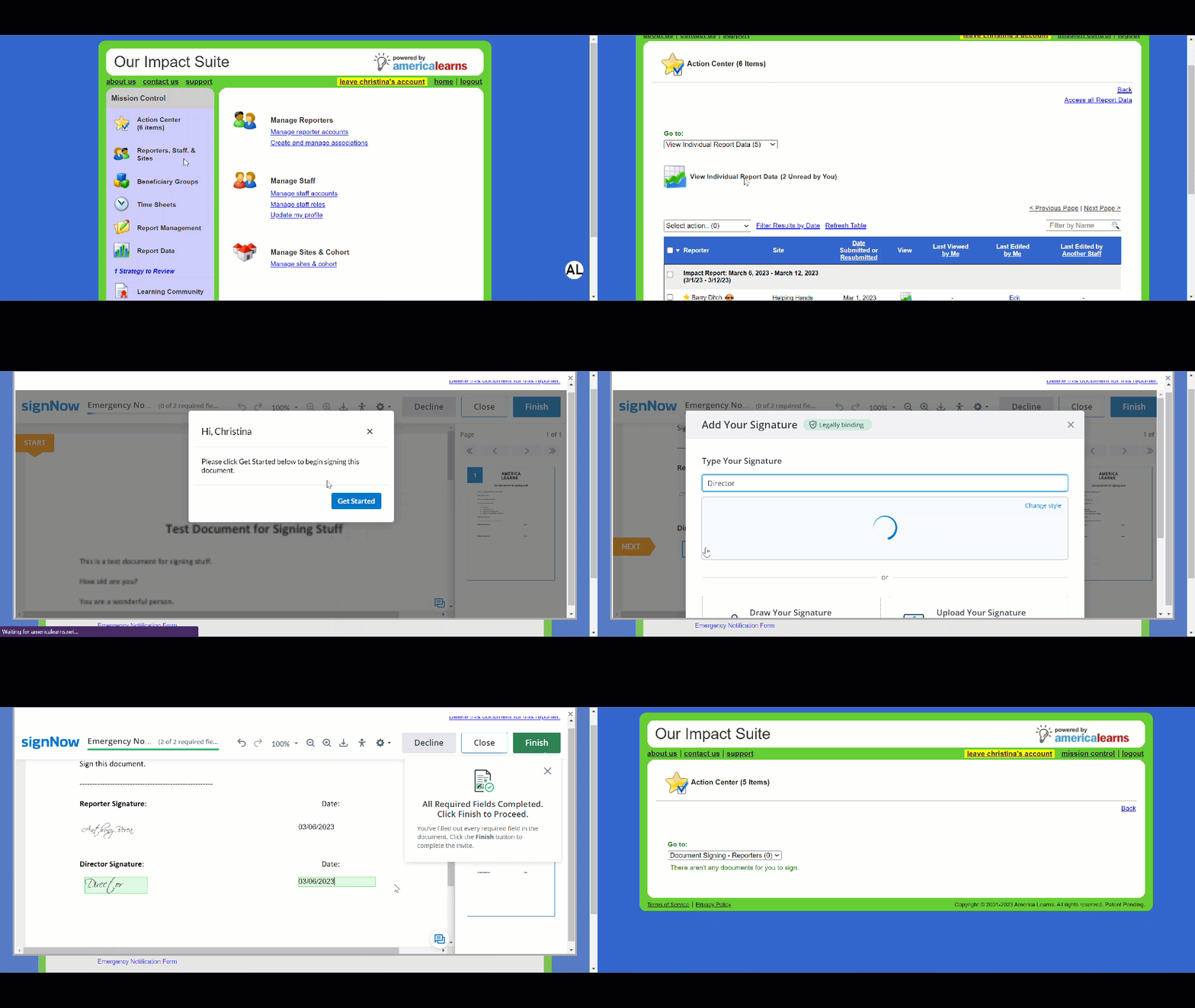
- On the left, in your Mission Control, click Action Center. (You will also be able to see how many items are waiting for your review.)
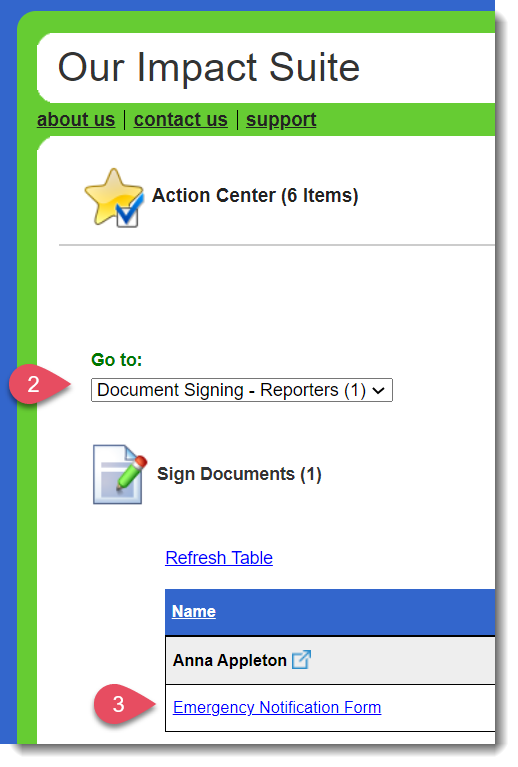
- When the Action Center opens, use the Go to drop-down menu and select Document Signing. You will choose between documents that need to be signed for Reporter, Admin, or Site Profiles.
Note: Depending on the level of access granted to your role, you may not see all of these document signing options. - Click on any link under a name to begin the screening process.
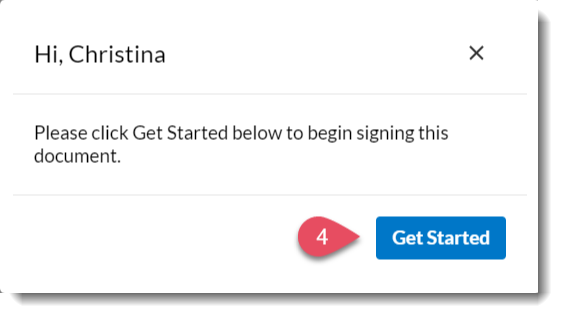
- Next, you'll get this welcome message. Click Get Started.
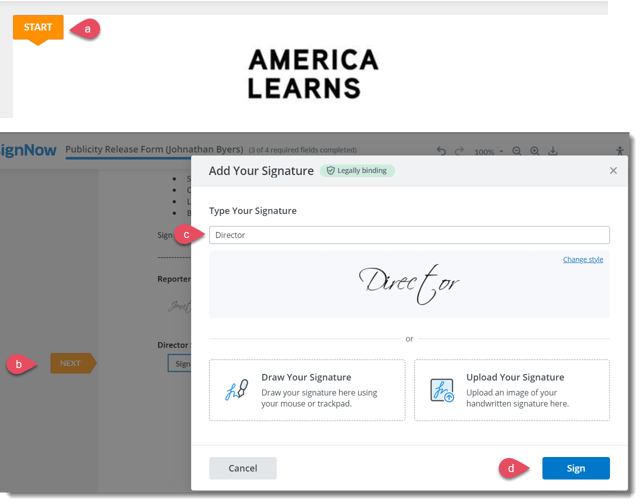
- Use the (a) "Start" button to begin the signing flow, the (b) "Next" button to navigate and complete the required fields, (c) choose your signature, and (d) click Sign to sign the document.
- When you are finished, click the Finish button.
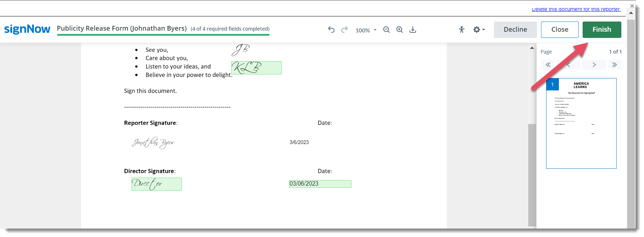
- That's it! Keep signing all the documents in your Action Center until there are none left.
Admin Permissions
For your team to sign documents, you'll need to turn on the appropriate permissions for each applicable Admin Role. Please review this article for detailed instructions on admin permissions for document signing.