Viewing Data for the Longitudinal Goal Tracker
To view Program-wide Roles and Goals data:
-
On the left, in your Mission Control, click the Survey Data link on the left.
-
On the right-hand side of the page, click Student-Group data.
-
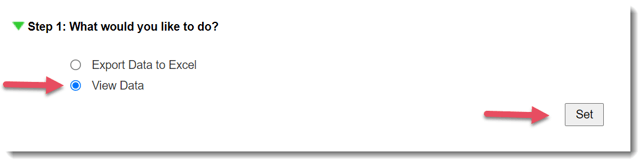
Step 1 - Choose View Data, and click Set to move to the next step.
-
 Step 2 - Select your Groups, and click Set to move to the next step.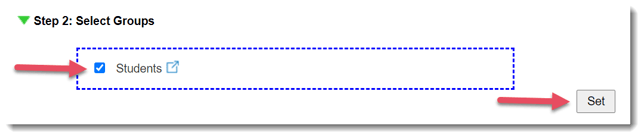
-
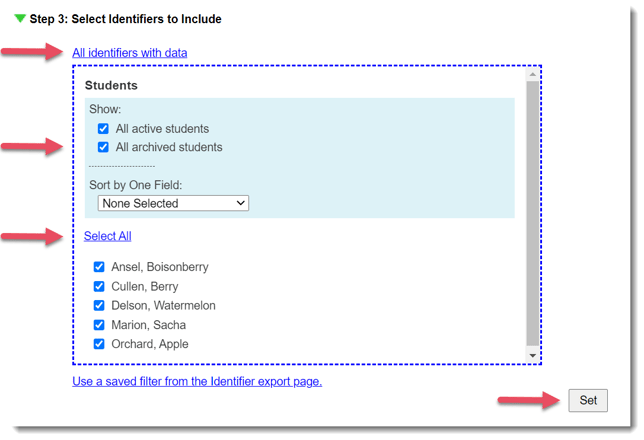
Step 3 - Select All identifiers with data. Select All archived students. Click Select All. Click Set to save your selections.
-
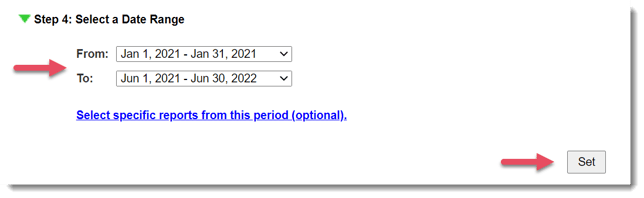
Step 4 - Select your date range by using the drop-down menus to select your start (From) and end dates (To). If you need to export data from specific surveys during a given period of time, enter that time in the To and From menus, and then select the specific surveys by clicking Select specific reports from this period (optional).
-
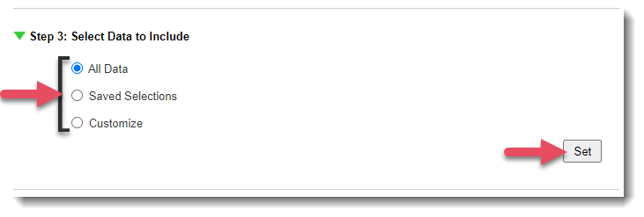
Step 5 - Select the data include by choosing an option (All Data or Saved Selections or Customize).
-
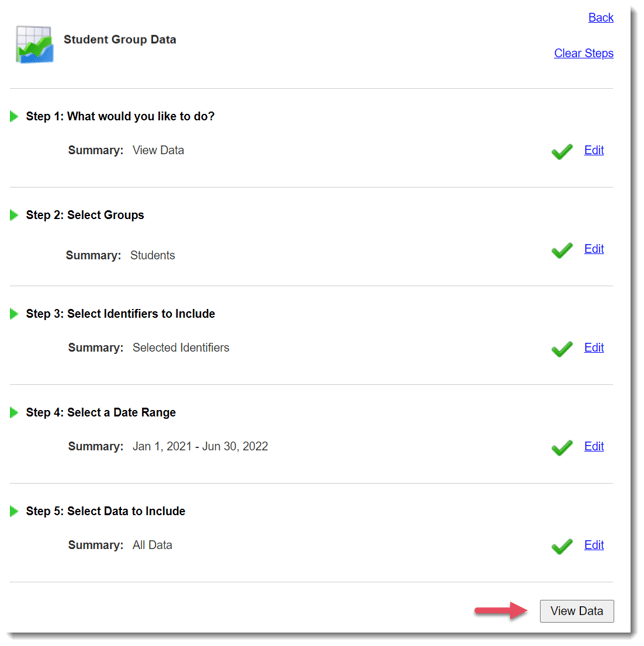
To see your selection, click the View Data button.
-
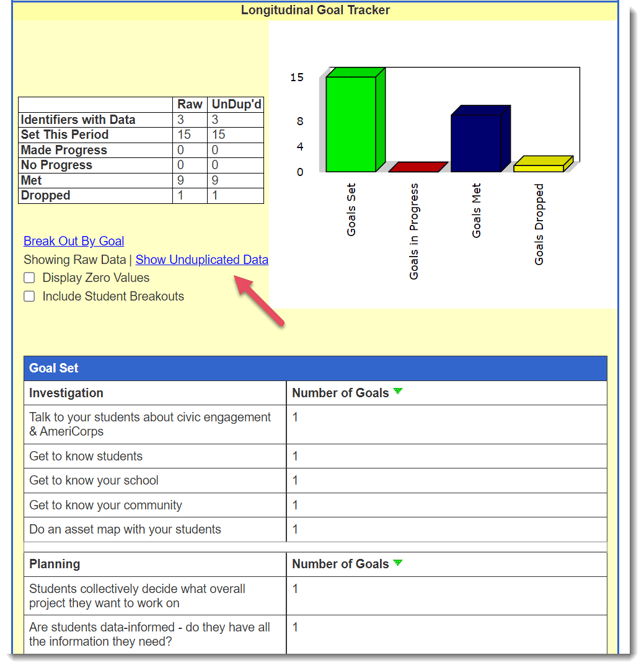
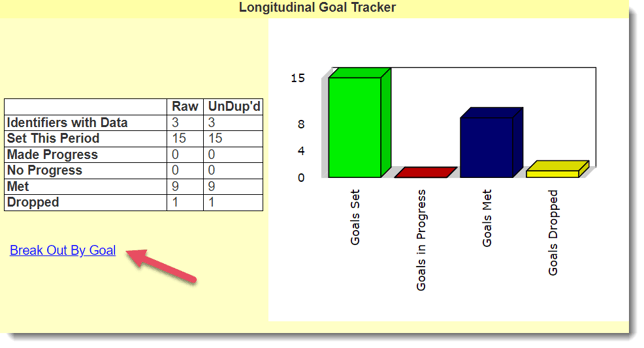
You’ll find the Raw data and Unduplicated (UnDup’d) numbers.
-
Select Break Out By Goal to view the numbers of goals set/made progress/met by goal.
-
Selecting Show Unduplicated Data will display the number of learners who set/made progress/met that goal.