
The Identifier Manager
You can easily find and review Identifiers within your Type 3 Associations by using the Identifier Manager.
Here’s how:
- On the left, in your Mission Control, select Groups.
-
Find the section called Manage Groups and use the drop-down to choose the group you’d like to work on.
- On the next page, you will see two methods for searching and finding Identifiers for the Group you have selected:
- Use the searchable alpha-numeric range to filter Identifiers by their first letter or number.

- Use the filter search Attribute to find the Identifier(s) you need to review.

- Use the searchable alpha-numeric range to filter Identifiers by their first letter or number.
- Click on the Identifier to access their profile.
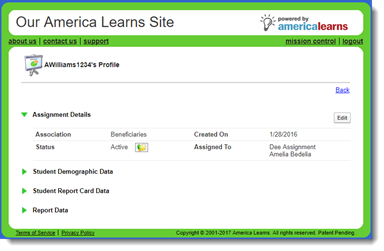
- To make changes to the Identifier, open any panel and use the Edit button.
- To access survey data for the Identifier, open the Survey Data panel and click the View Data link.
The Identifier Manager: Customize a View
There may be times when you will need to see Identifiers and additional information on-screen. To this you’ll use the Customize a View feature.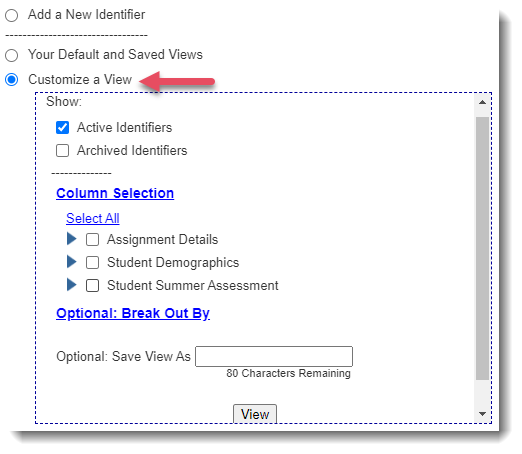
Here’s how to access it:
- On the left, in your Mission Control, click Groups.
- Find the section called Manage Groups and use the drop-down menu to choose the Groups you’d like to review.
- On this page, select the Customize a View radio button.
- You can limit your view if Identifiers so you only see Active or Archived by choosing:
- Active Identifiers, or
- Archived Identifiers
- Active Identifiers, or
- Use the Column Selection link to reveal and select the Attributes to include in the table.
- These are your Panel. Open them to reveal your Attributes.
- Optionally, you can save your view by giving it a name. You’ll find your saved views just above the Customize a View section.
- Once selecting all of the Attributes you would like to include in your view, click View.
The Identifier Manager: Optional: Break Out By
- On the left, in your Mission Control, select Groups.
- Find the section called Manage Groups and use the drop-down menu to choose the Groups you’d like to review.
- Select Customize a View.
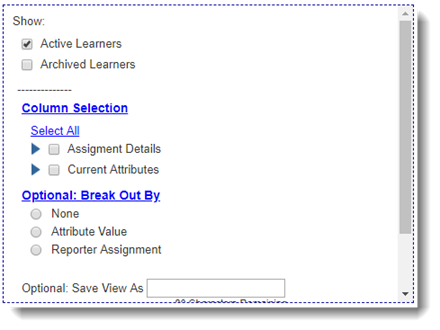
- Click the Optional: Break Out By link.
- From here you can create break outs based on Field Value or Reporter Assignment.
- You can also save your view to be recalled later in the Your Default and Saved Views section at the top of this page.
The Identifier Manager: Your Default and Saved Views
- On the left, in your Mission Control, select Groups.
-
Find the section called Manage Groups and use the drop-down menu to choose the Group you’d like to review.
- At the top of the page, you’ll see a section called Your Default and Saved Views. This section will contain a list of all of the customized views that you’ve created. You will not have access to the views that other admin reporters create.
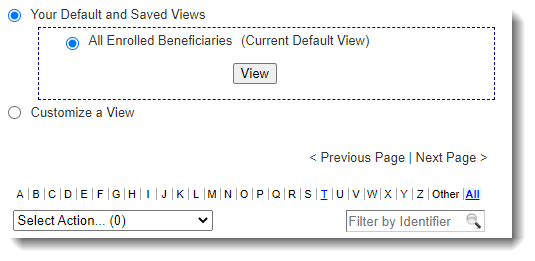
- The Default View displays the name and status of each of you’re the identifiers available from your account.
EXTREMELY IMPORTANT: Your Impact Suite's lead administrator has automatic access to all identifier accounts.
All other admin have access to all identifiers who are not assigned to a site and all identifiers who are assigned to the same sites that the admin reporter at issue is assigned to.