
Updating Your Timesheet Template to Track Non-Goal Hours
There may be times when you’ll need to track hours that should not count toward the Goal Hours indicated in a reporter's Timesheet Position. Perhaps you want to track lunch or meal breaks in this way. Or, maybe you have reporters that are serving as AmeriCorps members and as volunteers for a different branch of your organization.
Curious about what scenarios this might be helpful for? Check out details in this article.
Here are the steps for updating your template:
-
On the left, in your Mission Control, click Timesheets.
-
On the right, click Create & manage timesheet templates.
-
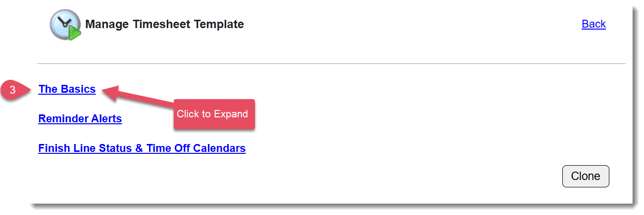
Expand the section of the template called The Basics.
-
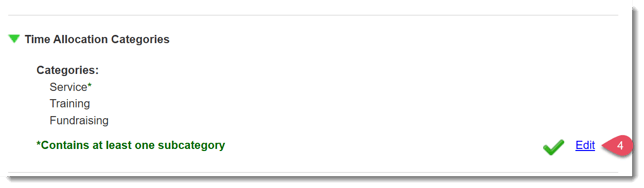
Locate the panel for Time Allocation Categories and in the bottom right click Edit.
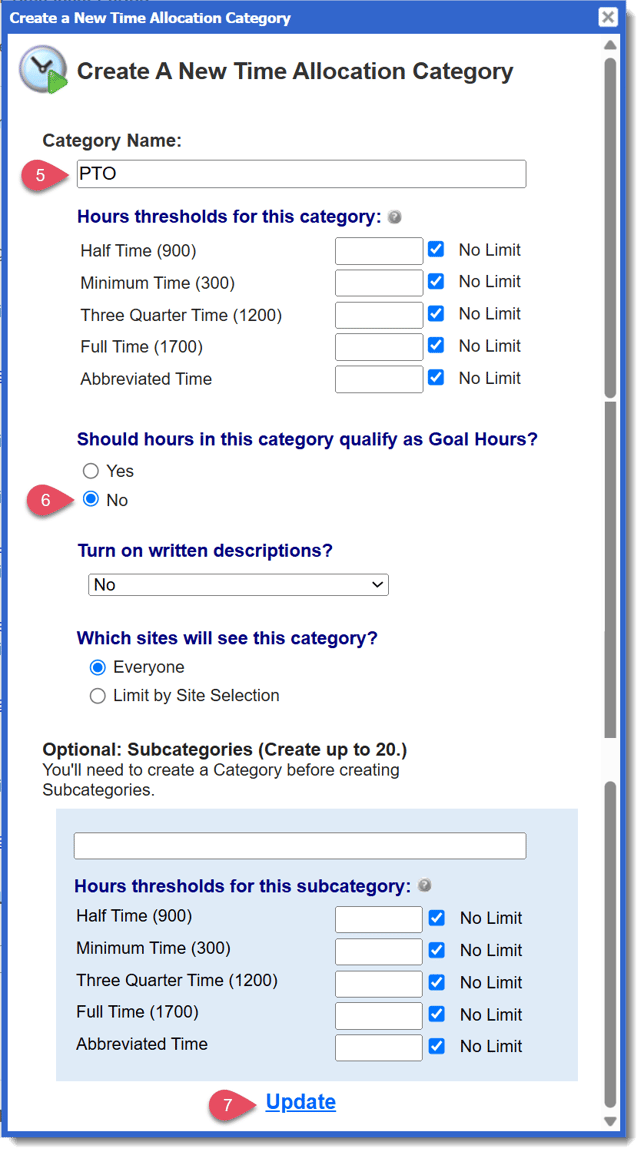
- Below, click Create a Category and give it a name.
- To make the category non-goal, answer No to the question, "Should hours in this category qualify as Goal Hours?"
- Click Update to save your changes.
- Next you'll need to find the Hours Type Labels section and update these labels appropriately.
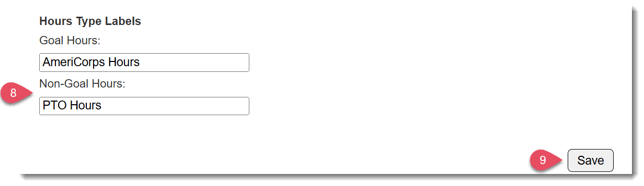 These labels will appear in the Timesheet Dashboard for your reporters.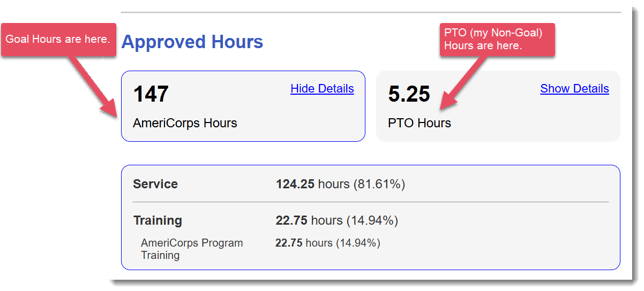
- Click Save.
IMPORTANT: Changes made to the timesheet template will be effective immediately.