
Updating Submitted Survey Data with Added or Edited
There may be times when you will need to update or add Field data for individual Identifiers. When this happens, you may want to update previously-submitted survey data to reflect the changes or additions for the individual Identifier in question.
To do this:
-
On the left, in your Mission Control, select Groups.
-
Find the section called Manage Groups and use the drop-down to choose the group you’d like to work on.
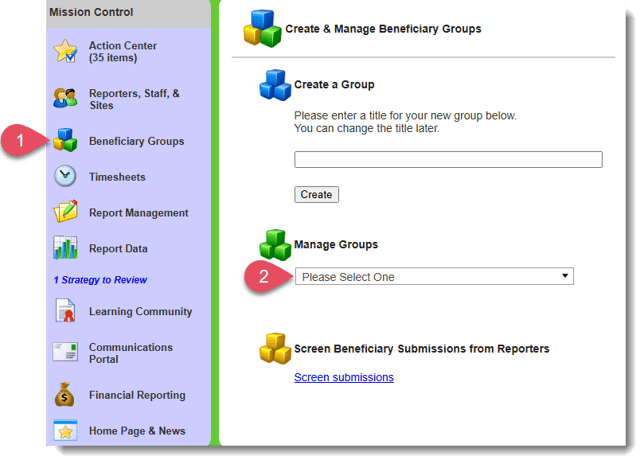
- From here use the search features to find and select the Identifier profile you would like to update.
- When you do this, the system will open the Identifier’s profile in a new tab.
Follow these steps to change Field data and update survey data:- If you haven’t already updated the Identifier’s data on the Association management page, you can do so by clicking the Edit buttons to the right of any panel with data you’d like to change.
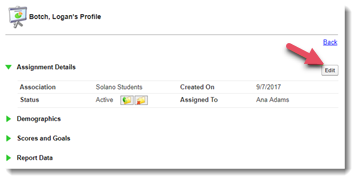
- Make any necessary modifications, and click Update.
- On the profile open the Survey Data panel and click Update Data with Current Fields link.
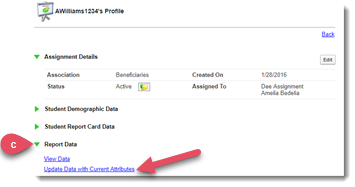
- Next, you’ll follow three steps to complete the update:
- Step 1: Choose which Field(s) should be updated.
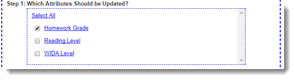
- Step 2: Choose which Survey(s) should be updated.
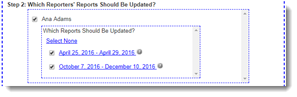
- Step 3: Confirm Your Selection. There are two steps to confirming your selection. First click the I confirm my selection link.
- Step 1: Choose which Field(s) should be updated.
- If you haven’t already updated the Identifier’s data on the Association management page, you can do so by clicking the Edit buttons to the right of any panel with data you’d like to change.
-
-
- Then, move to Step 4 and click the Perform Update button.
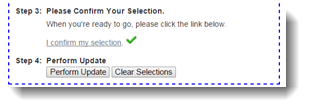
- Then, move to Step 4 and click the Perform Update button.
-