Walkthrough: Add New Reporter Accounts Using Excel
Need to Make Fields Mandatory Before Adding or Updating Folks?
Check out this article for more info: making fields required for the reporter enrollment process
Add New Reporters Using Excel
- On the left, in your Mission Control, click Reporters, Admins, & Sites.
- On the right, click Manage reporter accounts.
- On the right, in the More menu, select Import Reporters link.
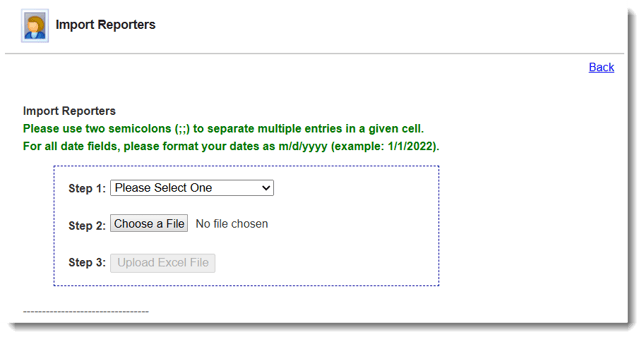
- Step 1: Select Add New Reporters.
- Step 2: Choose a File.
You can use your own Excel worksheet or create a custom template.
To create a custom template:- Under the section called Build Custom Import Template, open your panels to choose the fields you’d like included in your custom template. Check out this article for more info on building a custom import template.
- NOTE: At a minimum, in the Name & Contact Details panel, you must include First Name, Last Name, and E-mail.
- If you are using timesheets, it is recommended that you assign reporters to their Site, Timesheet Template, Timesheet Position, and Personal Start and End Dates.
- If you would like to learn about making fields required upon enrollment, check out this article: making fields required for the reporter enrollment process
- (Optional) To save your template for later use, use the Save Template As section to give it a name.
- If you are using timesheets, it is recommended that you assign reporters to their Site, Timesheet Template, Timesheet Position, and Personal Start and End Dates.
- Click Download Template.
- Under the section called Build Custom Import Template, open your panels to choose the fields you’d like included in your custom template. Check out this article for more info on building a custom import template.
- Step 3: Click Upload Excel File.
- Next, map your fields to the fields available in your Impact Suite (in both Standard and Custom Panels).
NOTE: If you used a Custom Import Template, mapping of fields will be done automatically.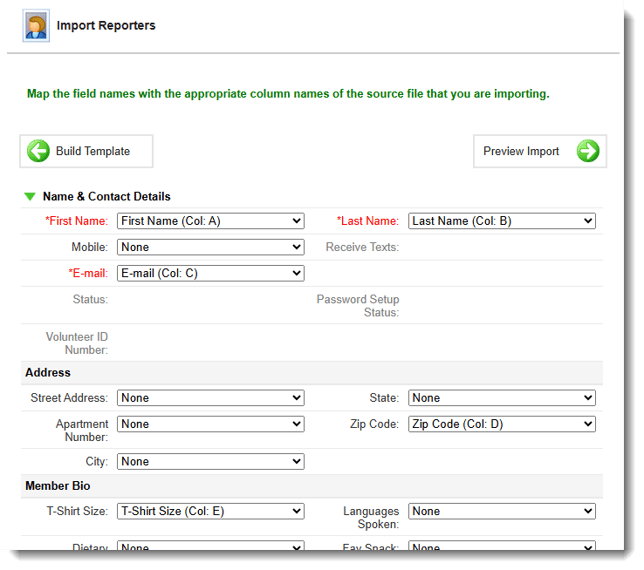
- Once you have mapped your fields, click the Preview Import button to move to the next step.
NOTE: if there are Excel columns or Impact Suite fields that you have not mapped, you will get a message like this from the system: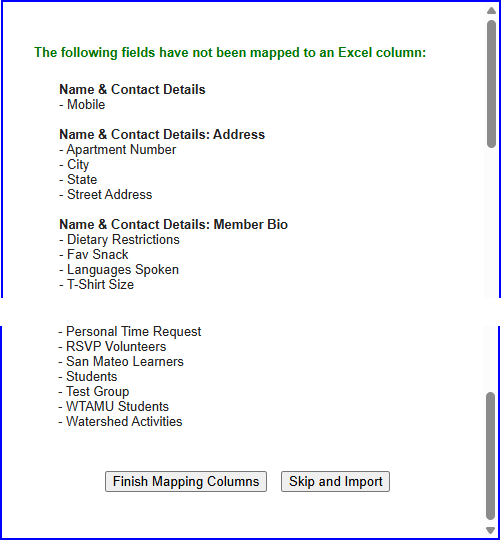
- (If no errors are found, skip to #12.)
If errors are found on the Excel sheet, you’ll get a detailed list of issues. Checkout this article for a list of the most common import errors and how to fix them.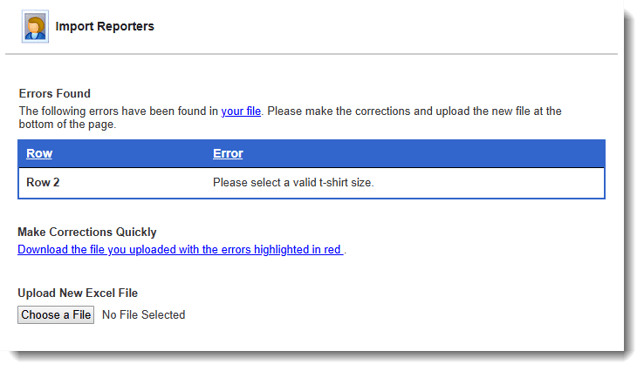 Now you will have the option to Download the file you uploaded with the errors highlighted in red for quick correction.
 Here’s what the file will look like, errors highlighted in red: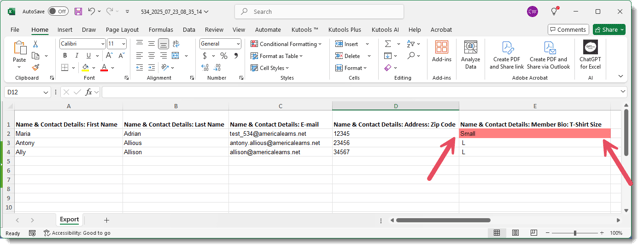
-
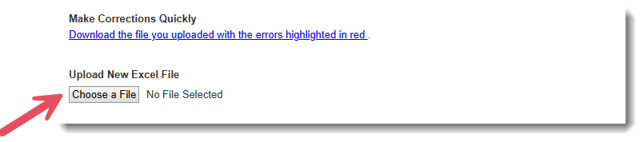
Use the section Upload New Excel File to upload your corrected worksheet:
-
Next, you will need to re-map your fields.
-
Now you will have the opportunity to Preview Import.
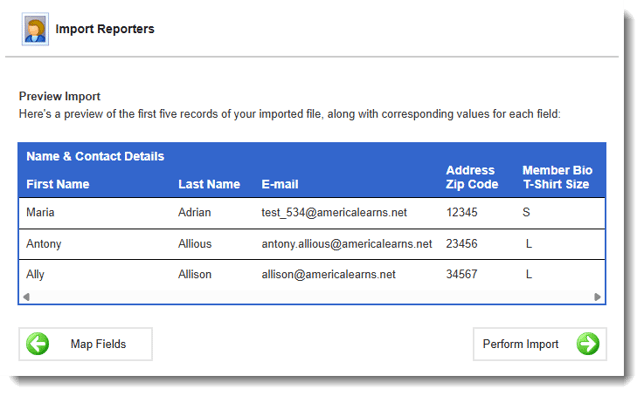
This is a good opportunity to make sure you have properly mapped your template. If you find issues, you can use the Map Fields back button to correct any mistakes.
-
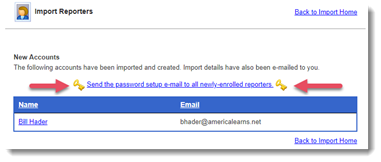
Once you’re satisfied with your preview, proceed to Perform Import. Here, you’ll get an Import Confirmation, like this:
-
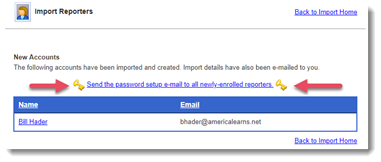
Once you’ve enrolled your reporters, you’ll have the option to send the password setup e-mail to all newly-enrolled reporters right away, or you can wait until you’re ready.
-
If you opt to wait to send the welcome/password setup e-mail, once you’ve enrolled, your reporters return to the reporter management screen (Mission Control > Reporters, Admins, & Sites > Manage reporter accounts), find them in the table at the bottom of the page, and check the box next to each name.
Then use the Select Action drop-down menu to Send Welcome/Password Setup E-mail to Selected Reporter.
Video Support: Add New Reporters Using Excel
Update Reporter Accounts Using Excel
- On the left, in your Mission Control, click Reporters, Admins, & Sites.
- On the right, click Manage reporter accounts.
- On the right, in the More menu, select Import Reporters link.
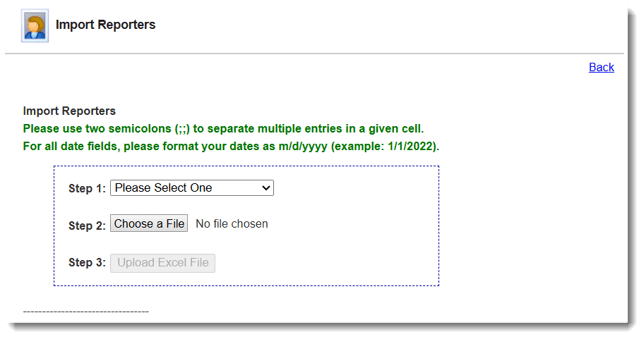
- Step 1: Select Update Existing Reporters.
Note: Reporters' first name, last name, and e-mail must be included in your Excel file. If you do not yet have that information in your file, run a quick export to add it. - Step 2: Choose a File.
- Step 3: Click Upload Excel File.
- Next, map your fields to the fields available in your Impact Suite (in both Standard and Custom Panels).
NOTE: If you used a Custom Import Template, mapping of fields will be done automatically.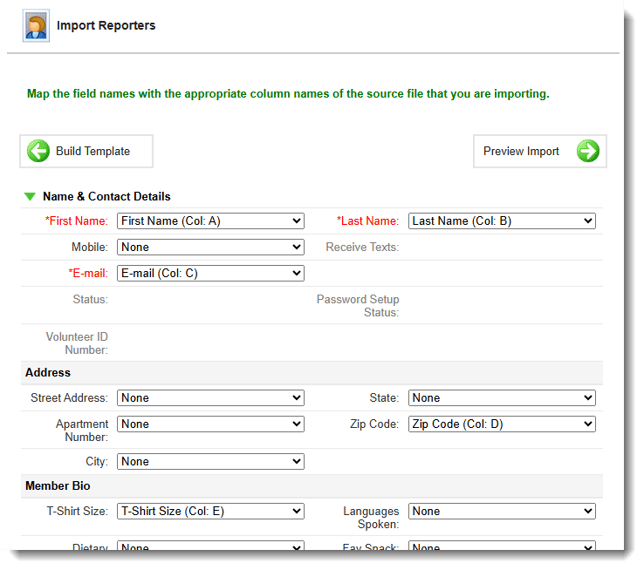
- Once you have mapped your fields, click the Preview Import button to move to the next step.
NOTE: if there are Excel columns or Impact Suite fields that you have not mapped, you will get a message like this from the system: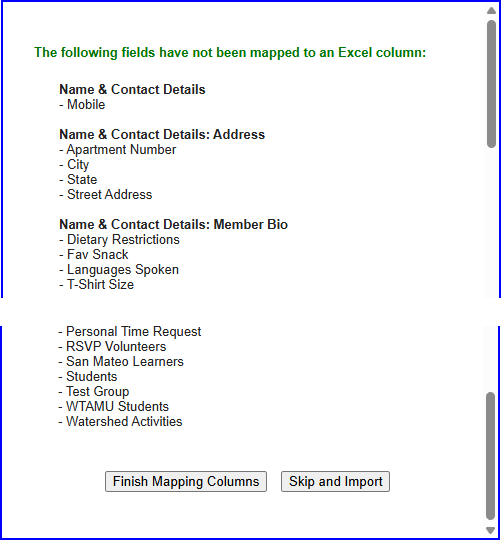
Click Skip and Import. (If you discover that you did not map a field that needs to be mapped use the Finish Mapping Columns button to go back to the previous page.) - (If no errors are found skip to #12.)
If errors are found on the Excel sheet, you’ll get a detailed list of issues. Checkout this article for a list of the most common import errors and how to fix them.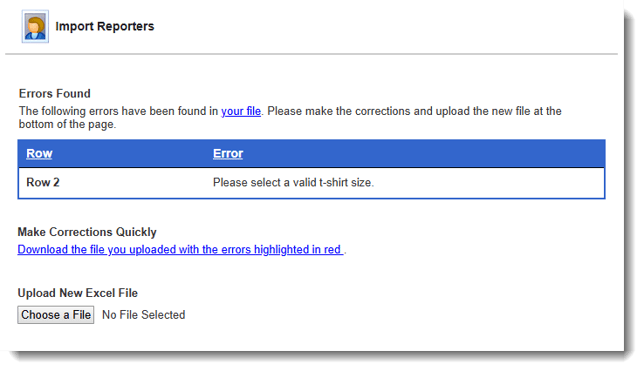 Now you will have the option to Download the file you uploaded with the errors highlighted in red for quick correction.Here’s what the file will look like, errors highlighted in red: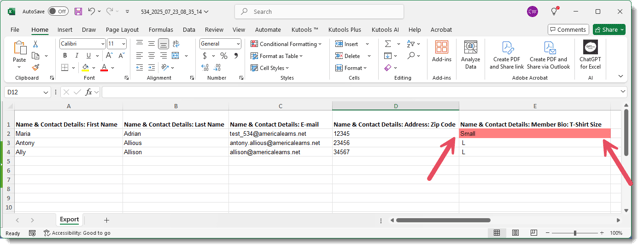
-
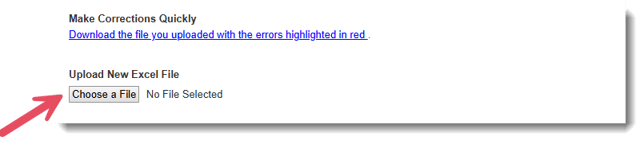
Use this section to upload your corrected template:
-
Next, you will need to re-map your fields.
-
Now you will have the opportunity to Preview Import.
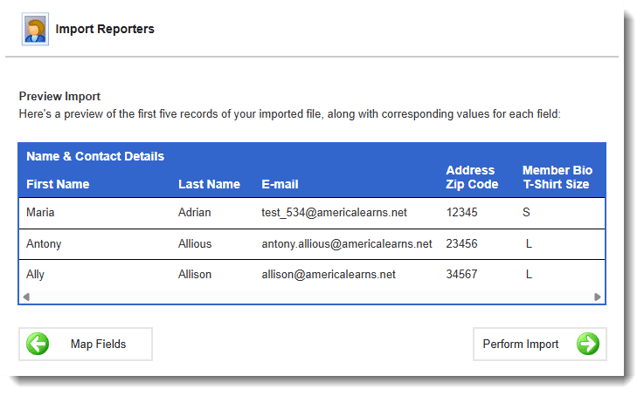
This is a good opportunity to make sure you have properly mapped your template. If you find issues, you can use the Map Fields back button to correct any mistakes.
-
Once you’re satisfied with your preview, proceed to Perform Import.
-
Next, you will get a message about Pre-existing Records.
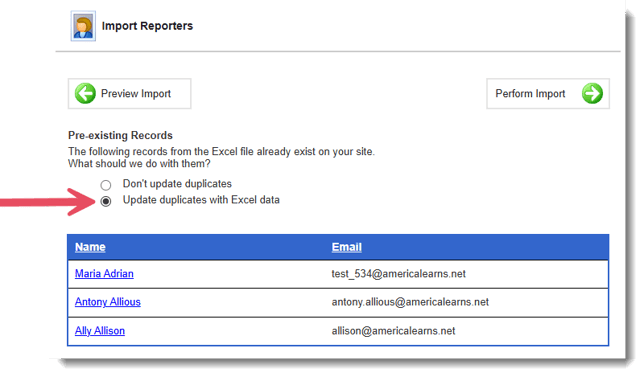
Click Update duplicates with Excel. This action gives the system permission to update the relevant reporter profiles.
Click Perform Import. -
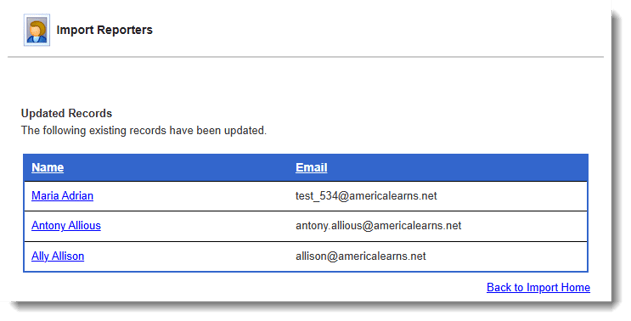
Here, you’ll get an Import Confirmation, like this: