
Updating a Question to Limit Access to Data by Admin Role
You now update (and create new) survey questions to limit which admins can review the data.
One reason this might be useful is when you need to collect sensitive feedback data.
For example, perhaps you need to gather feedback about your host sites and supervisors, but don't want supervisors to have access to the data.
Now you have the flexibility to keep the data confidential based on Admin Role. This article reviews how to update an already created question. To create a new question, check out the guidance found here.
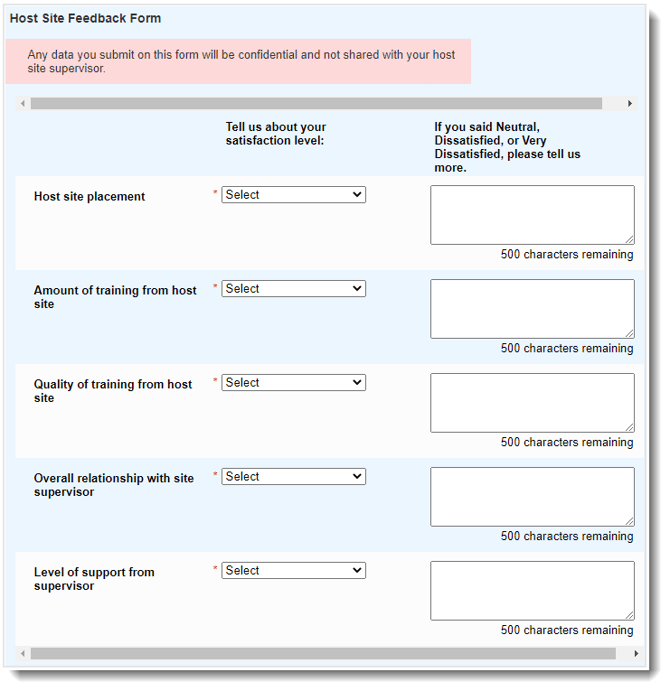
To update which admins can see data by following these steps:
- On the left, in your Mission Control, click Survey Management.
- On the right, click Create and manage questions.
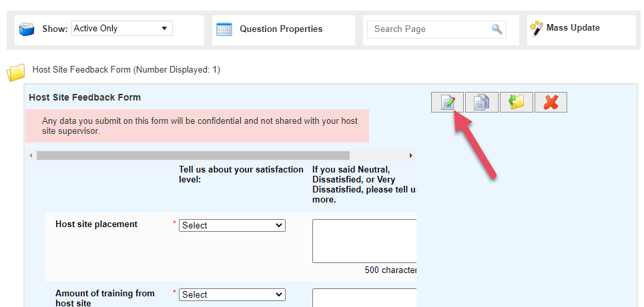
- On the left, open the category and find the question you would like to update. Click the Edit icon (paper with pencil) to open the question.
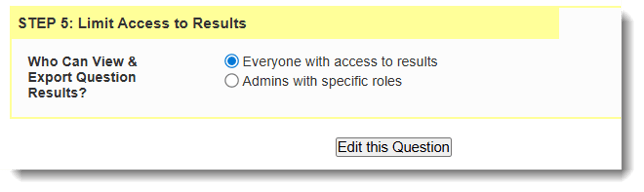
- When the question opens, scroll to the very bottom and find the section called Limit Access to Results.
- From here you can select Admins with specific roles and check the roles you'd like to have access to the data.
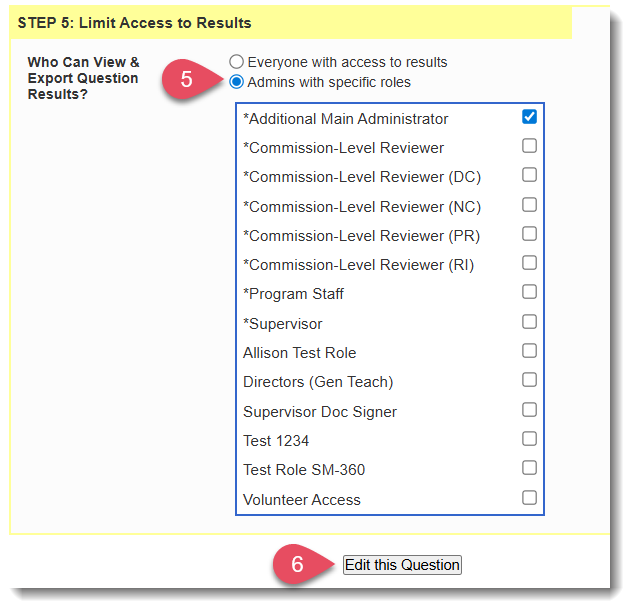
- To save your changes, scroll to the bottom of the question and click Edit this Question.