
Reporter Re-enrollment
Is your reporter re-enrolling for a second program year? Here’s what to update so their new term is set up correctly.
1. Update Returning Reporter Timesheet Settings (One-by-One)
To update your returning reporter's timesheet settings for the new year, follow these steps:
-
On the left, in your Mission Control, click Reporters, Admins, & Sites.
-
On the right, click Manage reporter accounts.
-
Click on the name of the reporter you would like to update.
-
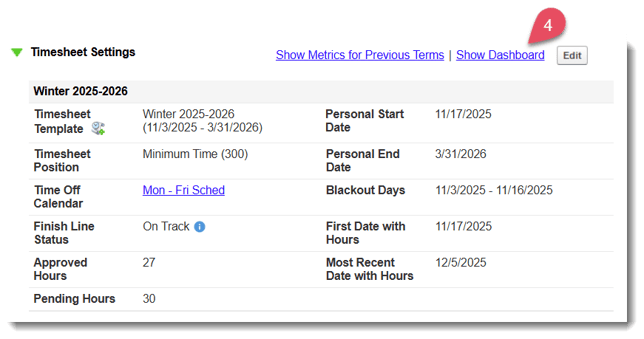
Find the Timesheets Settings panel like the one in the following image and click Show Dashboard.
-
A new tab will open. In this tab, confirm that hours for the previous term are accurate and that all timesheets have been approved before reassigning.
-
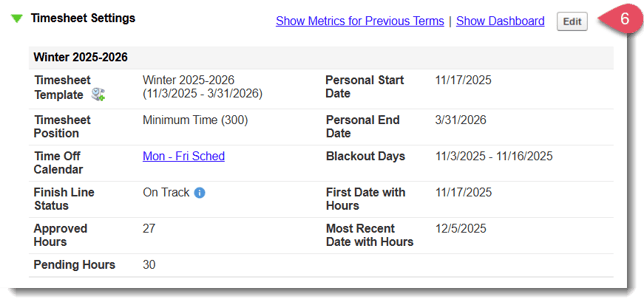
Return to the reporter profile tab and in the Timesheet Settings panel, select Edit:
-
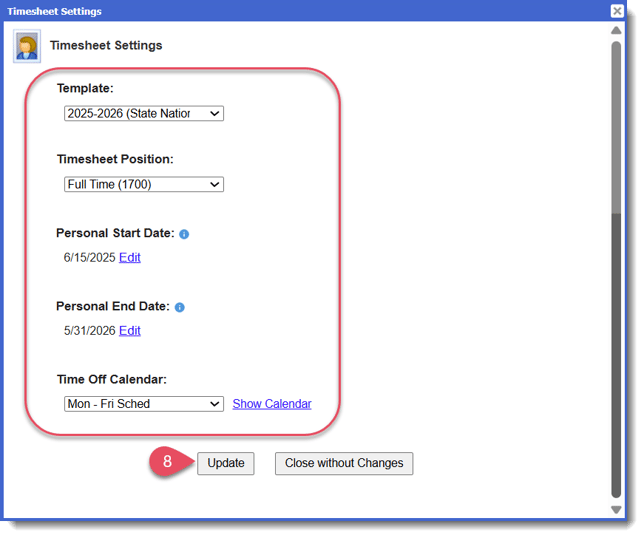
In the pop-up window, connect the reporter to their new timesheet settings.
-
Click Update to save your changes.
2. Update Returning Reporter Type 1 Associations (One-by-One)
*Some programs do not use Type 1 Associations. If this does not apply to you, skip this step.
-
On the left, in your Mission Control, click Reporters, Admins, & Sites.
-
On the right, click Manage reporter accounts.
-
Click on the name of the reporter you would like to update.
-
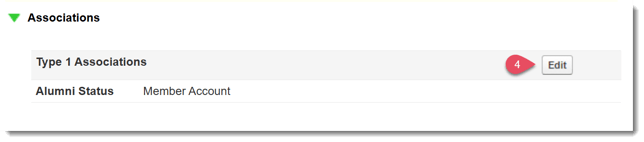
Find the Associations panel and click Edit.
-
A new pop-up will open. Select any new association items. (e.g. Assign this reporter to the new program year to ensure they see the new program year panel and survey questions.)
(If you need to update the association options, see this article: update type 1 association items)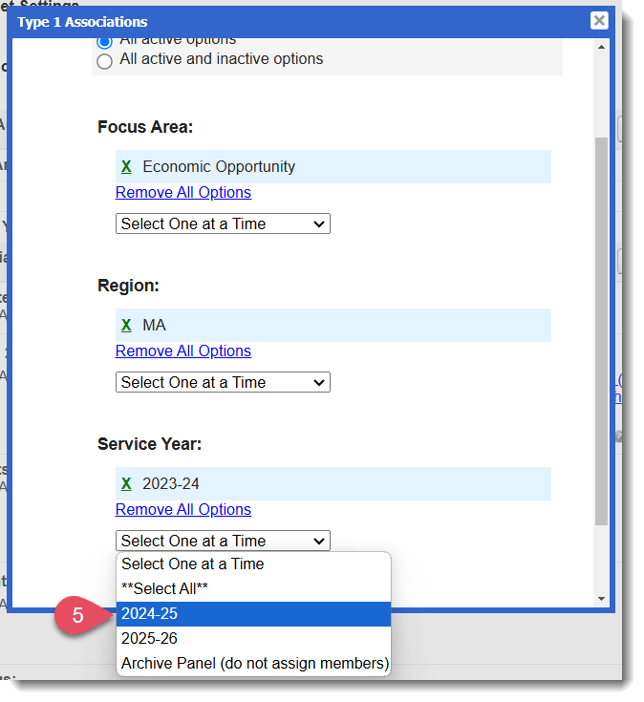
-
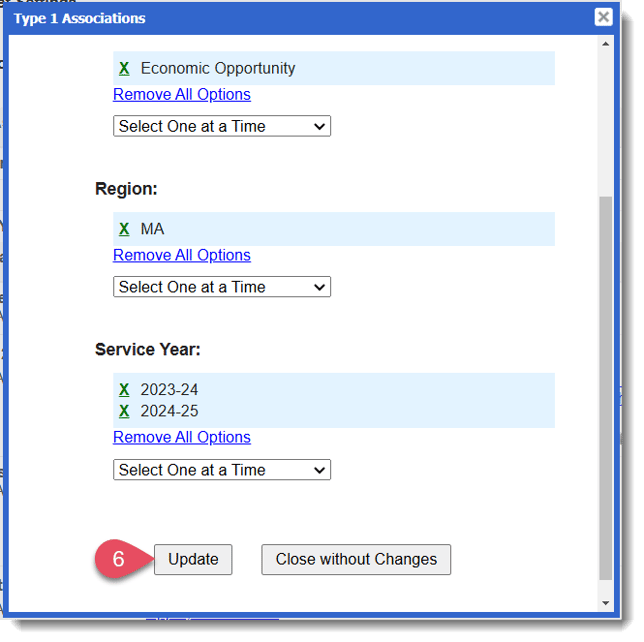
After adding/removing all relevant association items, click Update.
3. Update Returning Reporter Site Assignments (One-by-One)
*If your reporter's site assignment has not changed, skip this step.
-
On the left, in your Mission Control, click Reporters, Admins, & Sites.
-
On the right, click Manage reporter accounts.
-
Click on the name of the reporter you would like to update.
-
Find the Site Assignment panel and click Edit.

-
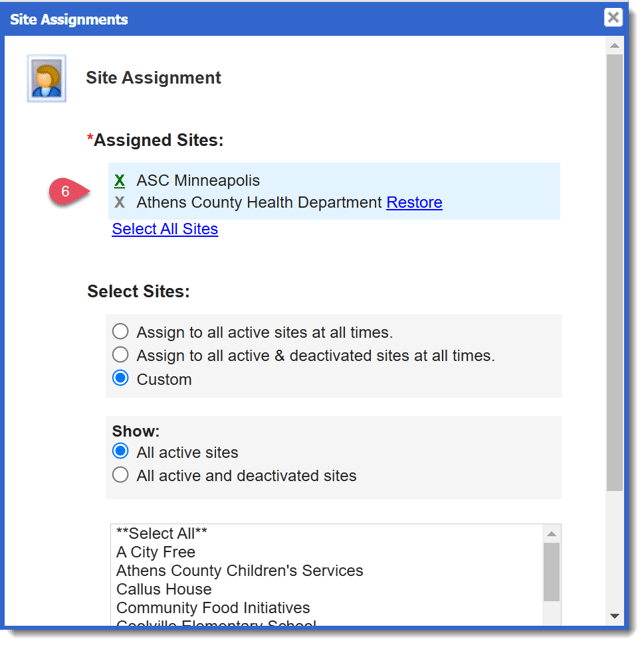
A new pop-up will open. Remove the old site (if necessary) and select the new site(s) from the list.
-
Click Update.
Alternate: Update Returning Reporter Timesheet Settings, Associations, and/or Sites (En Masse)
More than one returning reporter? No problem. You can Import Reporters using Excel to update profiles in bulk. See more on how in this article.
-
You will receive a confirmation that duplicate records were updated.