Understanding Timesheet Supervisor and Director Accounts
Each Admin Role can be designated as either a Timesheet Supervisor or a Timesheet Director -- or neither if the intended admin user does not need to interact with the timesheet module.
To navigate to the area where you can view admin roles and adjust their settings, follow these steps:
- In Mission Control, select Reporters, Admins, & Sites
- Select Manage admin roles
- Select the admin role you'd like to view/update, or create a new role.
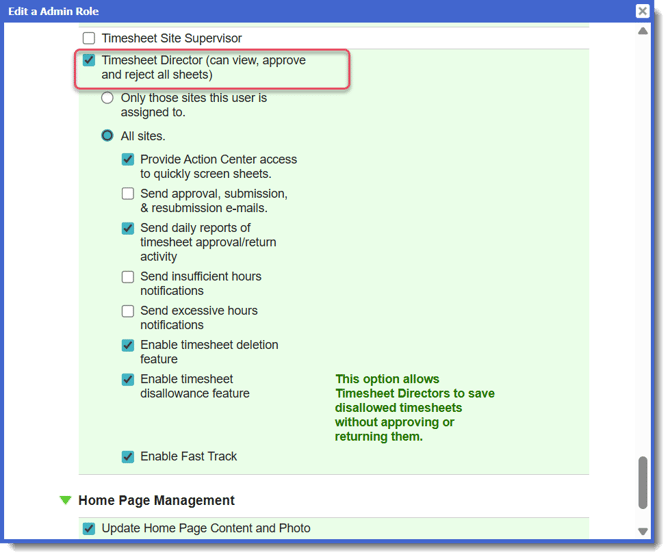
Timesheet Director Powers
Actual user permissions will be based on items selected in their assigned Admin Role, but may include:
- Access, approve, or reject any timesheet at any time (including timesheets that have been approved by others).
- Create customized reports at any level (site or program-wide).
- Pull up a list of reporters with overdue sheets and then e-mail those reporters.
- Receive notifications when site supervisors approve timesheets
IMPORTANT: Timesheet Director(s) will automatically be responsible for screening all timesheets at a site that does not have a Timesheet Supervisor assigned.
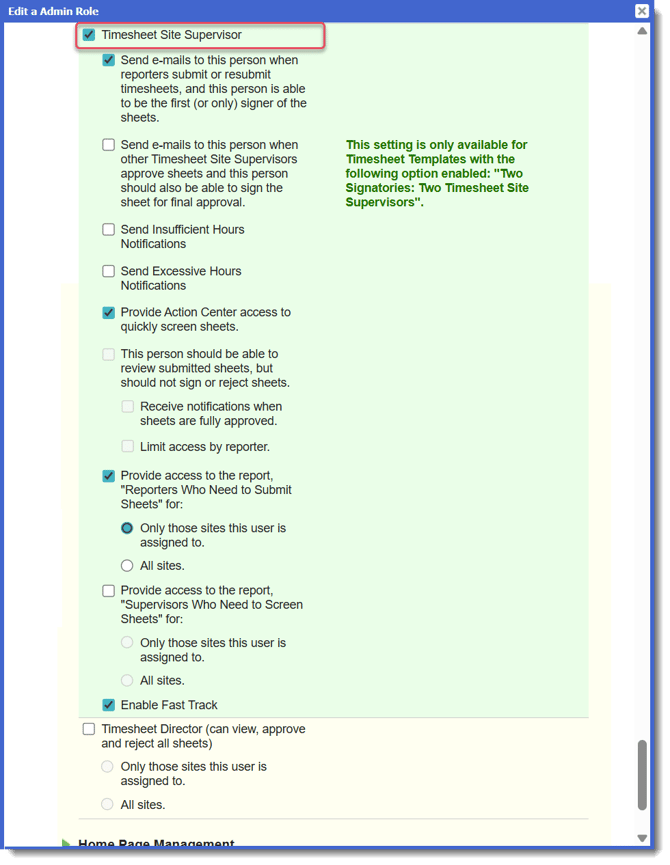
Timesheet Supervisor Powers
Actual user permissions will be based on items selected in their assigned Admin Role, but may include:
-
Access, review, approve, and reject timesheets for their assigned site(s).
-
Track which reporters need to submit timesheets for their sites.
-
Track which admins need to screen timesheets.
-
Create customized reports for their assigned site(s).
You may have an unlimited number of Timesheet Site Supervisors for any one site.