"Unallocated Time" Activity Tracking
Unallocated Time is any “leftover” time on a timesheet day after hours have been assigned to categories or subcategories. It is the primary tool for capturing lunches, breaks, and other periods that fall between a reporter’s Time In and Time Out but are not covered by existing options.
To manage your Unallocated Time settings, navigate to:
- On the left, in your Mission Control, click Timesheets.
- On the right, click Create & manage timesheet templates.
- Select the template that you’d like to edit.
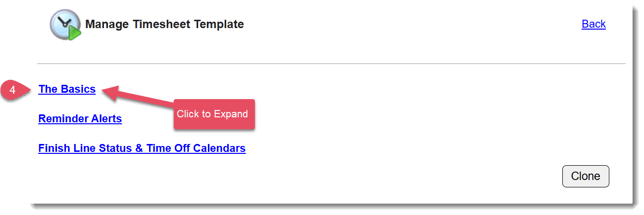
- Expand the section of the template called The Basics.
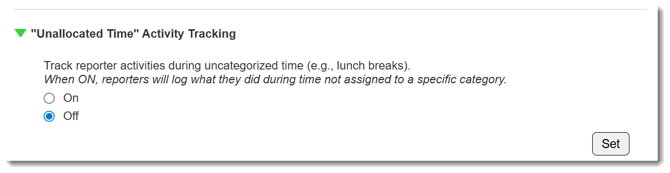
- Open the section titled "Unallocated Time" Activity Tracking:
There are four ways to configure how Unallocated Time is handled on the timesheet, outlined in the sections below.
Option 1: Feature Off
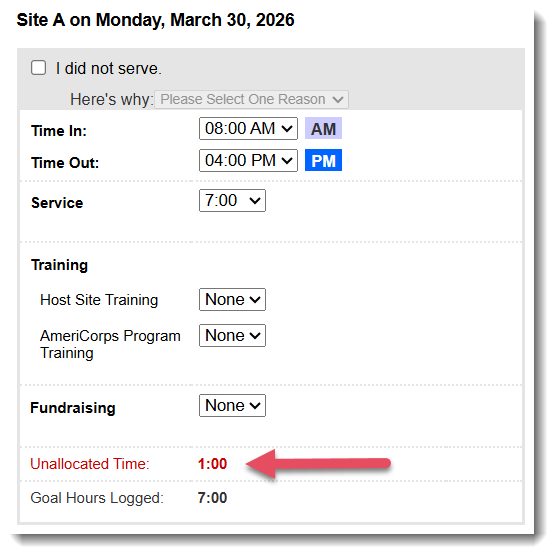
This feature is Off by default. By not activating this feature, reporters will not be prompted to account for what they were doing during any Unallocated Time on their timesheets.
Here's what this option will look like on a timesheet:
Option 2: Custom Selections Only
You can prompt reporters to choose from a list of reasons for having Unallocated Time:
- Click the On radio button to activate the feature, a pop-up window will open:
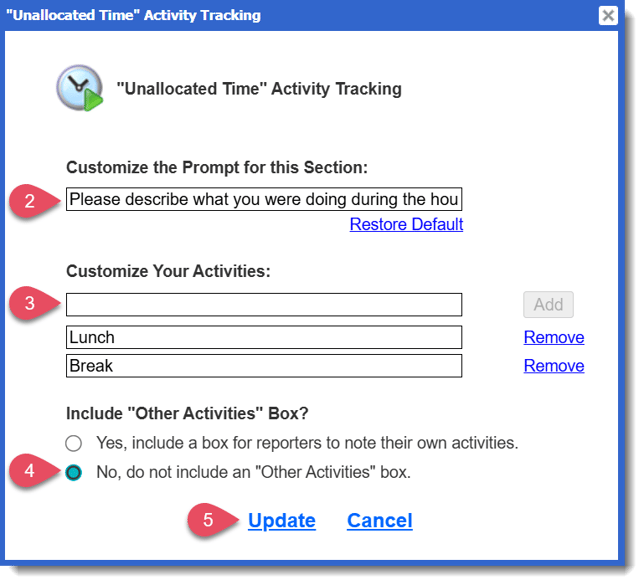
- Enter a prompt in the Customize the Prompt for this Section field.
- Enter each reason (i.e. Lunch, Break, Personal Appointment, etc.)
- Click No, do not include an “Other Activities” box radio button.
- Click Update to save.
Here’s what this option looks like on a timesheet: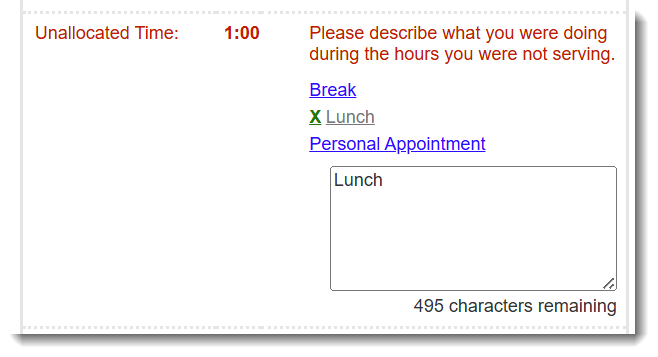
Option 3: Free Text Box
To allow reporters to write what they were doing during the time listed as Unallocated Time in their timesheets without selecting any pre-written activities:
- Click the On radio button to activate the feature, a pop-up window will open:
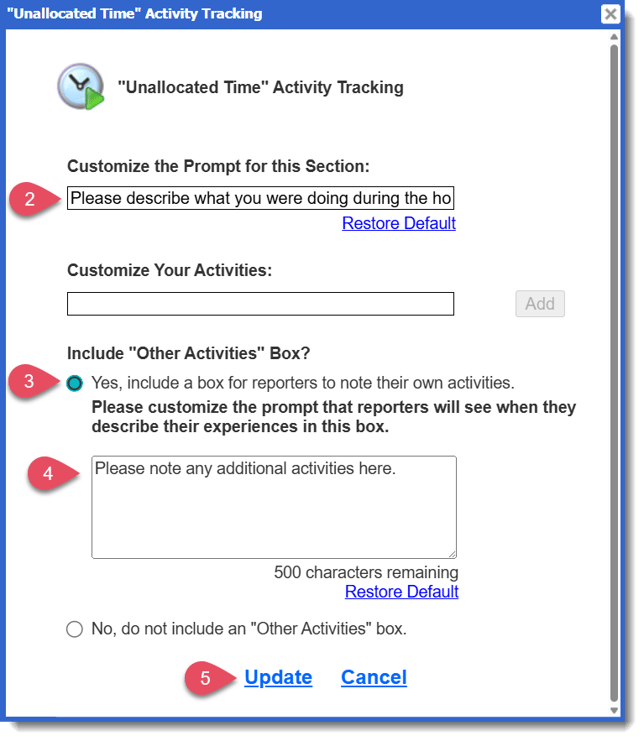
- Enter a prompt in the Customize the Prompt for this Section field.
- Click Yes, include a box for reporters to note their own activities radio button.
- Customize the prompt that appears in the text box.
- Click Update to save.
Here’s what this option looks like on a timesheet: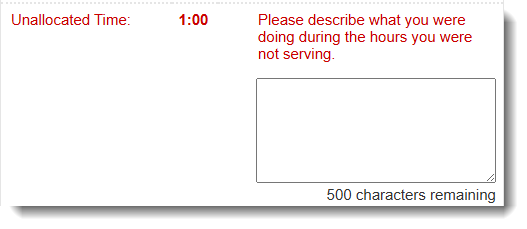
Option 4: Hybrid – Custom Selections + Free Text Box
To ask your reporters to choose from a series of options of the most common reasons for having Unallocated Time, AND enable a text box for additional details:
- Click the On radio button to enable the feature.
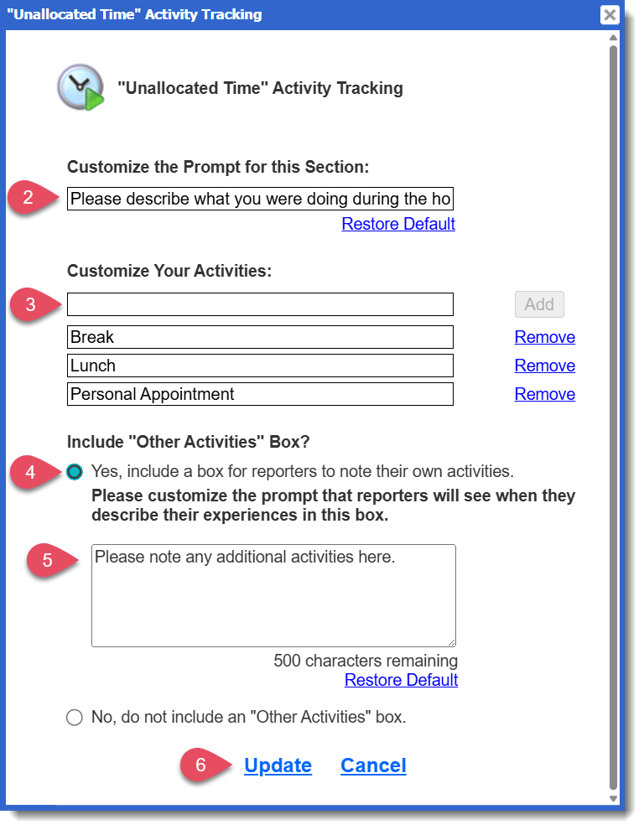
- Enter a prompt in the Customize the Prompt for this Section field.
- Enter each reason (i.e. Lunch, Break, Personal Appointment, etc.)
- Click Yes, include a box for reporters to note their own activities radio button.
- Customize the prompt that appears in the text box.
- Click Update to save.
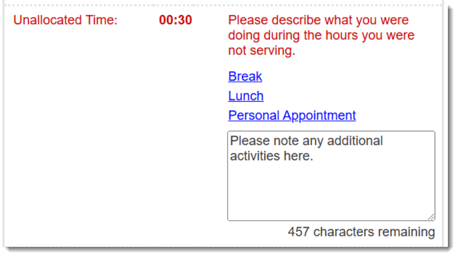
Here’s what this option looks like on a timesheet: