Tracking Reimbursement Amounts and Dates
Use the financial reporting module to track reimbursement dates and amounts, keeping all of that information in one place and giving you the ability to run invoice & reimbursement tracking reports.
You can add and modify this information in three ways:
-
When approving Expense Reports
-
At the bottom of an already-approved Expense Report
-
From your Financial Reporting dashboard
Guidance for each of these methods is below.
Video Support: Tracking Reimbursement Dates
Adding Reimbursement Amounts & Dates When Approving Expense Reports
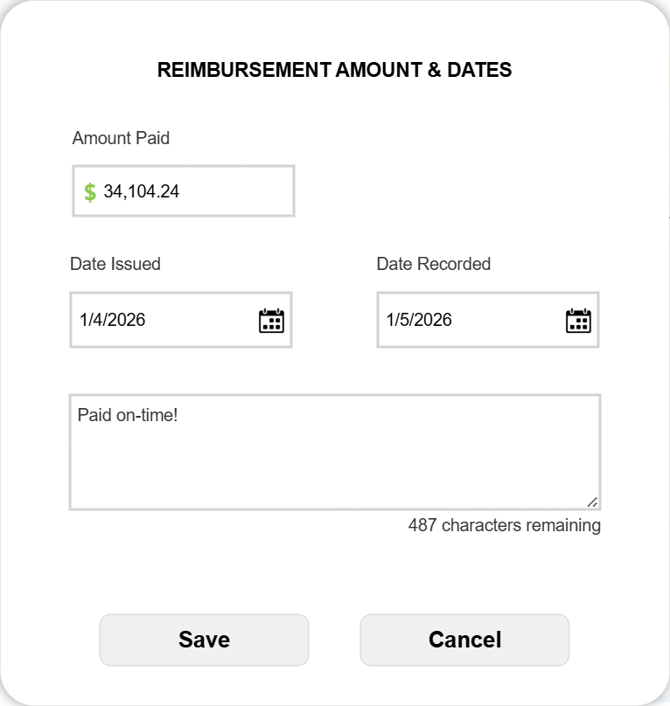
When approving an Expense Report, you'll see a pop-up giving you the option to add the date that reimbursement was (or will be) issued and then recorded in your accounting system. Also add the amount.
You can also add notes around the reimbursements, which will be added to the report's audit trail.
Here's what the updates look like in the audit trail:

Adding & Editing Reimbursement Dates At the Bottom of Already-Approved Reports
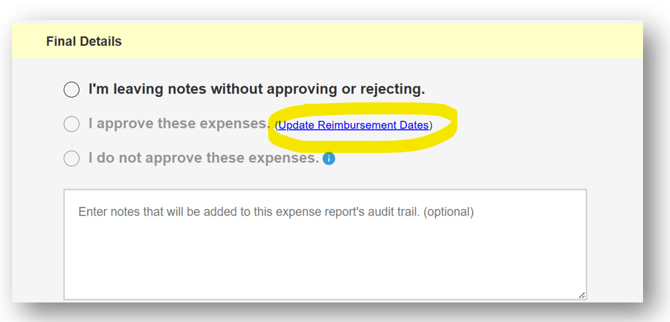
In the Final Details section at the bottom of already approved reports, you'll find a link that reads Update Reimbursement Dates. Click this link to add or edit dates, along with relevant notes in your audit trail.
Adding & Editing Reimbursement Details From Your Program Year Dashboard
When you open a program's Screened Budgets & Reports section of their dashboard, you'll see green and/or red dollar sign icons alongside each approved expense report.
- A green icon shows that both reimbursement issurance and recording dates have been entered.
- A red icon shows that at least one of the dates has not been entered.
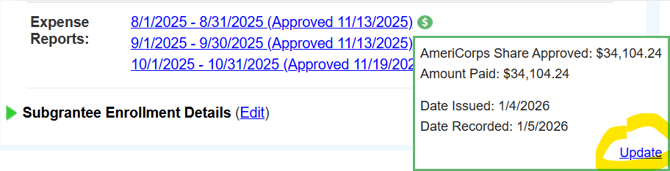
Hover over an icon to see any dates that have been entered.
Click Update to add or remove dates.
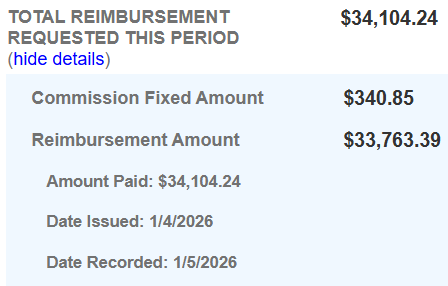
This information will automatically be included at the top of each expense report page (see below), and will of course be included in any exports that included an expense report's audit trail.