
Understanding the Invoice Number Field
A new Invoice Number field is available in the Reimbursement Amounts & Dates pop-up when approving an expense report or expansion porch. This field helps keep reimbursement and invoice tracking information together in one place for easier management and reporting.
Entering And Saving Invoice Numbers
- Open the expense report approval page.
- Open the Reimbursement Amounts & Dates pop-up.
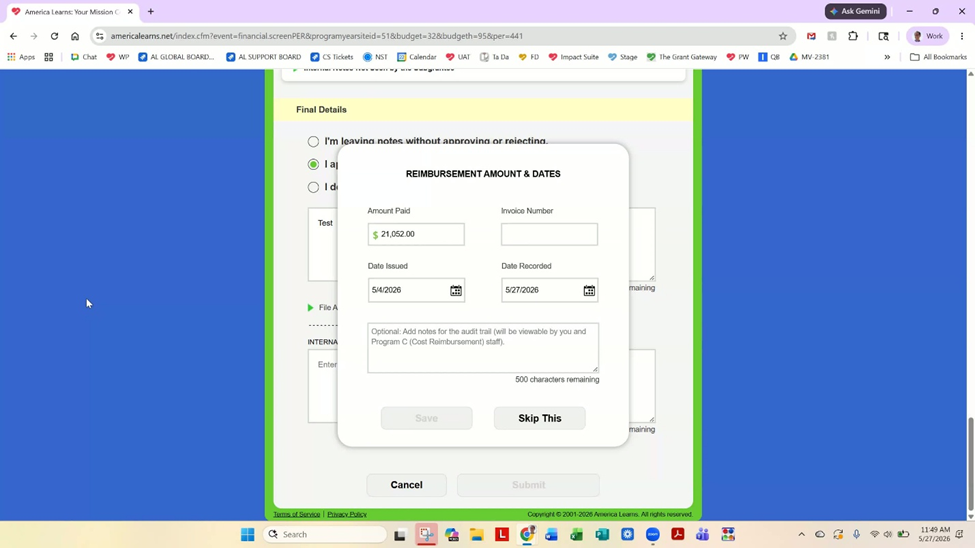
- Enter the invoice number in the Invoice Number field.
- Click Save.
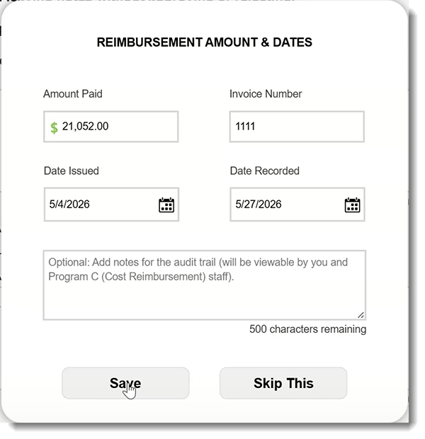
After saving, the invoice number appears in the reimbursement details section.
Reviewing Reimbursement Status Indicators
After saving reimbursement details, review the reimbursement status indicators to confirm all required information is complete.
- Green dollar sign: All required reimbursement information is complete.
- Red indicator: Required reimbursement information is still missing.
The saved invoice number will appear alongside the reimbursement information.
Updating Reimbursement Details
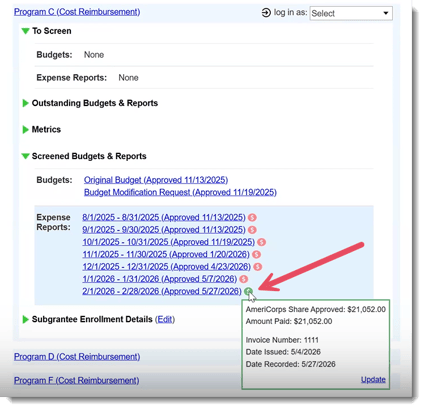
You can update reimbursement information at any time without starting over.
- Open the reimbursement details tooltip.
- Click Update.
- Edit the invoice number or other reimbursement information.
- Click Save.
Exporting And Reporting On Invoice Numbers
Invoice numbers are included in:
- Exported expense reports
- Invoice tracker reports
- Reimbursement tracker reports
When building reports, you can also select Invoice Number as a report field option.