

Timesheets: Updating Blackout Dates
Head to the Fellow Impact Suite, then:
-
On the left-hand side of your Mission Control, click Fellows, Staff & Community Host Partners.
-
On the right, click Manage fellows accounts.
- Click on the name of the Fellow you would like to update.
- Find the Timesheets Settings panel like the one in the following image:
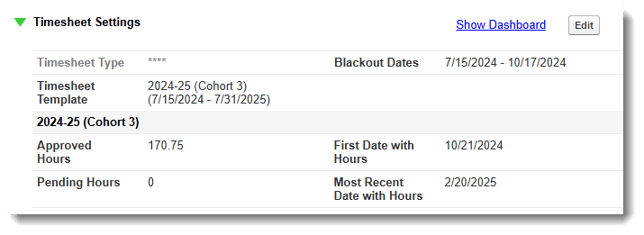
- To make changes to this panel, click the Edit button. This pop-up window will open:
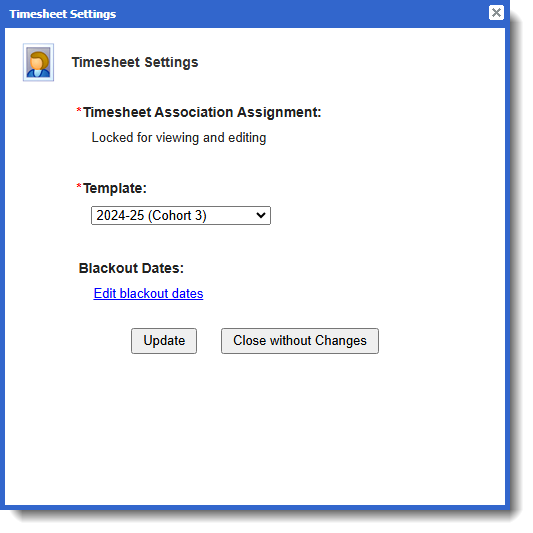
- Click Set blackout dates.
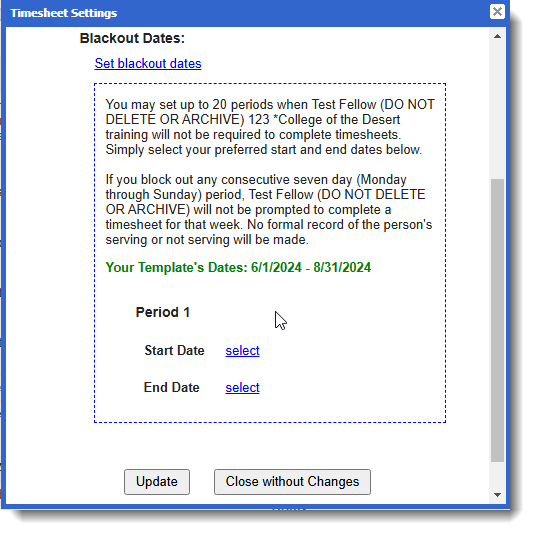
- In the window now displayed, next to Start Date, click select and pick the first date of the blackout period.
-
Next to End Date, click select and pick the last day of the blackout period.
-
You can then enter up to 19 additional periods.
-