
Timesheets: Running a Totals Report
If you need to run a year-to-date, or totals, report here are the steps:
- On the left, in your Mission Control, click Timesheets.
-
On the right, select View program-wide data.
- On the next page, select the Timesheet Template at issue.
- At the bottom of the page, select Build Custom Reports.
- On the next page, choose Totals Report.
- On the next page, Select Data to Export. You can choose as many data points as you’d like.
HINT: Here's where you can export the "Average Number of Weekly Hours Needed" metric!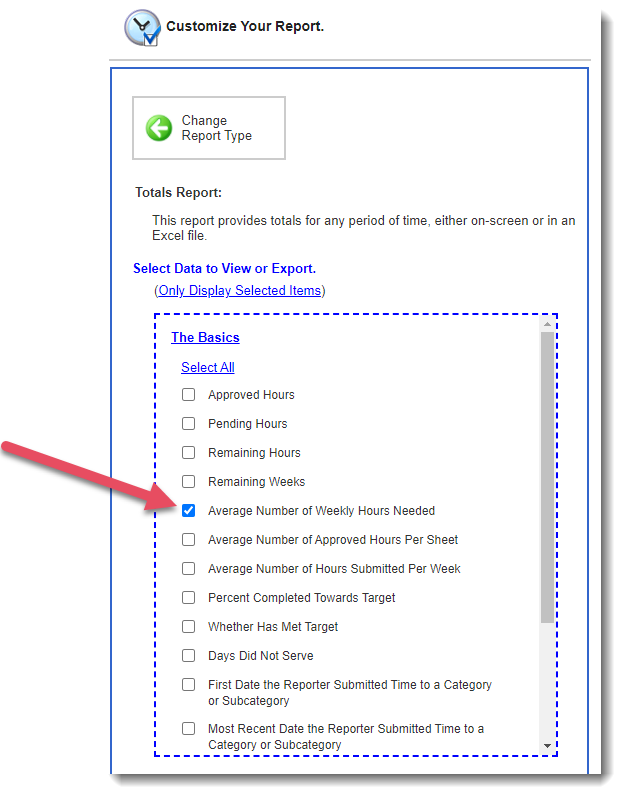
- Then, use the Select Site Breakout Options, to tell the system what site data (if any) you would like on your report.
- Next, Select One or More Reporters by choosing either:
- Include all relevant reporters.
- Select specific reporters.
- Include all relevant reporters.
- Use the Select a Time Period section to select the time period that the report should include.
- Choose your report format by clicking View Data or Export Excel.