

Timesheets: Reports - Timesheet Totals
Head to the Fellow Impact Suite, then:
- On the left-hand side of your Mission Control, click Timesheets.
- On the right, click View community host partner data.
- On the next page, select the Timesheet Template at issue: 2024-25 (Cohort 3).
Note: After selecting the timesheet template from the drop-down, your Impact Suite will automatically pre-select this option on all relevant pages. Additionally, the system will remember your selection even after logging out and back in. - At the bottom of the page, select Build Custom Reports.
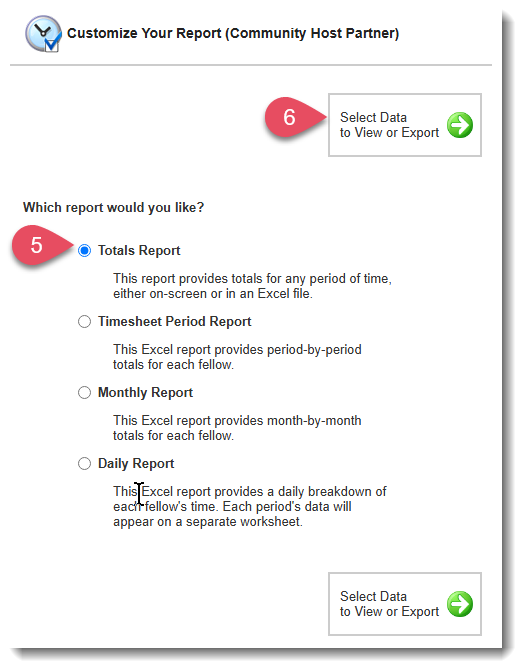
- On the next page, choose Totals Report.
- On the right, click Select Data to View or Export.
- Select a Community Host Partner. You will have the option to Select All or specific the Community Host Partners you want to review
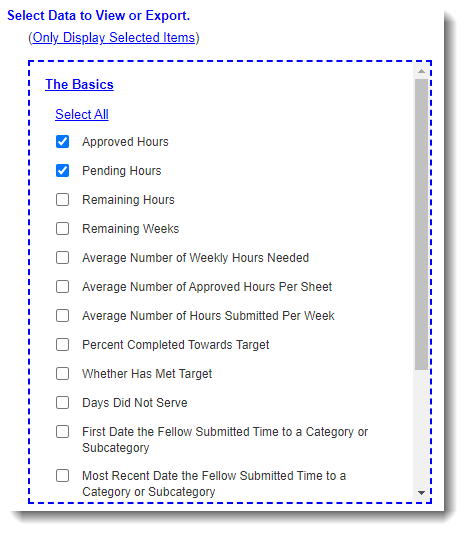
- Select Data to View or Export. You can choose as many data points as you’d like.
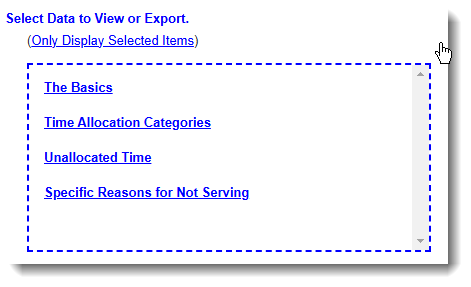
- At minimum, we recommend clicking The Basics and then checking the boxes for Approved and Pending Hours.
- Select a Community Host Partner Breakout Option. You can decide from the following options:
- Do not include community host partner names.
- Include community host partner names (no breakouts).
- Include community host partner names (breakouts).
- Select One or More Fellows. Decide which Fellows to include in your report.
- Select a Time Period. Decide which time period you'd like to review.
- Choose how you'd like to view your data:
- Click View Data to view your data on-screen, or
- Click Export Excel to export your data to a worksheet.