

Timesheets: Reports - Quick Timesheet Stats
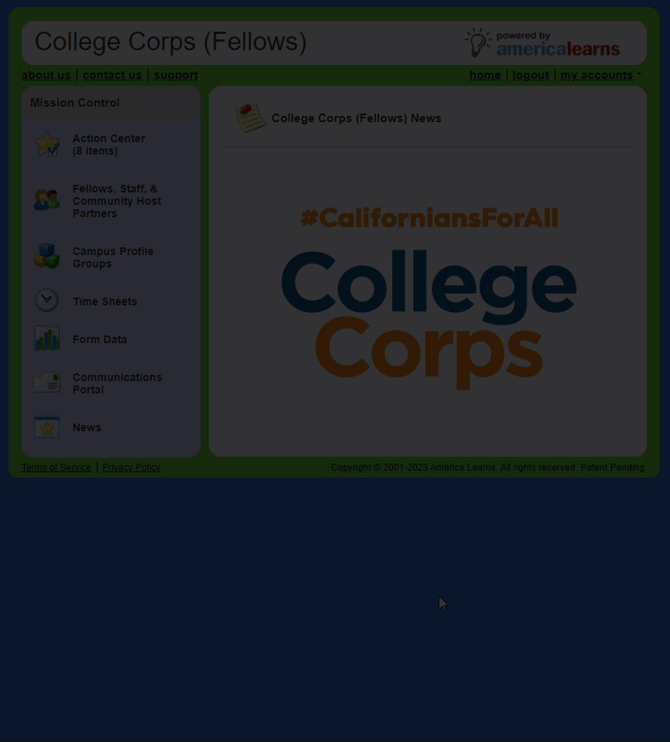
Head to the Fellow Impact Suite, then:
-
On the left-hand side of your Mission Control, click Fellows, Staff & Community Host Partners.
-
On the right, click Manage fellows accounts.
-
Towards the top-right, use the More drop-down menu to select Export Fellows.
-
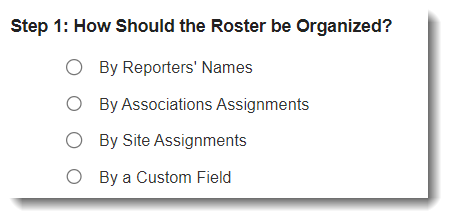
Choose how you’d like to organize your roster:
- On the right, click the Select Fields to Include button.
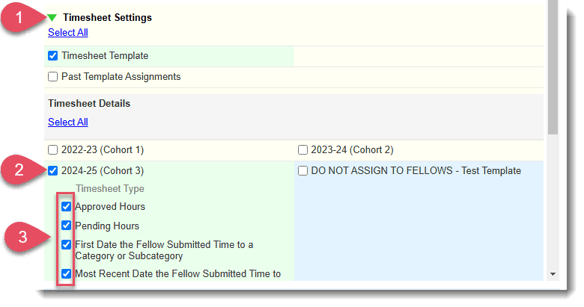
- Next, click the green triangle next to Timesheet Settings to expand the panel.
(This example uses Cohort 1 data, but you'll select Cohort 3!)
- Check the Timesheet Template box, and the panel will expand.
- Check the box for 2024-25 (Cohort 3) and the panel will expand further.
- Check the boxes for Approved Hours, Pending Hours, First Date..., and Most Recent Date...
- The table at the bottom will show a simple report of your most-up-to-date time sheet data.
To export this data to Excel click Export: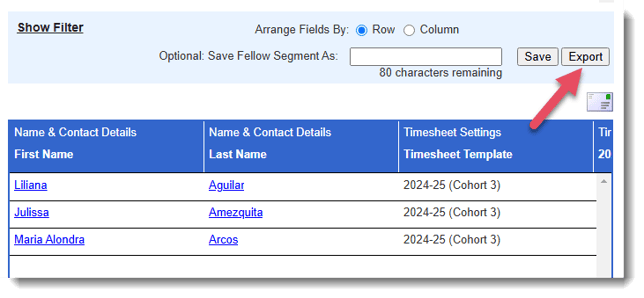
- When you Export to Excel your worksheet will include a totals row. This row will be extremely useful when you need a quick view of your stats.
