Timesheets: Reports - Quick Timesheet Stats
Log in to your Impact Suite, then:
-
On the left-hand side of your Mission Control, click Reporters, Admins, & Sites.
-
On the right, click Manage reporter accounts.
-
Towards the top-right, use the More drop-down menu to select Export Reporters.
-
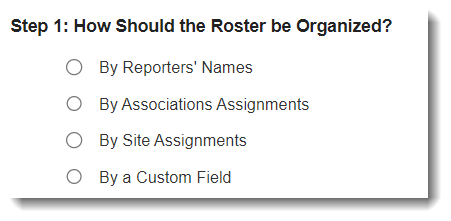
Choose how you’d like to organize your roster:
- On the right, click the Select Fields to Include button.
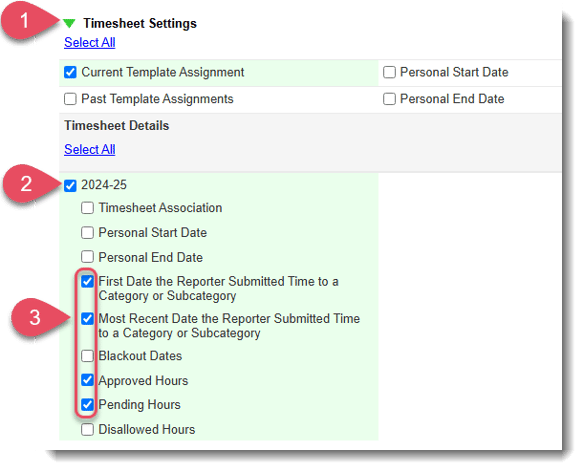
- Next, click the green triangle next to Timesheet Settings to expand the panel.
- Check the Timesheet Template box, and the panel will expand.
- Check the box for Your Current Template and the panel will expand further.
- Check the boxes for Approved Hours (and any other details you'd like to see).
- The table at the bottom will show a simple report of your most up-to-date timesheet data.
To export this data to Excel, click the Export button: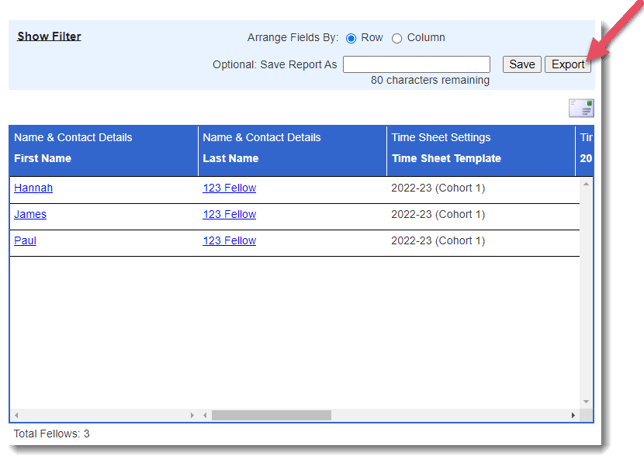
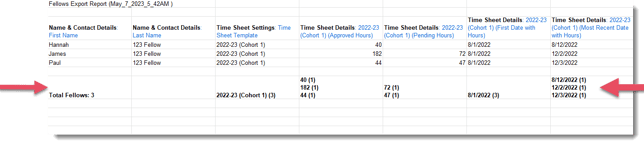
- When you Export to Excel your worksheet will include a totals row. This row will be extremely useful when you need a quick stats view.