
Timesheet Category & Subcategory Targeting
There may be times when you’ll need to target your timesheet categories or subcategories by reporters at a specific site or sites.
Example: You have reporters at Site A who needs to track service hours spent tutoring and reporters at Site B who needs to track service hours spent mentoring. Your Impact Suite allows you to ensure that reporters only see the relevant categories or subcategories.
Here’s how to do it:
-
On the left, in your Mission Control, click Timesheets.
-
On the right, click Create & manage timesheet templates.
-
(a) If you need to edit an existing template, scroll down and select the template you desire to edit.
(b) If you need to create a new template, enter a template name and select Create & Go to Step 2.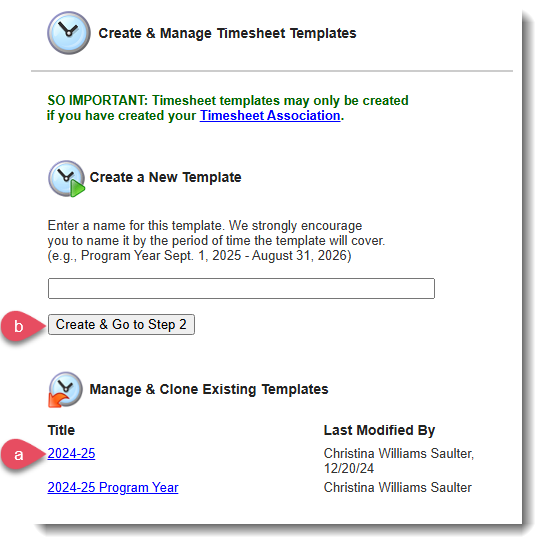
-
Find the section of the template called Time Allocation Categories and find the category you like to target.
Click either:
(a) Edit, or
(b) Create a Category.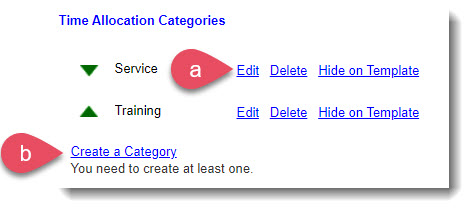 Whether creating a new category, or editing an existing one, you have the ability to target either the entire category or one or more sub-categories to specific sites.
 -
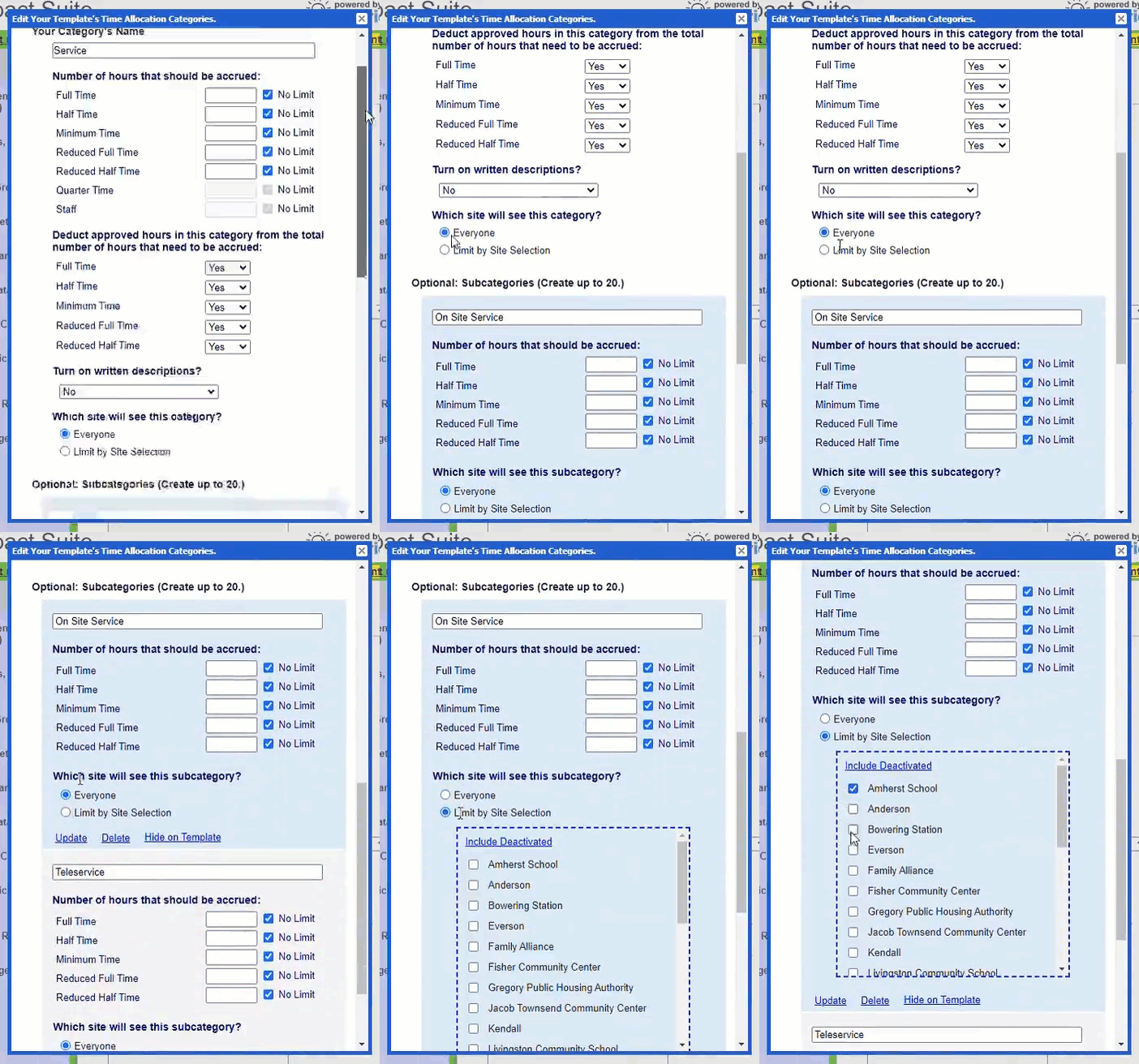
After selecting to edit or create a category, navigate to the question, Which sites will see this category? or within a specific subcategory, Which sites will see this subcategory?
-
Toggle to Limit by Site Selection in your desired category or subcategory and select the sites you'd like to target.
-
Click Update to save your changes.
IMPORTANT: All changes to timesheet templates are effective immediately and do not require a separate "Save."