
You can create a custom list of time off reasons that reporters can select directly on their timesheets, have pre-applied through Time Off Calendars, or use in both places.
Follow these steps to set up time off reasons:
- On the left, in your Mission Control, click Timesheets.
- On the right, click Create & manage timesheet templates.
- Select the template that you’d like to edit.
- Expand the section of the template called The Basics.
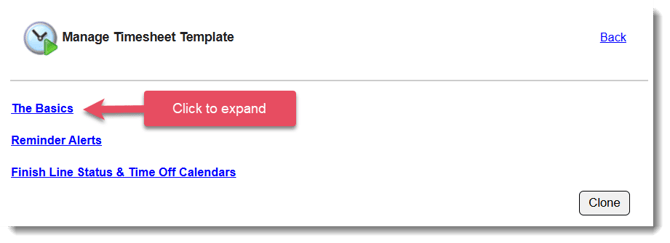
- In the section Time Off Reasons, click Review and Update.
- In the pop-up box that’s displayed, note that common reasons are pre-populated. You can edit or remove them entirely.
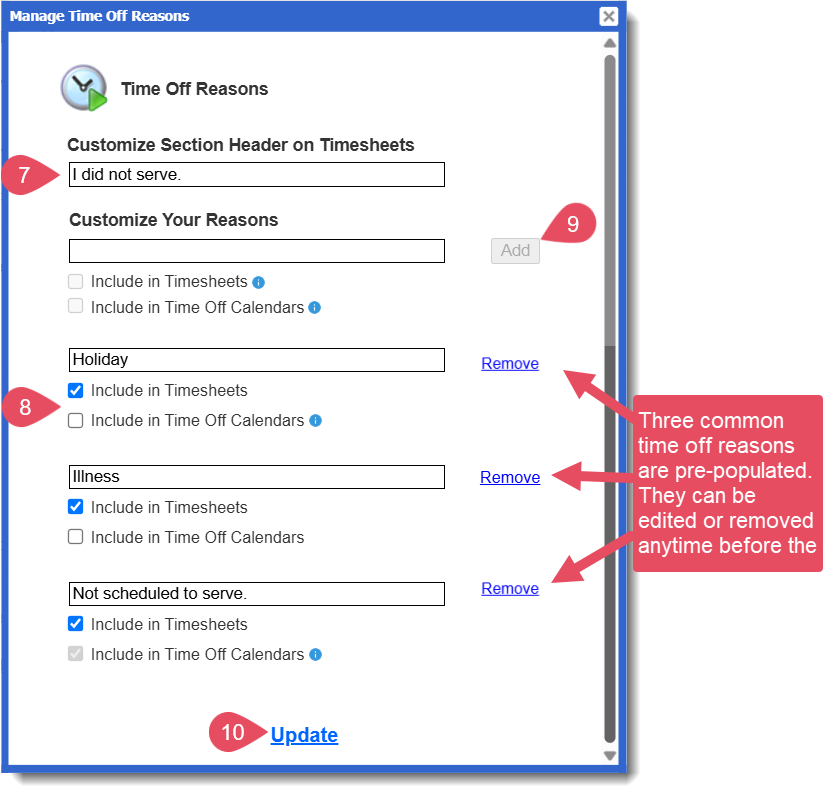
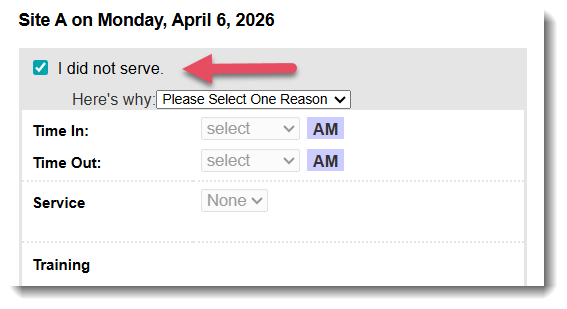
- In the Customize Section Header on Timesheets area, you can define the wording reporters see when they’re asked to select a time off reason. Here’s how that appears on the timesheet:
- For each time off reason, you can select whether it is:
- Include in Timesheets - This reason will appear as an option for reporters to select when filling out their timesheets.
- Include in Time Off Calendars - This reason can be used when creating a Time Off Calendar as part of the Timesheet Template setup (best for time off reasons you can anticipate in advance).
Based on the Time Off Calendar assigned to each reporter, these days will automatically appear as time off when they go to complete their timesheets. However, reporters can override this if they end up serving on those days.
Learn more about Time Off Calendars here. - Both - This reason will be available both as a selectable option on timesheets and for scheduling anticipated time off in the Time Off Calendar.
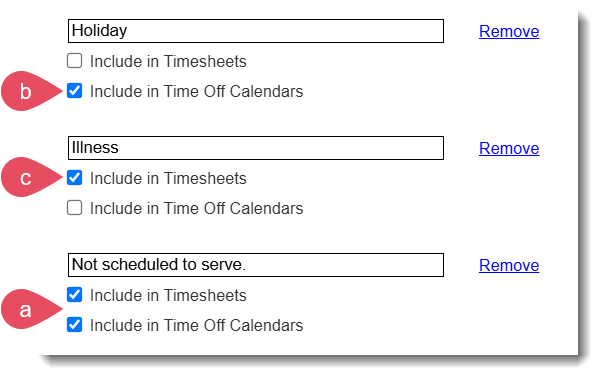
- Include in Timesheets - This reason will appear as an option for reporters to select when filling out their timesheets.
- Add an unlimited number of additional reasons and
- Click Update at the bottom of the pop-up window to save your changes.
NOTE: Edits to time off reason settings take effect immediately for any unsubmitted timesheets.