- On the left, in your Mission Control, click Timesheets.
- On the right, click Create & manage timesheet templates.
- At the bottom, select the template that you’d like to update.
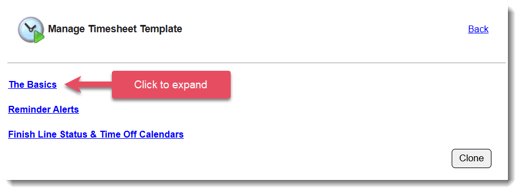
- Expand the section of the template called The Basics.
-
Locate the section titled Time In and Time Out Functionality Create a Category
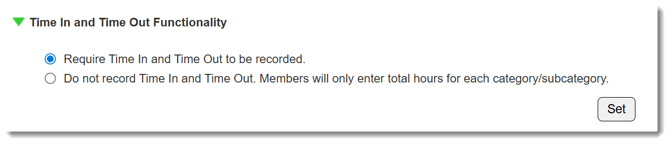
WARNING (AmeriCorps Compliance): By default, this Impact Suite will Require Time In and Time Out to be recorded. For AmeriCorps program, this is the method AmeriCorps strongly recommends.
If you choose the option Do not record Time in and Time Out, reporters will only enter total hours for each category/subcategory.
For AmeriCorps programs, choosing this option might put your program at risk of being non-compliant. We suggest reaching out to your AmeriCorps Program Officer before making this change.
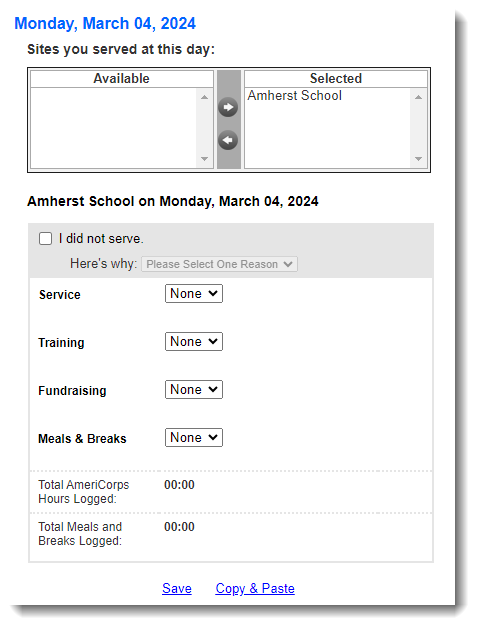
Sample timesheet day when time in and time out are not recorded: