
Time Allocation Categories and Subcategories
Categories and subcategories define how time is organized within timesheets.
Categories are used by reporters to allocate their time when submitting timesheets. Subcategories can be added within each category to capture more detailed information about how that time was spent.
NOTE: You can create and manage categories and subcategories at any time. This includes adding new ones, reordering them, updating settings, or hiding options that are no longer in use. Changes to your category and subcategory settings will take effect immediately for any unsubmitted timesheets.
Create a New Category
Here are the steps to follow for each category you create:
- On the left, in your Mission Control, click Timesheets.
- On the right, click Create & manage timesheet templates.
- At the bottom, select the template that you’d like to update.
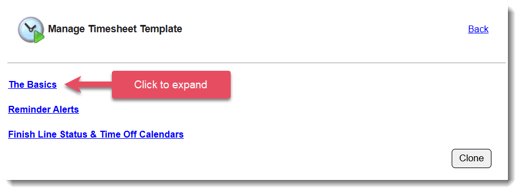
- Expand the section of the template called The Basics.
-
In the section titled Time Allocation Categories, click Create a Category, and a window will open:
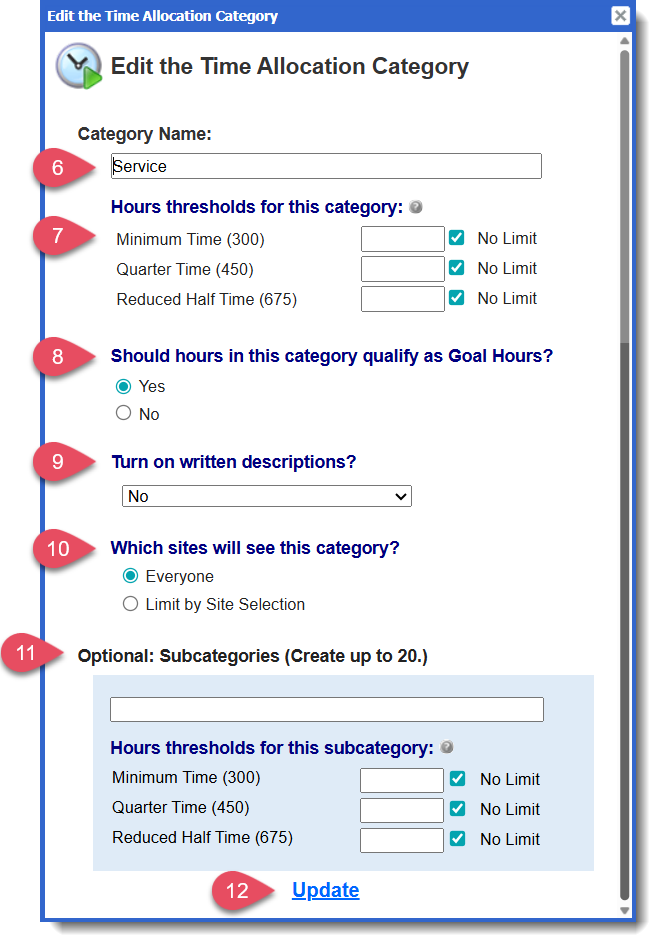
- At the top of the window, enter a name for your category (e.g., “Service”).
- Next, you’ll see a section that reads, Hours thresholds for this category.
In this section, you’ll see a list of all selected Timesheet Positions.
If you’d like reporters assigned to any of these positions to be flagged for review after they have tracked a certain number of hours, enter a threshold value in the corresponding box.
-
When a reporter exceeds the threshold, the Impact Suite will highlight the value in red on reports and exports.
-
This feature is for monitoring purposes only—it will not limit the number of hours a reporter can enter.
-
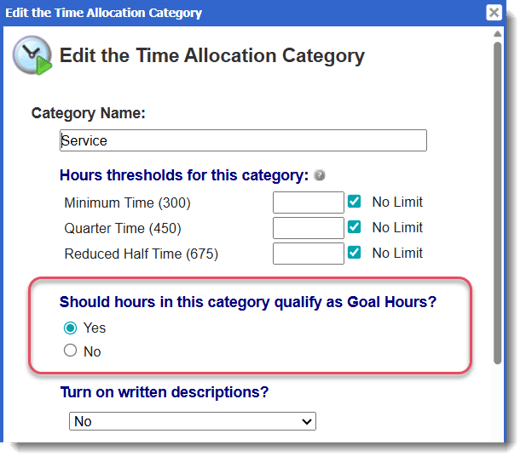
- Next, you’ll see a section that reads, Should hours in this category qualify as Goal Hours?
In this section, you’ll decide whether hours tracked in this category should count toward a reporter’s Goal Hours (as defined by their assigned Timesheet Position).
-
Yes – Hours tracked in this category will qualify as Goal Hours and will be deducted from the reporter’s Goal Hours total.
-
No – Hours tracked in this category will not qualify as Goal Hours and will not be deducted from the total.
For more information on this, check out the Assign Categories As Goal Hours Or Non-Goal Hours section of this article.
-
-
Turn on written descriptions?
To turn on a text field so that reporters can describe their efforts in this category, use the drop-down menu to select one of the following options: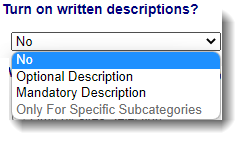
NOTE: To initiate the option Only for Specific Subcategories you will first need to create subcategories (more guidance on this in the section called Text Fields for Subcategories).
-
Next, you’ll see a section labeled Which sites will see this category?
Use this setting to decide which reporters, by site, should see the category. If all reporters linked to the template should see it, keep Everyone selected and continue.
To limit visibility by site, choose Limit by Site Selection.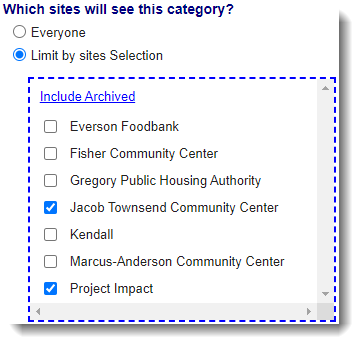
- Optional: Subcategories. You can create up to 20 Subcategories for each main category. Subcategories help you track time in more detail within a broader category.
- Click Update to save your work.
- To create another category, click Create a Category.
-
Once all of your categories are created, click Set.
Create a New Subcategory
IMPORTANT: If you create Subcategories, reporters will not enter time directly into the Category (e.g., “Service”). Instead, they’ll distribute their time across the Subcategories you’ve defined. All subcategory hours will roll up under the Category.
To add a Subcategory:
- Navigate to the category where you’d like to add a subcategory, then select Edit.
- At the bottom of the category settings, you’ll see a section for managing subcategories:
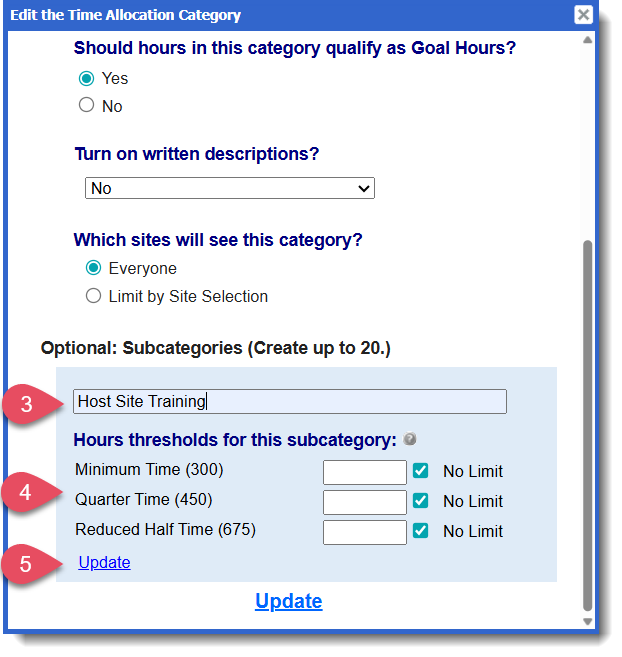
- Enter a name in the subcategory field.
- (Optional) Hour threshold for this subcategory: You can set hours thresholds (expected number of hours) for each Subcategory, based on each Timesheet Position.
- Click Update to add the new subcategory
- Additional options for managing your subcategory will appear:
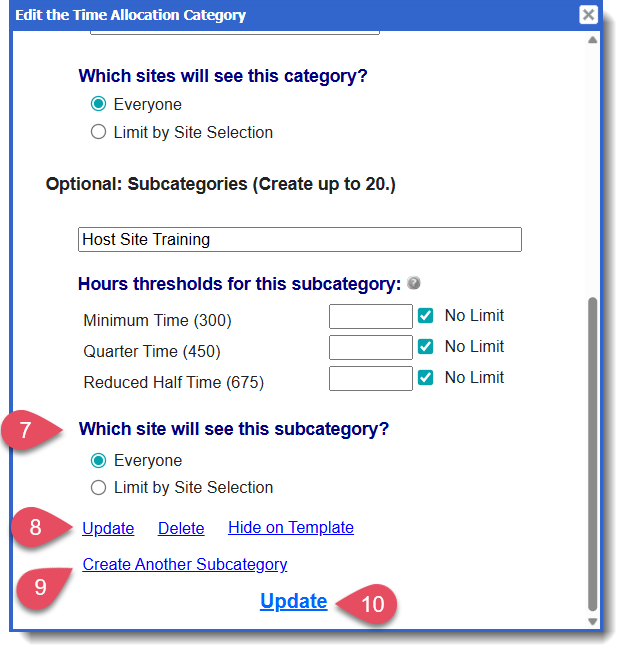
- You’ll see a section labeled Which sites will see this subcategory?
Use this setting to decide which reporters, by site, should see the subcategory. If all reporters linked to the template should see it, keep Everyone selected and continue.
To limit visibility by site, choose Limit by Site Selection. - You'll also see options to manage the subcategory:
- Update - Save any changes you’ve made to the subcategory settings.
- Delete - Available only if no data has been submitted for this subcategory.
- Hide on Template - Hide the subcategory on any unsubmitted timesheets. This will not delete data already submitted under this subcategory.
- To create another subcategory, click Create Another Subcategory
- Click Update to save your work.
- Once all of your categories and subcategories are created, click Set.
Reorder Categories
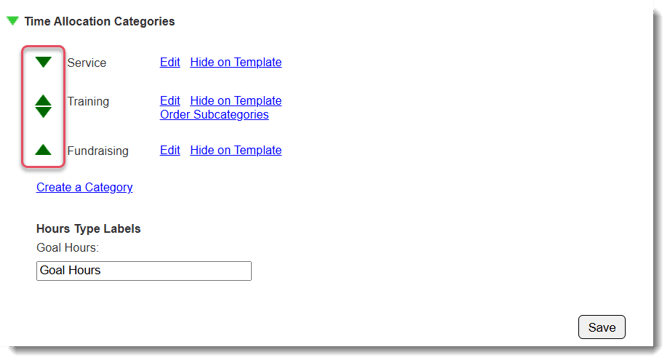
Use the green triangles to the left of each category name to determine the order in which the categories will appear on timesheets:
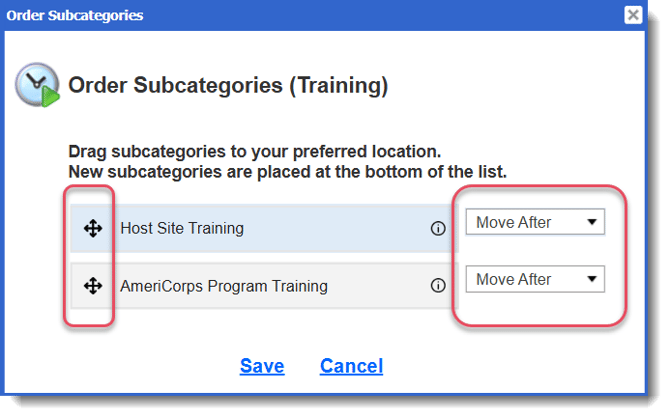
Reorder Subcategories
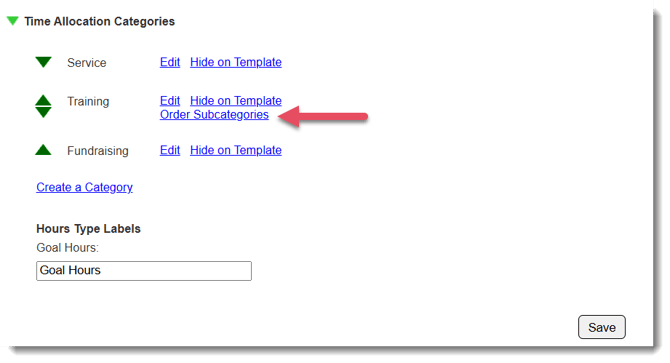
Categories that have more than one subcategory will display an option to Order Subcategories:
Assign Categories as Goal Hours or Non-Goal Hours
Step 1: Determine whether hours in this category qualify as Goal Hours.
Use this setting when creating or editing a category to decide whether time in that category will count toward Goal Hours.
TIP: Many programs only use Goal Hours categories. Check out this article for more information on use cases for Non-Goal Hours.
Step 2 (Optional): Customize Hour Type Labels
After you’ve created your categories, you can update the Goal Hours and Non-Goal Hours labels so the language reflects your program’s culture and terminology:
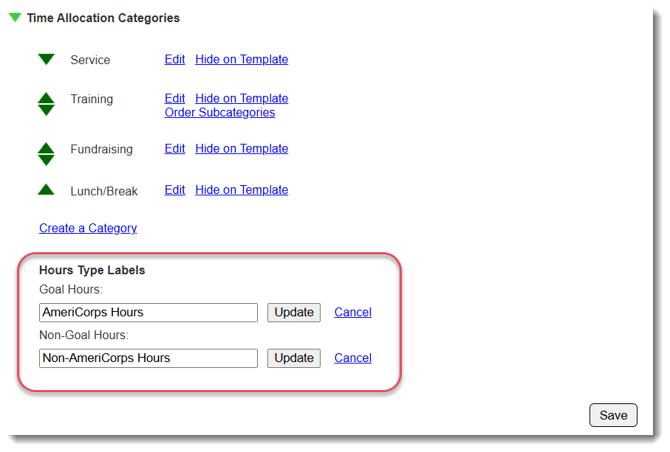
These customized labels will appear throughout the system, including on reporter timesheet dashboards and in timesheet exports.