
Viewing Survey Data: Site Data
Please note that you’ll only be able to view Site data after at least one reporter submits a survey that utilizes the 001 - Site Tracking Question.
To view Site data:
-
On the left, in your Mission Control, click the Survey Data link on the left.
-
On the right-hand side of the page, click Site data.
-
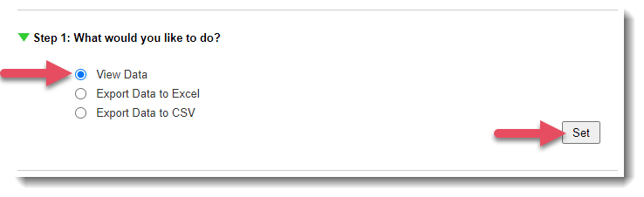
Step 1 - Choose View Data, and click Set to move to the next step.
-
Step 2 - Select the sites you would like to include. (Use Select All to select all available sites or pick from the available sites by checking the boxes.)
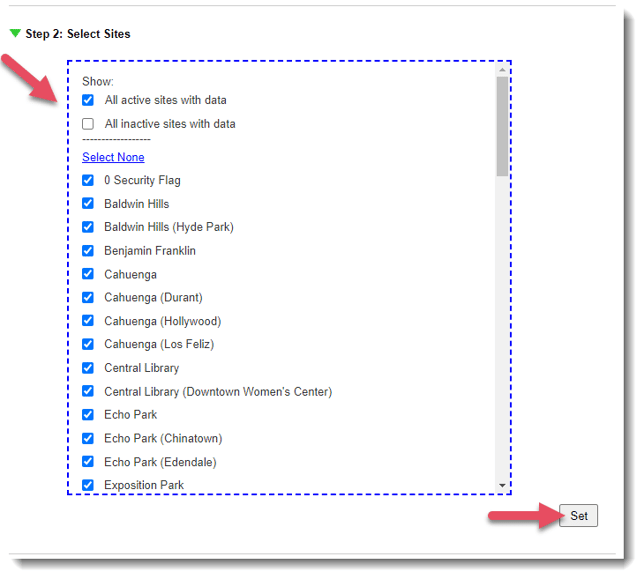 Click Set to move to the next step.
 -
Step 3 - Select your date range by using the drop-down menus to select your start (From) and end dates (To).
If you need to export data from specific surveys during a given period of time, enter that time in the To and From menus, and then select the specific surveys by clicking Select specific reports from this period (optional).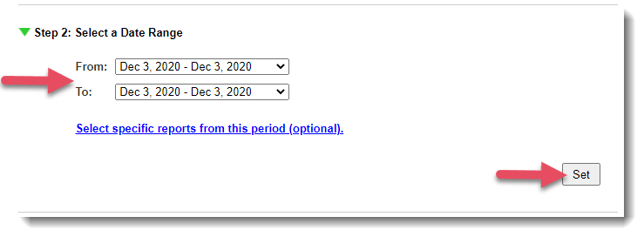 To move to the next step, click Set.
 -
Step 4 - Select the data include by choosing an option (All Data or Saved Selections or Customize).
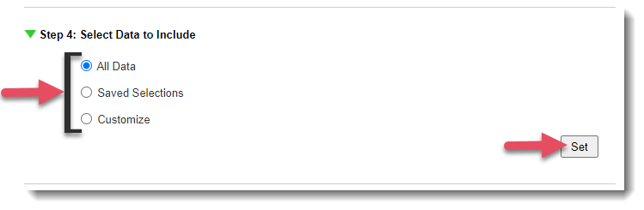 Click Set to save your selections.
 -
To see your selection, click the View Data button.
Need to Export data to Excel? Checkout this article.