
Navigation
The Action Center is designed to connect you to the items in your Impact Suite that need your immediate attention.
Navigate between actions you've been given permission to access by using this drop-down menu: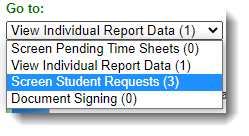
Screening Group Requests
- On the left, in your Mission Control, click Action Center. (You will also be able to see how many items are waiting for your review.)
- When the Action Center opens, use the Go to drop-down menu and select Screen Group Requests.
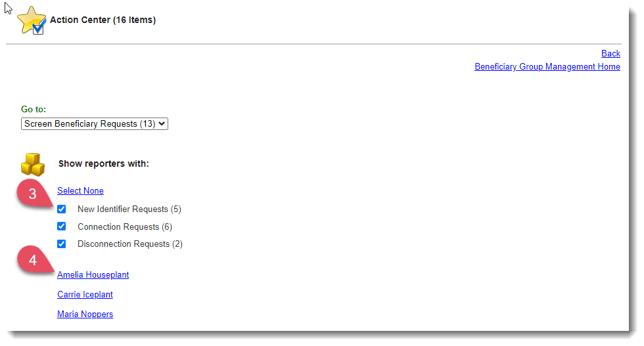
- From here, choose which request types you’d like to review: New Requests, Connection Requests, Disconnection Requests.
- Once you select a reporter’s name, you’ll see all the type(s) of request they submitted. Select Identifiers one-by-one (by clicking the Review link to the right) or Mass Review Requests (by checking the Identifiers you would like to review and clicking the Mass-Review Requests link, see image below).
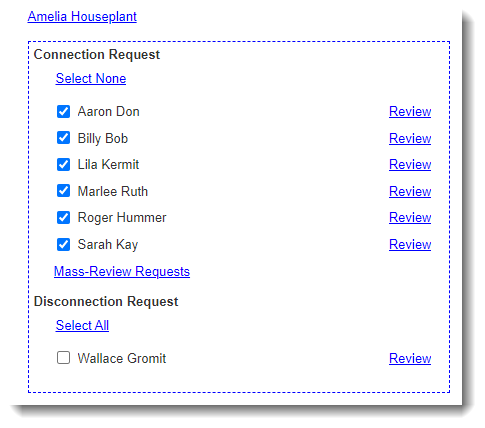 Either method will give you the option to notify the reporter by e-mail that you have approved or rejected the request.
Other Options
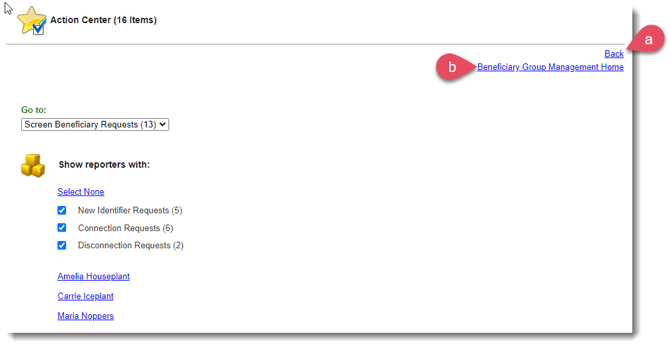
- Return to your Mission Control by clicking Back.
- To access your Group Management Home page, click this link.
Admin Permissions
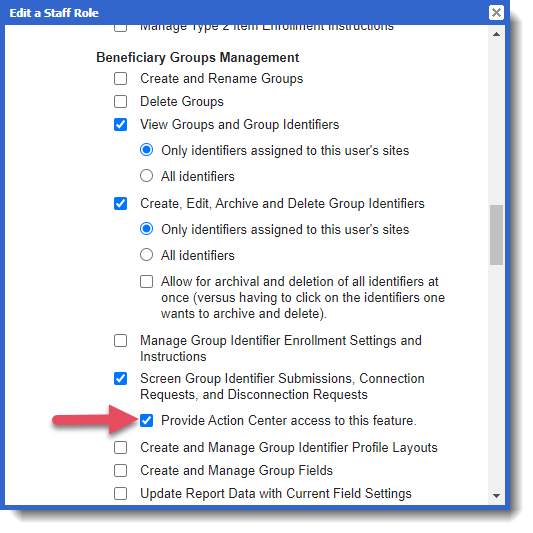
In order to access the Action Center, you'll need to turn it on in each applicable Admin Role.
- On the left, in your Mission Control, click the Reporters, Admin, & Sites.
- On the right, click Manage admin roles.
- Find the role you would like to change and click the Edit link.
- When the window opens, you can turn on permissions to Screen Group Submission, Connection and Disconnection Requests in the Action Center here:
- To save your changes, scroll to the bottom of the window and click Update.