
Access Reporter's Timesheet: Email Link
When a reporter submits a timesheet for approval, you will receive an email from America Learns when it is your turn to screen and sign the timesheet.
TIP: Whether you receive these emails depends on your assigned admin role settings. If you don’t have permission to update admin role settings, contact your program’s Impact Suite administrator.
Here’s what to do:
- Click the link in the email to access the timesheet.
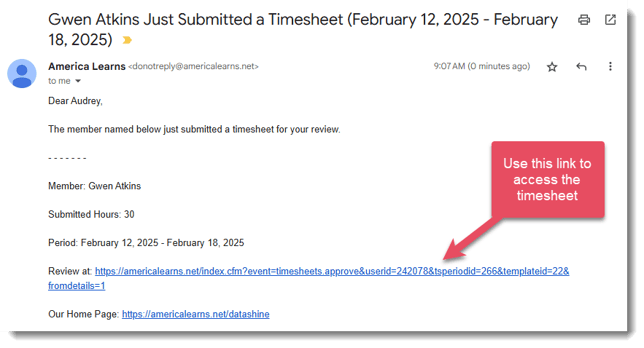
- You will be taken to a login screen. Enter your username and password.
- The timesheet will load.
Access Reporter's Timesheet: Action Center
Your Action Center is updated whenever you have a timesheet that is pending your review.
Here's what to do:
- Log in with your username and password.
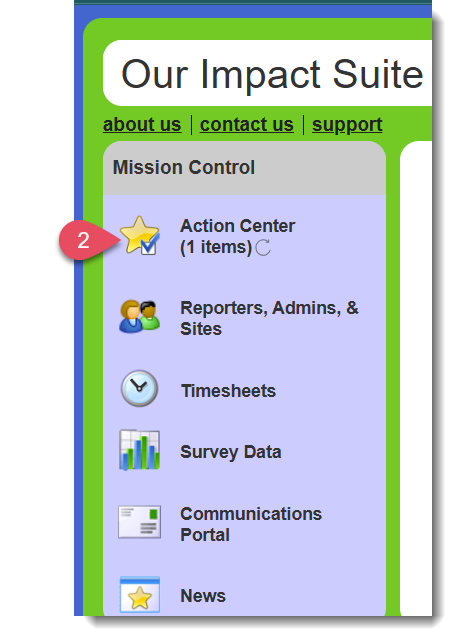
- In the Mission Control, your Action Center will show the number of items awaiting your review:
- In the Screen Pending Timesheets section of the Action Center, select the name of the reporter under the timesheet you want to review
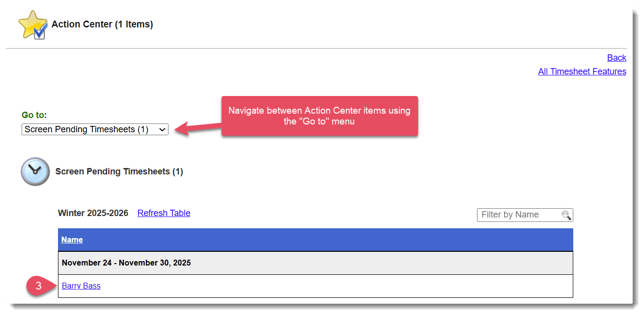
- The timesheet will load.
Screen Timesheet
The one-by-one timesheet screening method is the most thorough, allowing you to review each reporter’s complete timesheet and its associated audit trail.
The timesheet will look something like this:
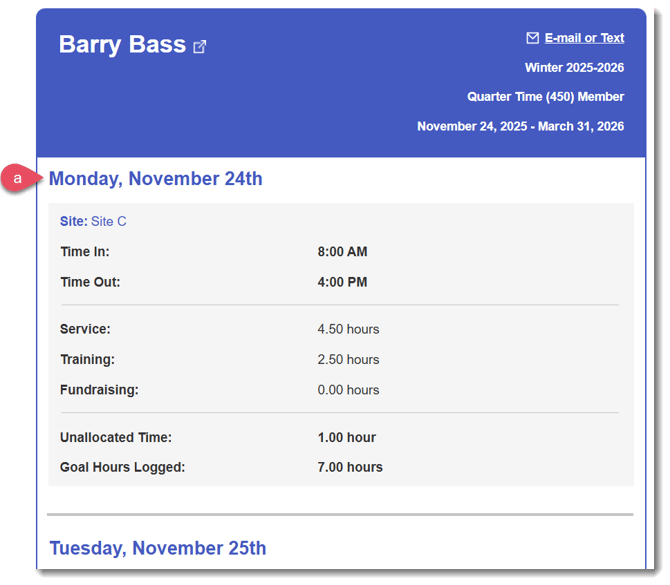
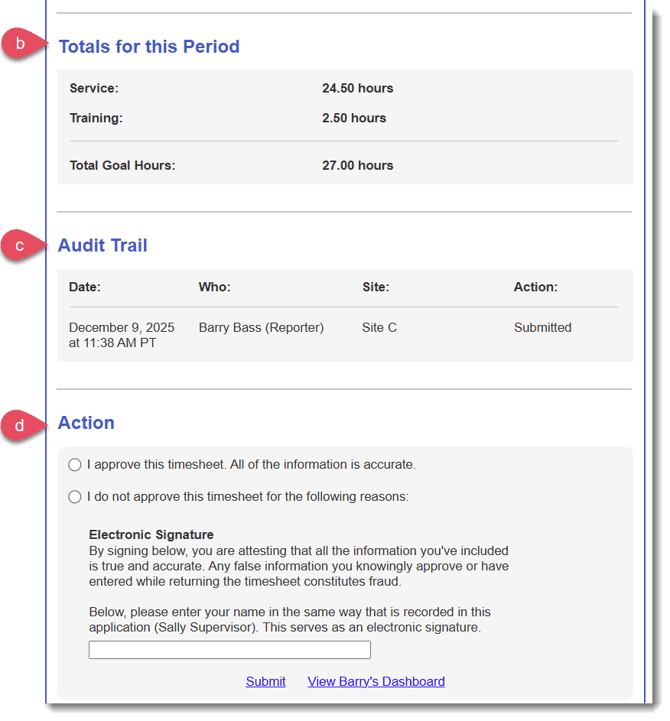
- A day-by-day breakdown of the time the reporter logged for your site.
- A section called Totals for This Period totals all of the hours for the period.
- A section called Audit Trail tracks all of the actions that have been taken on the timesheet.
- A section called Action where you can approve or return the timesheet.
Approve A Timesheet:
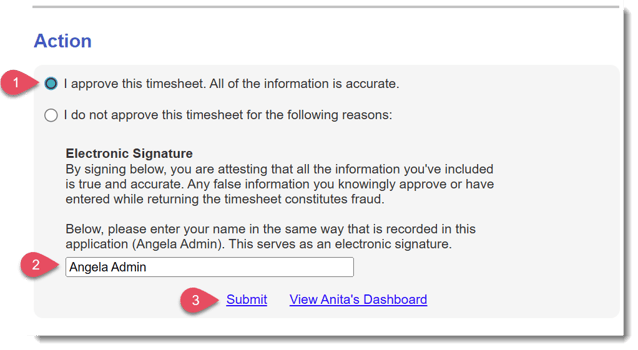
- At the bottom of the page, select “I approve this timesheet. All of the information is accurate.”
- Enter your name at the bottom of the page.
- Click Submit.
Return A Timesheet for Edits
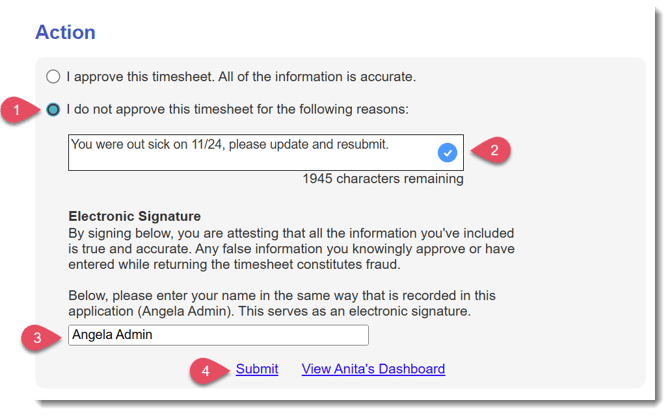
- At the bottom of the page, select “I do not approve this time sheet for the following reasons:”
- In the text box, describe the specific reasons for returning the timesheet. The reason will be listed in the timesheet's audit trail.
TIP: The reporter will see this text and use it to understand what needs to be corrected. Clear, specific guidance here reduces back-and-forth and frustration for both you and the reporter. - Enter your name at the bottom of the page.
- Click Submit.
- You’ll receive an email and an Action Center notification when the reporter resubmits the timesheet and it’s ready for your review again.