
Admin Permissions
Main administrators will have permissions to access these features by default. If you want other admins and supervisors to have access to these features you will need to turn on one of two permissions in their accounts.
Here’s how:
- On the left, in your Mission Control, click Reporters, Admins, & Sites.
- On the right, click Manage admin roles.
-
Click on the role you would like to update.
- If you would like to give an admin reporter the ability to access the Export to Excel features but not make edits to Identifier information, you only need to give this permission:
Groups and Identifiers: View Associations and Association Identifiers
5. If you would like to give an admin reporter the ability to access the Export to Excel features with the ability to make edits to Identifier profiles from this page, give these two permissions:
Groups and Identifiers: View Associations and Association Identifiers
Groups and Identifiers: Create, Edit, Archive, and Delete Identifiers
Getting to the Identifier Exporter
- On the left, in your Mission Control, select Groups.
- Find the section called Manage Groups and use the drop-down to choose the database you’d like to work on.
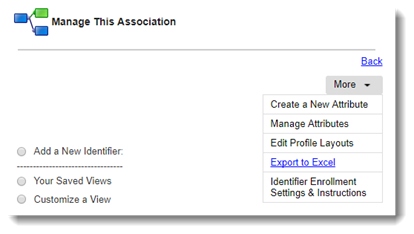
- On the top-right, use the More menu to click Export to Excel.
Select Fields to Include
- Next, choose the Fields you’d like to include.
If you want to include archived Attributes in the list to of Fields to choose from, click the Show Archived Attributes link.
If you want to include all available Attributes in your export, on the right, click the Select All Fields link.
- As you add Fields, you’ll notice that the preview table at the bottom of the page will adjust and display the new information.
- To download your selected data, click the Export button. Download your survey from the pop-up window. Be sure your web browser’s settings allow pop-ups from the americalearns.net domain.
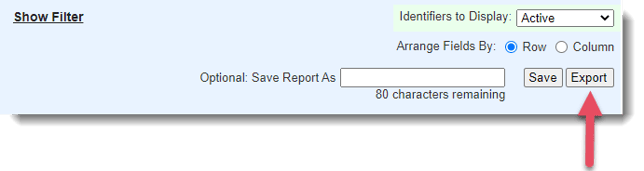
- Here are the additional things you can do on this page:
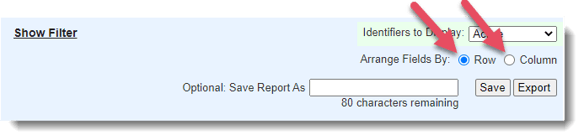
- You can arrange Fields in the table so that appear by in Row-order (Fields from left to right), or in Column-order (all selected Fields from the left-side columns in a panel, then all selected Fields from the right-side columns in a panel).
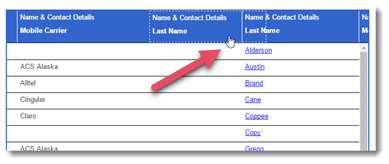
- Drag and drop any column to adjust the order of columns for your download.
- Additionally, you can edit any cell by clicking the Pencil Icon or remove any column from the table by clicking the Trashcan Icon.
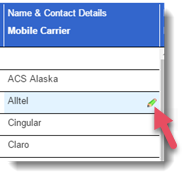
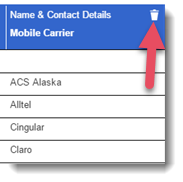
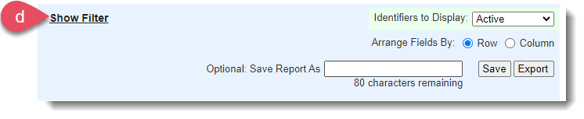
- Add filters by clicking the Show Filter link (see next section).
- Save your survey for later access.
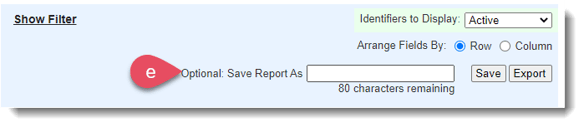 If you save your survey, you will be able access them at the top of the page: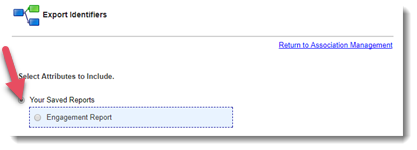
- Export your selected data to Excel by clicking the Export button.

- You can arrange Fields in the table so that appear by in Row-order (Fields from left to right), or in Column-order (all selected Fields from the left-side columns in a panel, then all selected Fields from the right-side columns in a panel).
Using the Filter (Step 4d from above)
There may be times when you want to filter your export list so that only reporters whose accounts meet specific conditions are included in the export. Take advantage of the filter to get the exact export you need.
Once you choose how to organize your export (Step 1) and have selected the Attributes to include (Step 2), select the Show Filters link.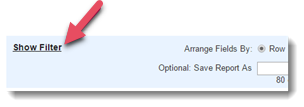
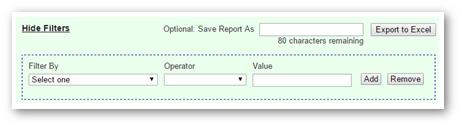
- Choose the first Attribute to Filter By.
- Next you will choose your Operator.
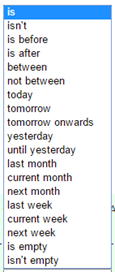
- The Operator is dependent on the Attribute type. Below, you will find a list of Attribute types and the operators by which you can filter your export.
Field TypeOperator
Date
Email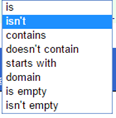
Phone Number
Quantitative Text;Quantitative Single Select;Quantitative Multi Select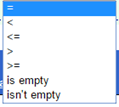
Qualitative Single Select;Qualitative Multi Select;Free Text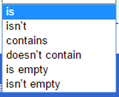
3. To create a logical string of more than one filter request, the system will begin to build a pattern using AND/OR statements.
- The Operator is dependent on the Attribute type. Below, you will find a list of Attribute types and the operators by which you can filter your export.
- Add additional filter options by clicking the Add button.
- Edit the logical pattern by click the Edit Pattern link.