
Access Admin Role Management
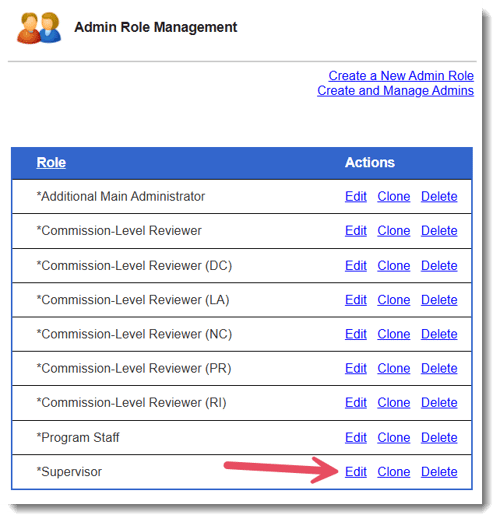
- In Mission Control, click Reporters, Admins, & Sites.
- Click Manage Admin Roles.
- Locate the Admin Role you want to update.
- Click Edit.
Review Site Management Permissions
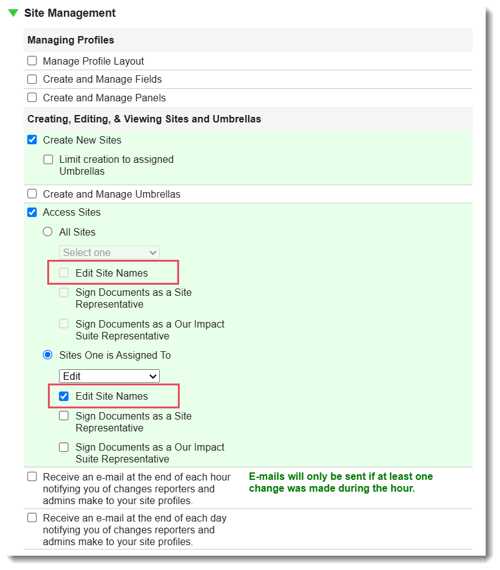
- Scroll to the Site Management section.
- Confirm Access Sites is enabled.
- Confirm one of the following site access options is enabled:
- All Sites
- Sites One is Assigned To
CAUTION: Do not disable Access Sites if users assigned to this role still need site-related access.
Disable Edit Site Names
- Open the permission options under the selected site access setting.
- Locate Edit Site Names.
- Uncheck the Edit Site Names checkbox.
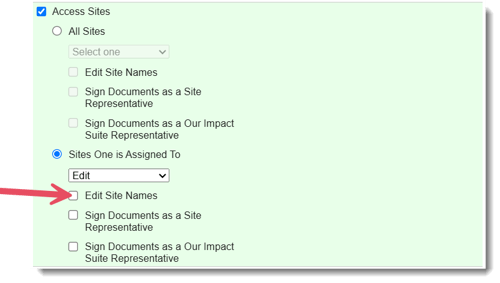
NOTE: The Edit Site Names permission appears under both All Sites and Sites One is Assigned To when the role has permission to edit or edit and delete sites.
NOTE: The Edit Site Names option is grayed out when the role has read-only site access.
Keep Other Site Permissions Enabled
- Review the remaining site permissions.
- Leave the permissions enabled that users still need, such as creating sites or updating allowed site settings.
- Confirm only the site name editing permission has been removed.
TIP: Update one Admin Role at a time so you can confirm the change before applying the same pattern to other roles.
Save The Role Changes
- Click Save.
- Confirm the updated role allows the intended site actions but does not allow site name changes.
Test The Updated Role
- Log in as a user assigned to the updated Admin Role.
- Open the site creation area.
- Create a new site.
- Open the newly created Site Profile.
- Confirm the user can access the site record.
[Screenshot Placeholder: Site Profile for a newly created site opened by a user assigned to the updated Admin Role.]
Verify Site Name Editing Is Blocked
- Attempt to edit the site name from the Site Profile.
- Confirm the site name field cannot be changed.
- Confirm the user can still complete other allowed actions, such as updating the time zone or other permitted site settings.
CAUTION: If your organization uses strict naming conventions or sends site data to another system, test this permission change before applying it broadly.
Best Practices
- Test the change with a real user account after saving the role.
- Use a test or supervisor account before applying the change to production users.
- Document which Admin Roles have Edit Site Names disabled.
- Use the same permission pattern across roles that need the same restriction.