
Once you have created your Group, managed your profile layout, added fields, and created enrollment instructions you will be ready to add Identifiers to your database.
There are three ways to enroll new identifiers into your Groups:
Access support on enrolling group identifiers using Excel here.
Video Support
See the CHAPTER called 1 Enrolling Identifier (Timestamp: 06:56).
Enrolling Group Identifiers One-by-One
Here’s how:
- On the left, in your Mission Control, click Groups.
- Find the section called Manage Groups and use the drop-down menu to select your group.
- On the next page, select the Add a New Identifier radio dial, enter the Identifier, and click the Add button.
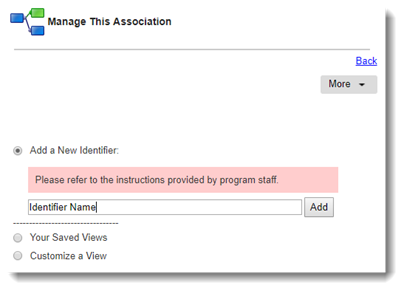 You’re able to enter an unlimited number of Identifiers.
Note: that the Impact Suite will automatically alphabetize Identifier names by the first letter or number you enter in each row. If you’d like to have the names listed alphabetically by last name, first enter the last name (e.g., Solis, Marietta). - If there are any fields marked as mandatory for an admin to complete, you will see a pop-up window: the Identifier Settings window.
Here you can:- Use the Assignment Details panel to assign the Identifier to reporters.
- Enter any Attribute data that is required.
- Use the Assignment Details panel to assign the Identifier to reporters.
- If there are no Fields marked as mandatory for an admin, you can access the Identifier Settings window by clicking the Edit link to the right of any Identifier.