
Within your Impact Suite you can capture all of your AmeriCorps Member files. Here's how.
Video Resource
Creating a Custom Panel
To create a new custom panel:
- On the left, in your Mission Control, click Reporters, Staff, & Sites.
- On the right, click Manage reporter accounts.
- On the right, use the More drop-down menu and select Manage Fields and Profile Layout.
- On the top-right, click Create a Panel.
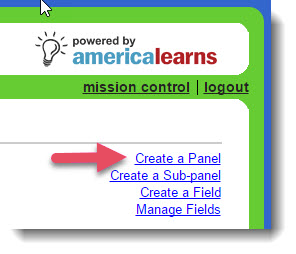
- A window will open.
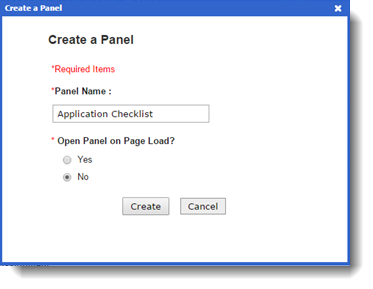
- Type your new Panel Name.
- Decide if you would like this panel to be open on page load or not.
- Click the Create button.
Newly created panels will appear below your standard panels (but can be moved by simply dragging and dropping).
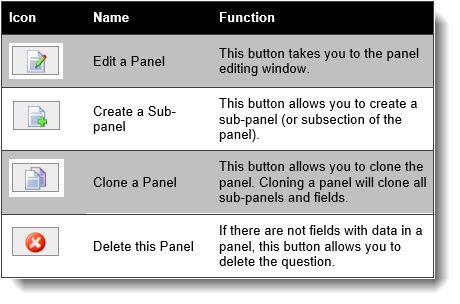
Custom panels will have the following action options:
Editing Panel Visibility Settings (Hiding Panels)
After a custom panel is created you can edit it by updating the Visibility Settings. This will be an important step to follow if you have panels designed to only be visible to reporters in certain program years.
To Edit a panel;
- On the left, in your Mission Control, click Reporters, Staff, & Sites
- On the right, click Manage reporter accounts.
- On the right, use the More drop-down menu and select Manage Fields and Profile Layout.

- Open the panel using the green arrow.
- Click on the Edit button.
- A window will open.
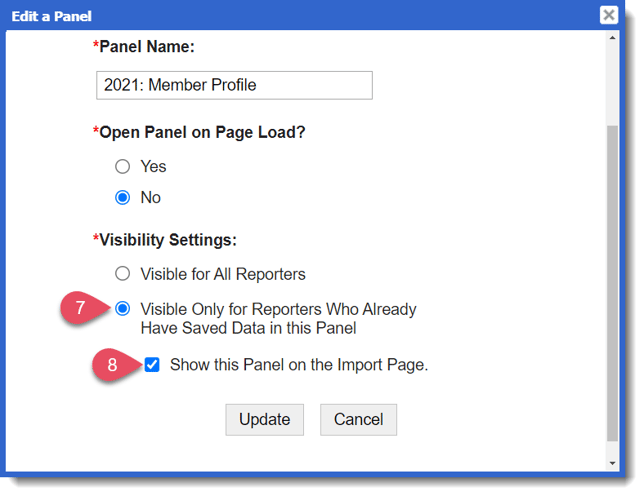
- Here, change the setting from Visible for All Reporters to Visible Only for Reporters Who Already Have Saved Data in this Panel.
This will hide the panel for both reporters and staff if there is no current data in any field within the panel. - Optionally, you can remove the panel from the space where you import reporters by unchecking this box.
- Click Update to save your changes.
Create a Sub-Panel
To create a sub-panel:
- On the left, in your Mission Control, click Reporters, Staff, & Sites
- On the right, click Manage reporter accounts.
- On the right, use the More drop-down menu and select Manage Fields and Profile Layout.
- On the right, click the Create a Sub-panel link.
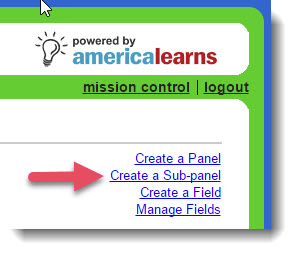
- A window will open:
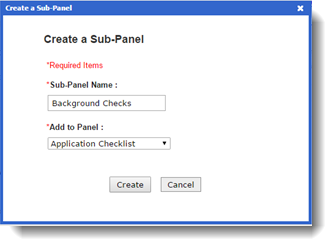
- Give your sub-panel a name.
- Decide which panel you’d like to add it to.
- Click Create.
Creating a Field
To create a field:
- On the left, in your Mission Control, click Reporters, Staff, & Sites
- On the right, click Manage reporter accounts.
- On the right, use the More drop-down menu and select Manage Fields and Profile Layout.
- On the top-right, click Create a Field.
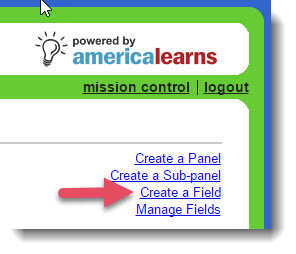
- A window will open:
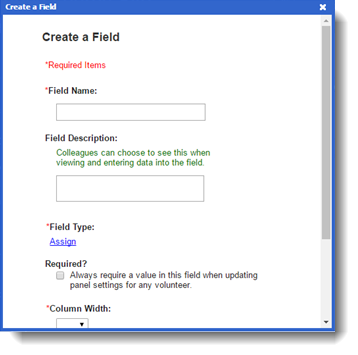
- Type your new Field Name.
- Optionally, you can create a Field Description which is help-text that colleagues can see when viewing the field.
- Next, choose the Field Type.
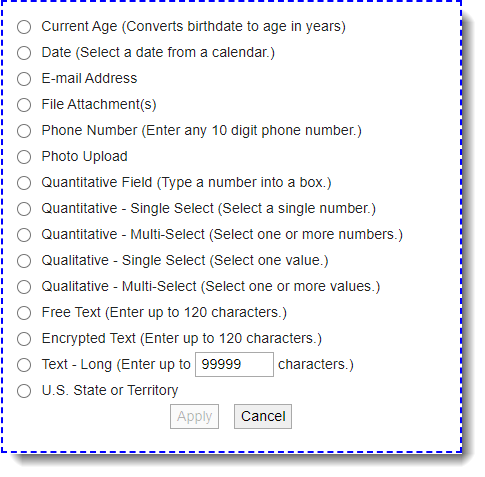
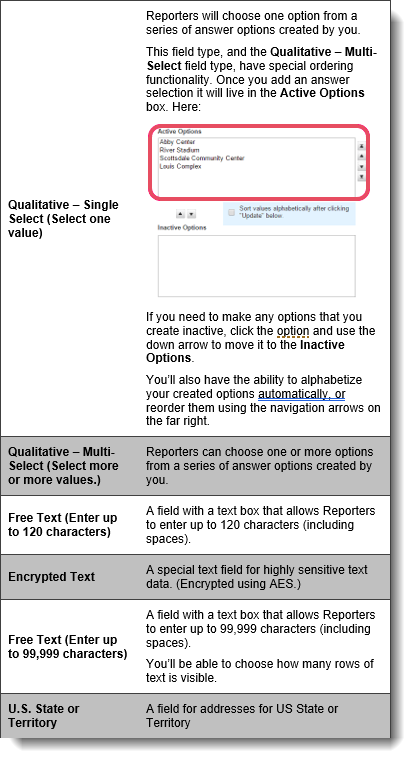
You will have the following field type options: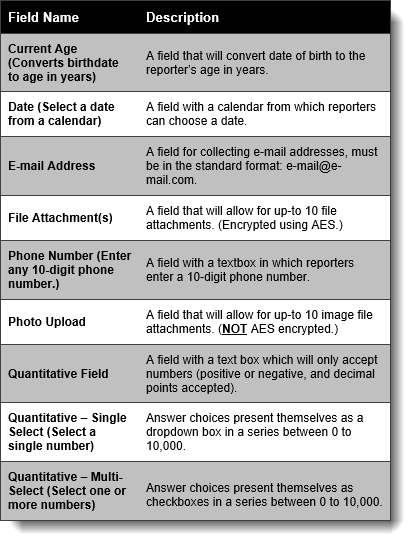
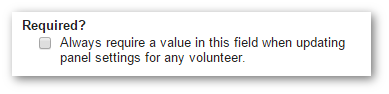
- Next, let the system know if the field should be required.
- Choose the Column Width. Fields can take up one column or both.
- Choose the panel you’d like to add the field to. (Only custom panels and the Name & Contact Details panel will be available.)
- (Optional) Choose the sub-panel you’d like to add the field to.
- Next give reporters the ability to see that field’s content and/or to add and edit content in that field.
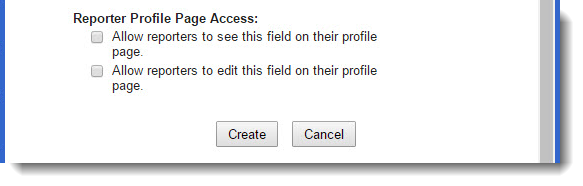
- Click Create.
Remember you can move newly created fields to any custom panel (or to the Name & Contact Details panel just by clicking and dragging.
Managing Fields
To manage and edit fields, use this link:
- On the left, in your Mission Control, click Reporters, Staff, & Sites
- On the right, Manage reporter accounts.
- On the right, use the More drop-down menu and select Manage Fields and Profile Layout.
- On the top-right, click Manage a Field.
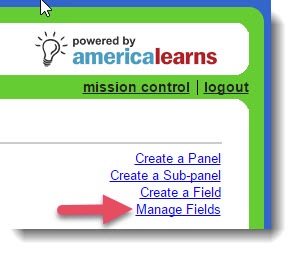
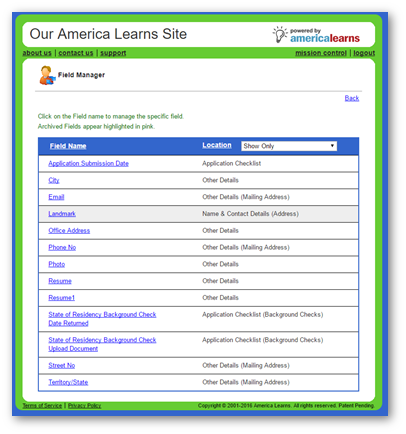
- The Field Manager page will open.
- Click a field name to open the editing window.
- Here you will make any edits you see fit and click Update.
- To archive a field, click the Archive This Field link.
- You’ll first need to confirm that you want to archive it before deleting the field by clicking I confirm that I want to archive this field.
- To archive a field, click the Archive This Field link.
-
-
- Click the Archive This Field button.
-
-
- To un-archive (restore) a field, click the Un-archive This Field link.
- You’ll first need to confirm that you want to archive it before deleting the field by clicking I confirm that I want to un-Archive this field.
- To un-archive (restore) a field, click the Un-archive This Field link.
-
-
- Click the Un-archive This Field button.
-
-
- To delete a field, click the Delete This Field link.
- You’ll first need to confirm that you want to delete it before deleting the field by clicking I confirm that I want to delete this field and all data in it.
- To delete a field, click the Delete This Field link.
-
-
- Click the Delete This Field button.
-