Video Resource
Time Zone Management
Time Zone Management in the Impact Suite helps organizations maintain accurate timesheet submissions by aligning reporting with the correct time zones for each site. This ensures that timesheets are never submitted before the final time out on the last day of service for any timesheet period, promoting accuracy and compliance.
With Time Zone Management, you can assign a single time zone for all sites or set unique time zones for individual sites based on their location. For organizations using the Umbrellas feature, time zones can be automatically assigned to current and new sites based on their Umbrella assignment, streamlining the setup process.
By tailoring time zone settings to your organization’s needs, this feature simplifies timesheet management and enhances the integrity of your data.
Admin Permissions Needed to Manage Time Zones
In order to manage time zones, you'll need to have the following permissions in your Admin Role: 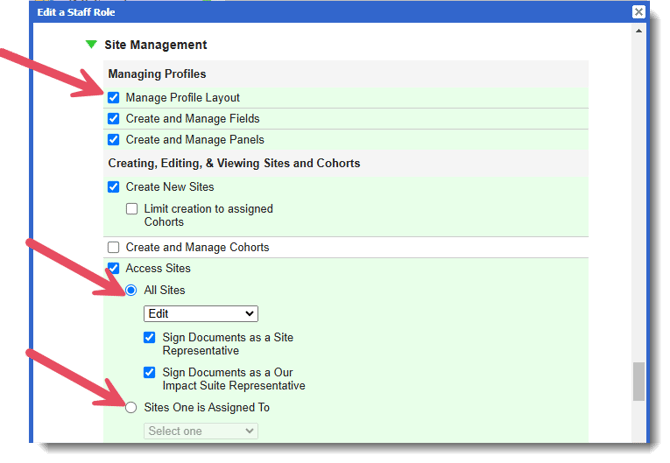
- Site Management > Manage Profile Layout
- Access Sites > All Sites > Edit or Edit and Delete
OR - Access Sites > Sites One is Assigned To > Edit or Edit and Delete
- Access Sites > All Sites > Edit or Edit and Delete
Here are the steps for updating your Admin Roles:
- On the left, in your Mission Control, click the Reporters, Admins, and Sites.
- On the right, click Manage admin roles.
- Find the role you would like to change and click the Edit link.
- When the window opens, scroll to the Site Management panel. (To find out more aboAdmin Permissions: check out this article.)
- From here, ensure the following permissions are enabled:
Site Management > Manage Profile Layout- Access Sites > All Sites > Edit or Edit and Delete
OR - Access Sites > Sites One is Assigned To > Edit or Edit and Delete
- Access Sites > All Sites > Edit or Edit and Delete
- To save your changes, scroll to the bottom of the window and click Update.
Before Your Dive In
There are a few important notes before you get going with managing time zones in your Impact Suite.
- You will need to create at least one site to manage time zones. Check out this article for more help.
- By default, all sites will be listed in the Pacific (PT) time zone. If all of your sites are in the Pacific (PT) time zone, you won't need to do anything else.
- If all your sites are in the same time zone (other than Pacific), check out Method 1 below.
- Method 2 below will be the easiest approach if you have sites in multiple time zones.
Method 1: All Sites in the Same Time Zone
If your program only serves a single time zone, this is your spot. The steps here are super simple.
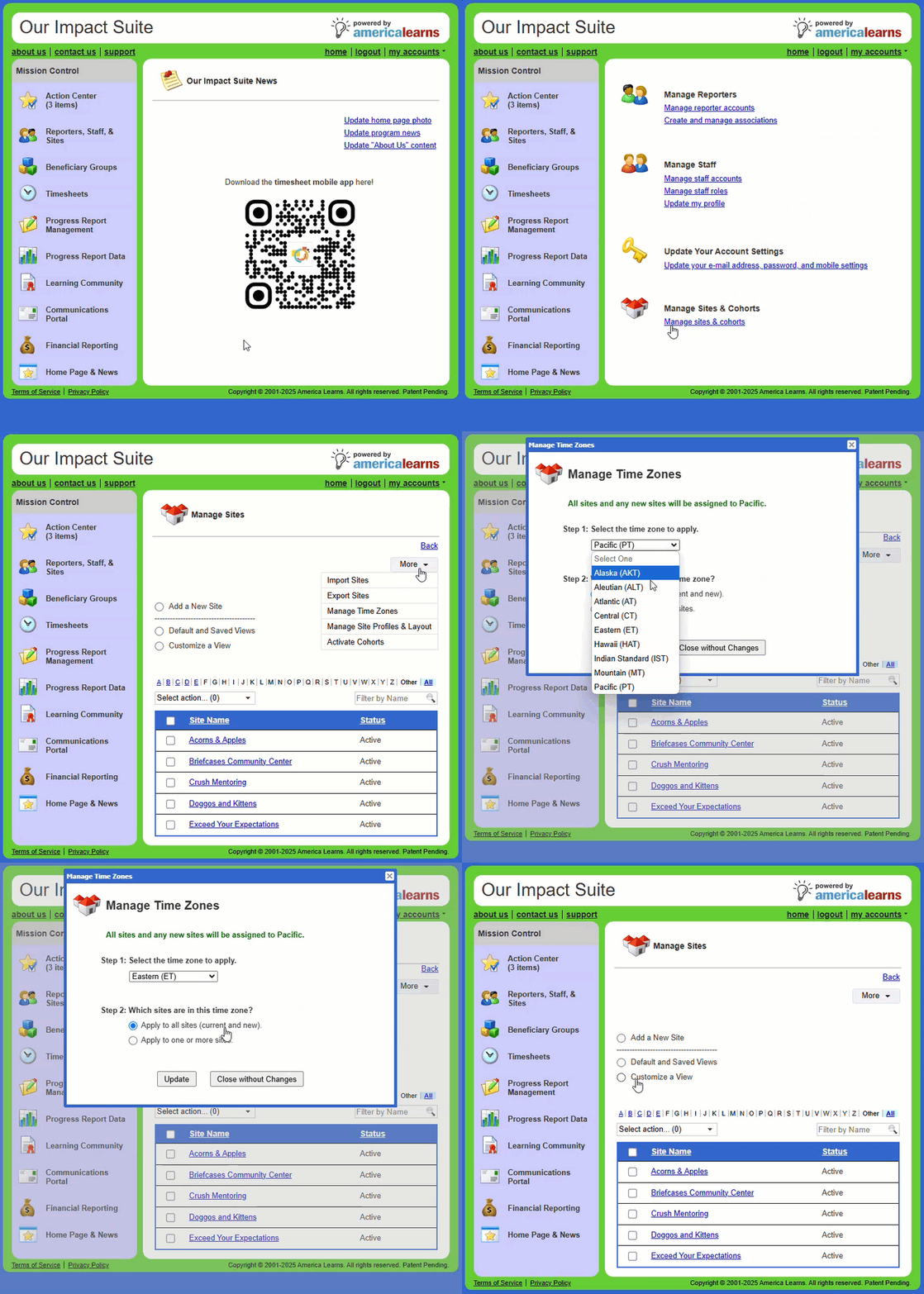
Here are the steps for managing time zones:
- On the left, in your Mission Control, click Reporters, Admins, & Sites.
-
On the right side, click Manage sites.
-
On the far right, use the More drop-down menu and select Manage Time Zones.
-
A window will open.
-
Step 1: Select the time zone to apply.
-
Step 2: Select the sites to which the time zone should be applied. Your options are:
-
Apply to all sites (current and new).
-
Apply to one or more sites.
-
-
Click Update to save your work.
Method 2: Multiple Sites in Different Time Zones
You should leverage our Excel import feature if you have sites in different time zones.
Step 1: Update one site with a time zone that isn't Pacific.
First, you'll need to update just one of your sites with a time zone other than Pacific. This tells the system that you have multiple time zones.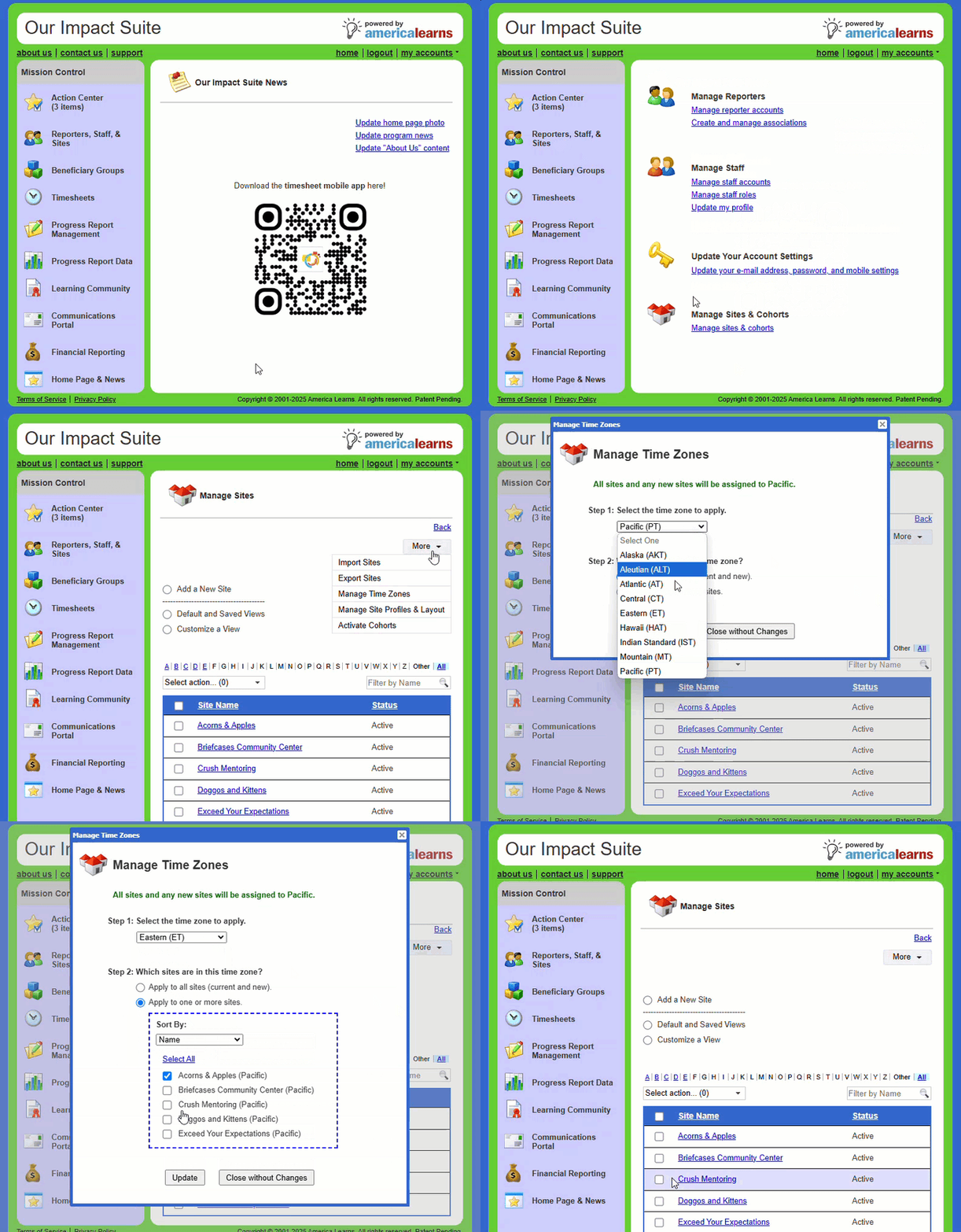
Here are the steps:
- On the left, in your Mission Control, click Reporters, Admins, & Sites.
-
On the right side, click Manage sites.
-
On the far right, use the More drop-down menu and select Manage Time Zones.
-
A window will open.
-
Step 1: Select the time zone to apply. (Any time zone except Pacific.)
-
Step 2: Select the sites to which the time zone should be applied.
Choose:-
Apply to one or more sites, and then select a site.
-
-
Click Update to save your work.
Step 2: Export your Excel file.
Next, let's export a list of your sites with the Time Zone column.
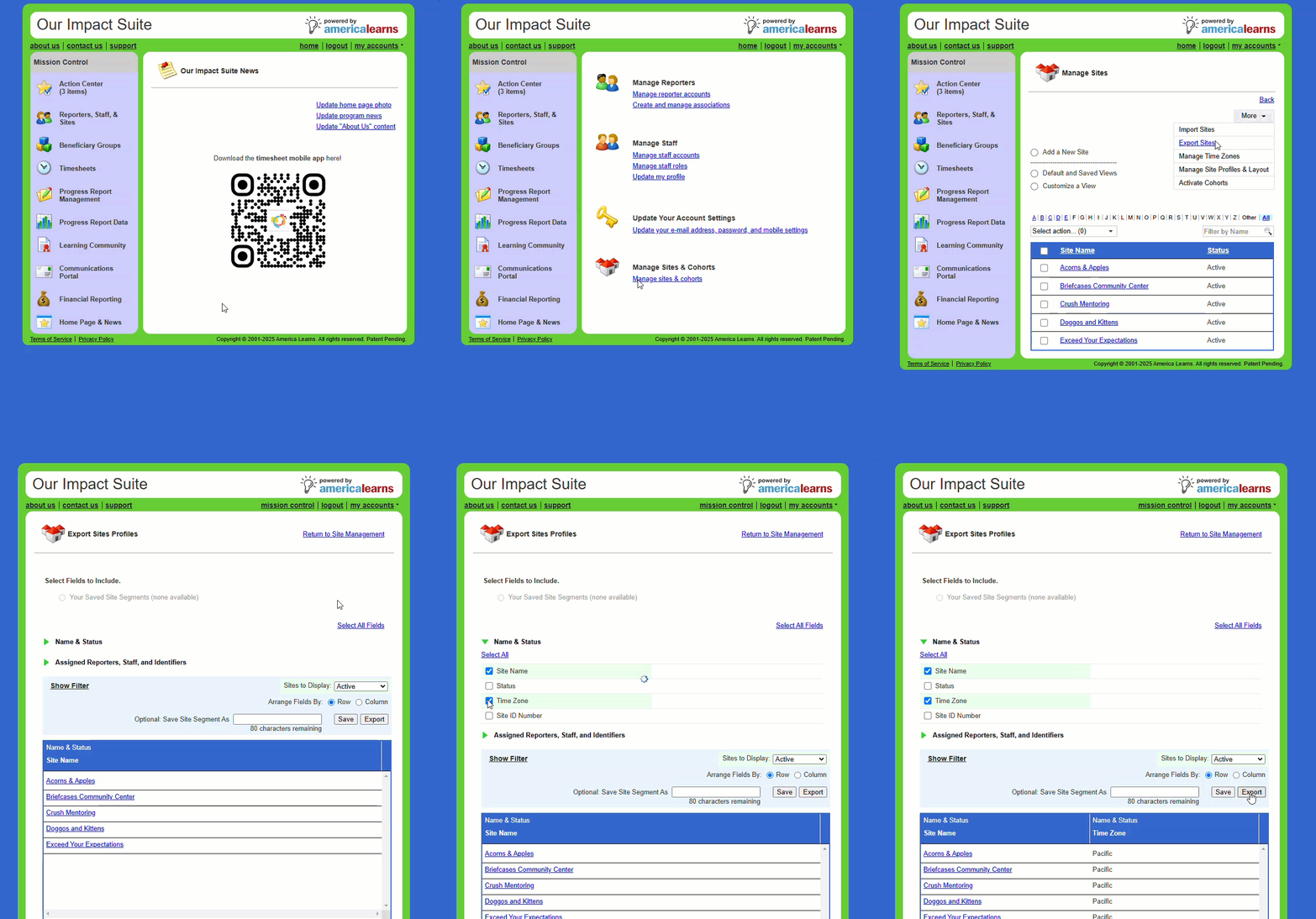
Here are the steps:
-
On the left-hand side of your Mission Control, click Reporters, Admins, & Sites.
-
On the right, click Manage sites.
-
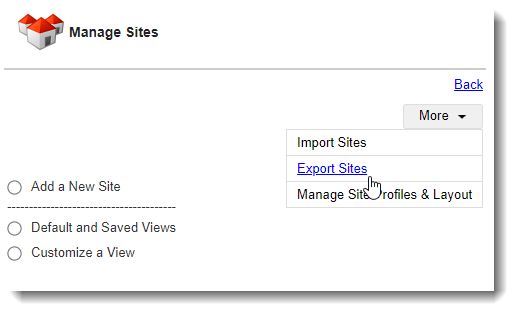
Towards the top-right, use the More drop-down menu to select Export Sites.
-
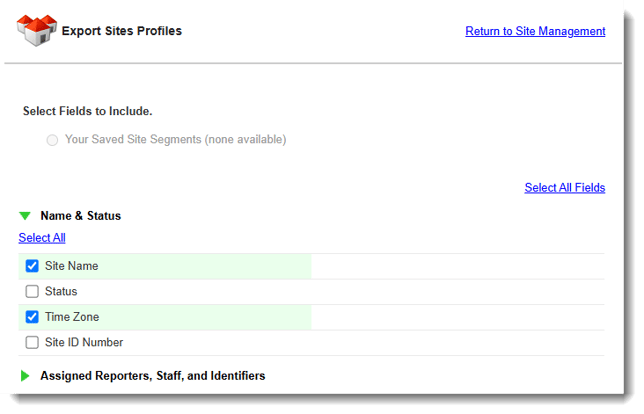
On the next page, open the Name & Status panel and select Time Zone.
-
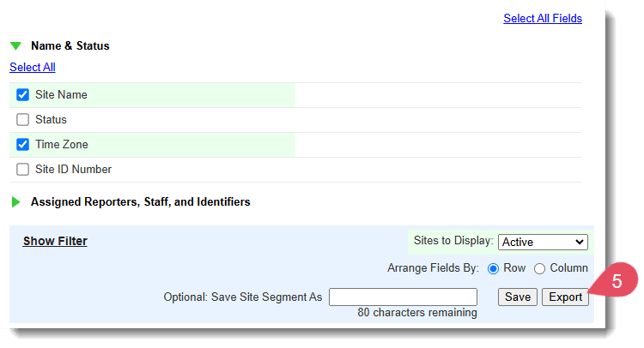
Click Export.
-
This will export your list to an Excel file on your device.
Step 3: Update your Excel file.
Next, you'll update your Excel worksheet or site with the correct time zone.
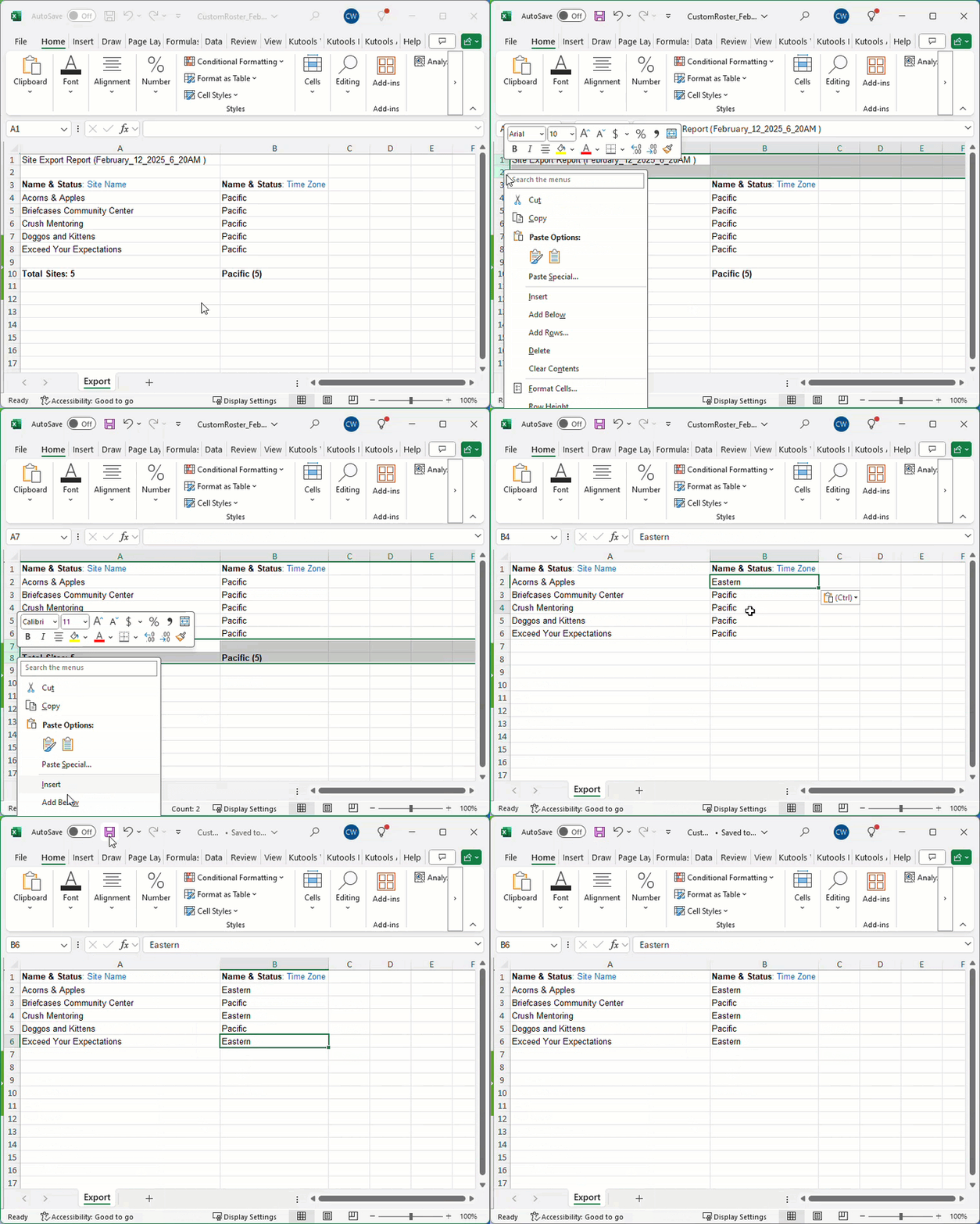
Here are the steps for updating your Excel file:
- Open the Excel file.
- Delete the top two rows.
- Delete the "Totals" row.
- Update the Name & Status: Time Zone column using one of these options. The time zone included in your import must match these options exactly:
Alaska
Aleutian
Atlantic
Central
Eastern
Hawaii
Indian Standard
Mountain
Pacific
- Save your Excel file.
Step 4: Import your time zones.
Next, you'll upload your new time zones into your Impact Suite.
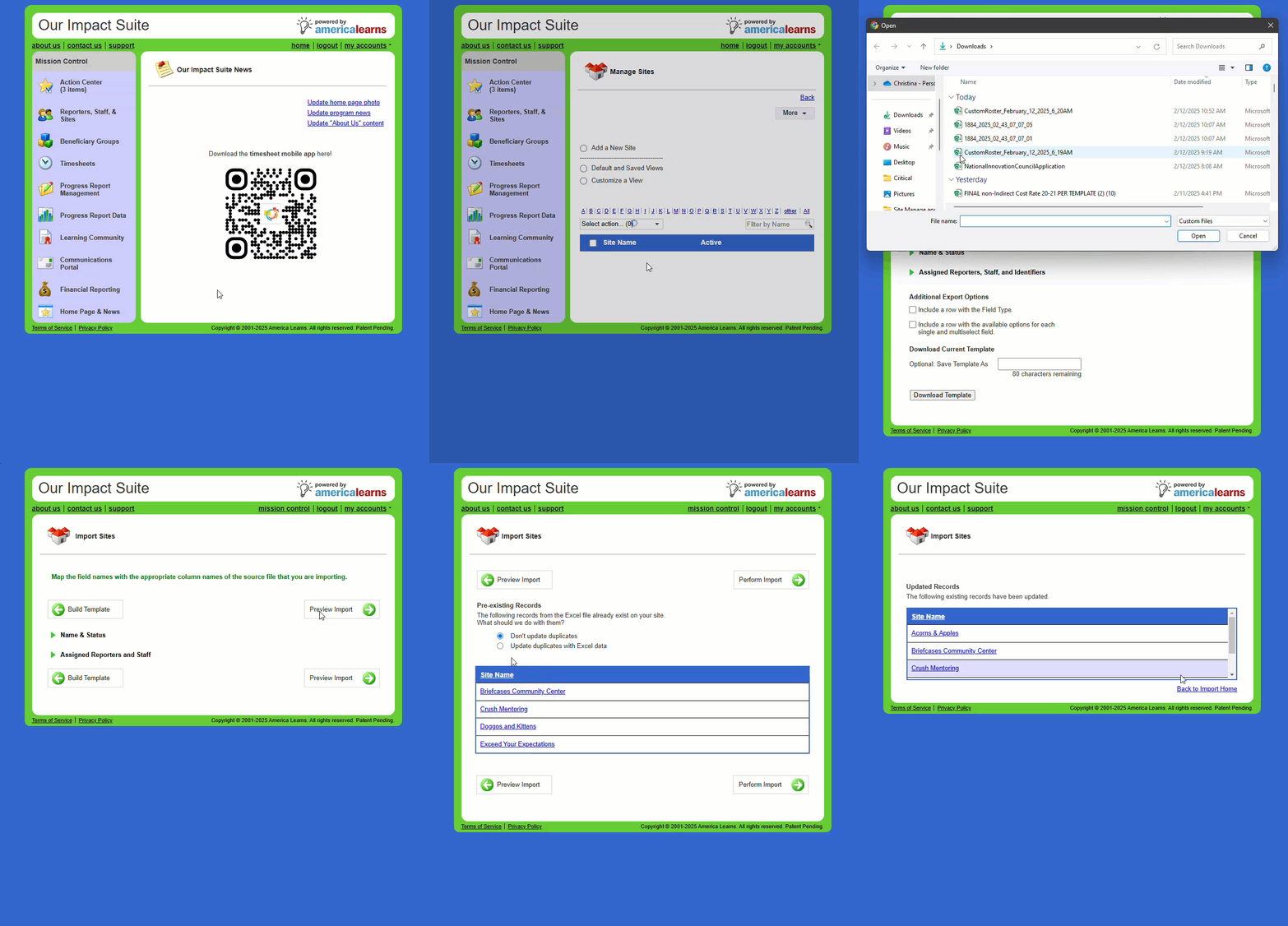
Here are the steps:
- On the left, in your Mission Control, click Reporters, Admins, & Sites.
- On the right, click Manage sites & umbrella.
- On the right, in the More menu, select Import Sites link.
- Use the Choose a File button and select your Excel file.
- Click the Upload Excel File button.
- Next, click Preview Import.
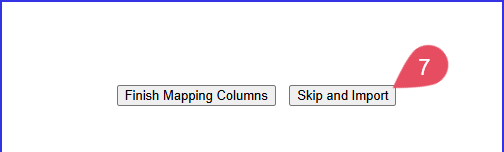
- A window will appear, click Skip and Import.
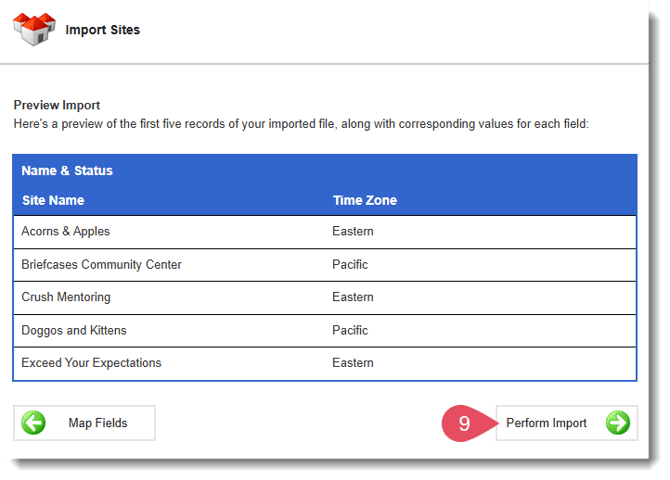
- A preview of your Sites and Time Zones will appear.
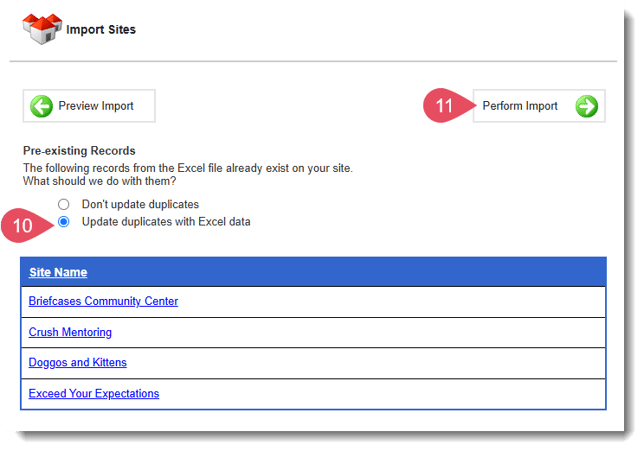
- Click Perform Import.
- If the Pre-existing Records page appears, choose the option to Update duplicates with Excel data.
- Click Perform Import.
Setting Up Submission Day Limits on Your Timesheet Template
To ensure timesheets are submitted accurately and never before the final time out on the last day of service for a timesheet period, you can enable Submission Day Limits within your Timesheet Template. Activating this feature will work with Time Zone Management to maintain data integrity and ensure compliance with your reporting requirements.
Depending on how you read OMB Circular A-122, timesheet systems that allow reporters to complete sheets before the end of a timesheet period may not comply with CNCS policies. To stay in compliance with the strictest interpretations of the OMB circular, it is recommended that you activate the features in this section.
Follow the steps below to configure these settings and tailor the feature to your organization's needs:
- On the left, in your Mission Control, click Timesheets.
- On the right, click Create & manage Timesheet Templates.
- At the bottom of the page, select the template that you’d like to update.
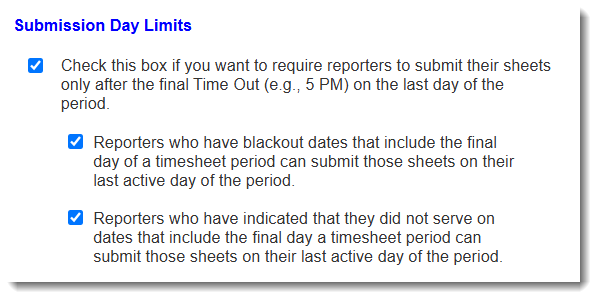
- Scroll to the section called Submission Day Limits.
- To prevent reporters from submitting sheets before their last time out on their last active day of the period, simply click all three checkboxes.
If you activate the feature, here’s what your reporters will see at the bottom of their sheets prior to the last day of any timesheet period (unless they meet one of the two conditions that supersede this rule):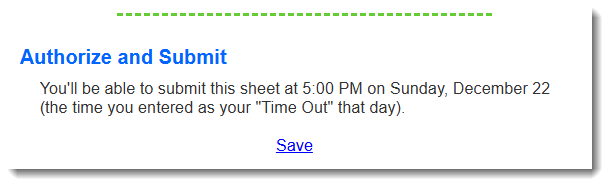
Customize a View
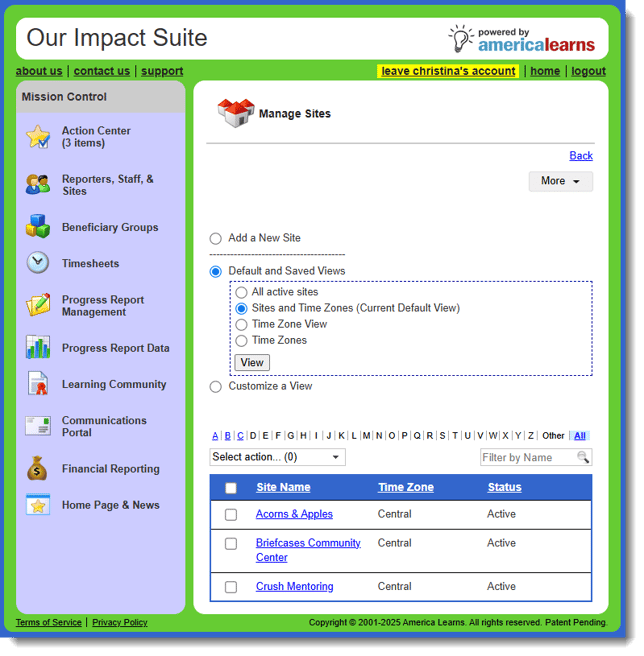
Organizations with sites in multiple time zones might find it useful to see the time zone in their list of sites. Follow these steps to update your Default Site View.
-
On the left, in your Mission Control, select Reporters, Admins, & Sites.
-
On the right, select Manage sites.
-
At the top of the page, you’ll see a section called Customize a View.
-
Select this option to create a specific view of your site and site profile data.
At the top of the table, select whether you’d like to only see one or both of the following types of sites:
- Active Sites
- All archived reporters with data -
Click the Column Selection and check Standard Panels.
-
Next, check Name & Status, then Time Zone.
-
To save this view, type a name into the Optional: Save View As field. (E.g. Sites and Time Zones)
-
Click View to display the table and to (if applicable) save the view.
-
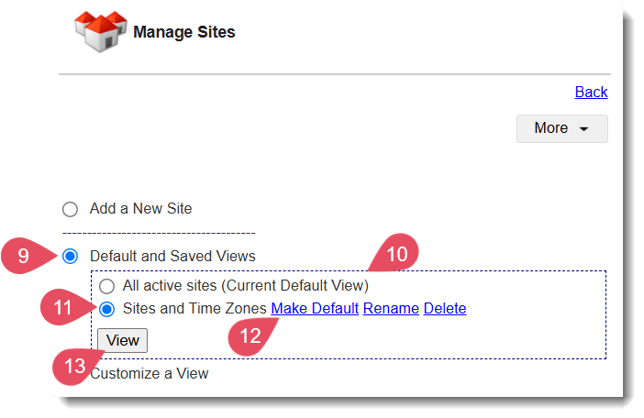
To update your default view, go back to the top of the page and click Default and Saved Views.
-
First, toggle to the option that includes the words "(Current Default View)."
-
Then toggle back to your newly created view (Sites and Time Zones).
-
Click the Make Default link.
-
Click View to save your changes.