
Adding/Importing Sites in Bulk (Using Excel)
- On the left, in your Mission Control, click Reporters, Admins, & Sites.
- On the right, click Manage sites & umbrella.
- On the right, in the More menu, select Import Sites link.
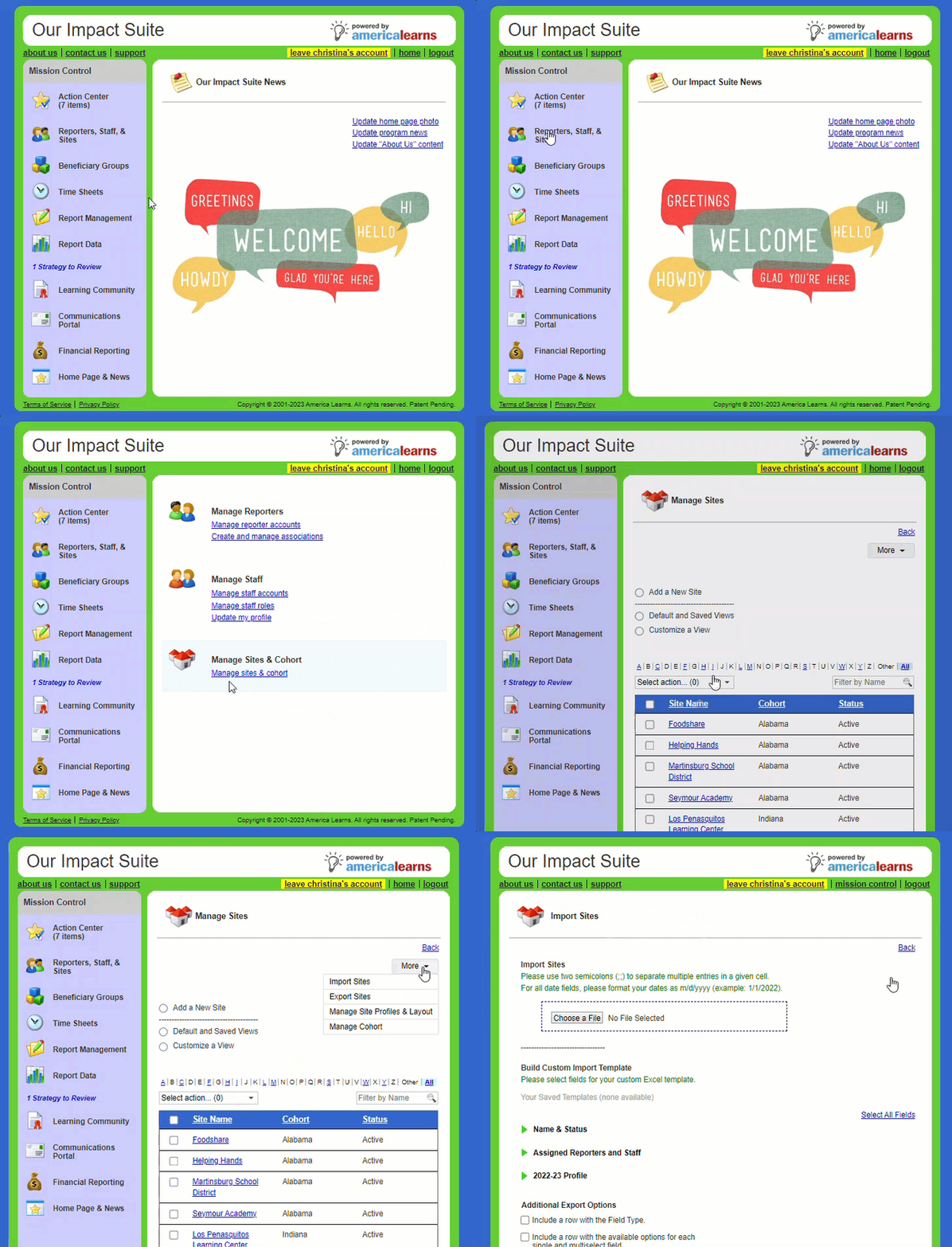
- You can use your own Excel document or create a custom template.
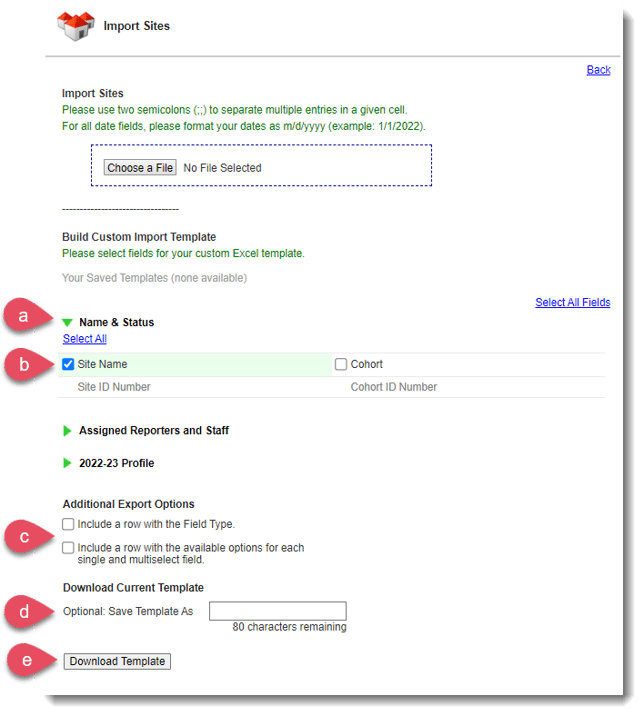 To create a custom template:
- Under the section called Build Custom Import Template, open your panels to choose the fields you’d like included in your custom template.
- At a minimum, in the Name & Status panel, you must include a Site Name.
- In the Additional Options section, you can also:
- Include a row with the Field Type, and/or
- Include a row with the available options for each single and multi-select field.
- To save your template for later use, use the Save Template As section to give it a name.
- Click Download Template.

- Under the section called Build Custom Import Template, open your panels to choose the fields you’d like included in your custom template.
-
At the top of the page, under the section called Import Sites, use the Choose File button.
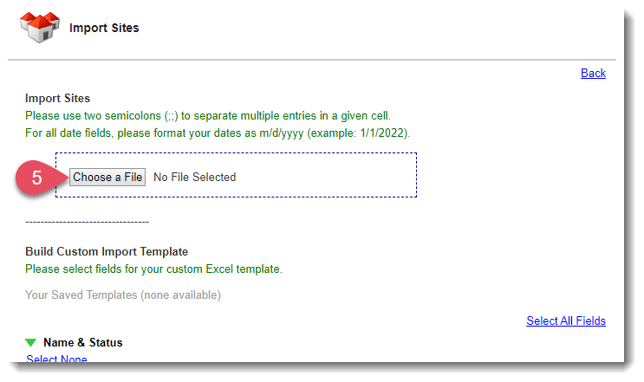
- Click Upload Excel File.
- Next, map your fields to the fields available in your Impact Suite (in both Standard and Custom Panels).
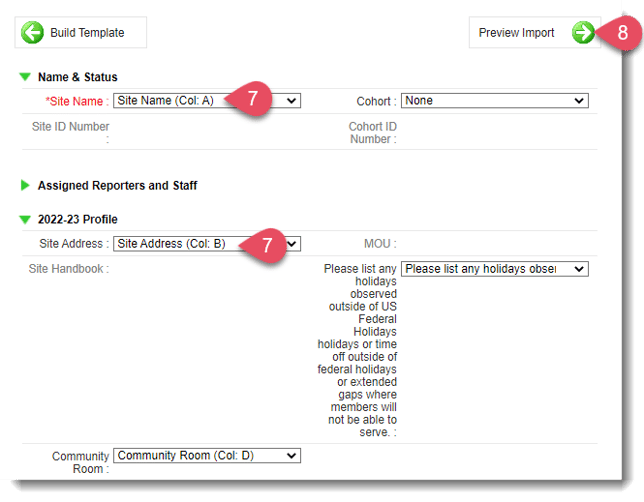
- Once you have mapped your fields, click the Preview Import button to move to the next step.
Note: if there are Excel columns or Impact Suite fields that you have not mapped, you will get a message like this from the system: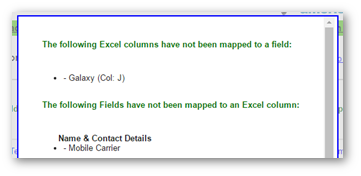
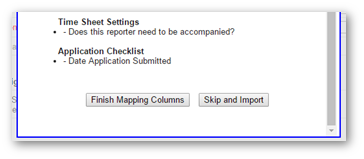
- (If no errors are found skip to #12.)
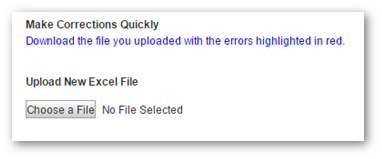
If errors are found on the Excel sheet, you’ll get a detailed list of issues and the option to Download the file you uploaded with the errors highlighted in red for quick correction.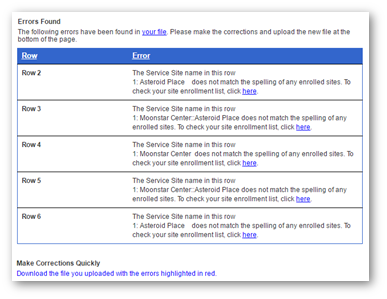 Here’s what the file will look like, errors highlighted in red: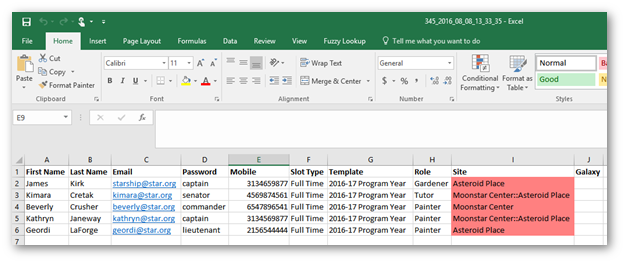
-
Use this section to upload your corrected template:
-
Next, you will need to re-map your fields.
-
Now you will have a chance to Preview Import.
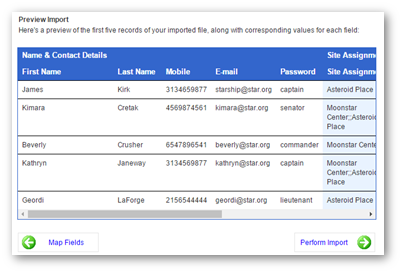
This is a good opportunity to make sure you properly mapped your template. If you find issues, you can use the Map Fields back button to correct any mistakes.
-
Once you’re satisfied with your preview, proceed to Perform Import.